

Font Management
Deckyard includes a curated library of Google Fonts and lets you add custom fonts from multiple sources. Fonts are managed per organization and can be assigned to any theme.
Curated Fonts
Section titled “Curated Fonts”Deckyard ships with 40 pre-selected Google Fonts across four categories:
| Category | Examples |
|---|---|
| Sans-serif | Inter, DM Sans, Plus Jakarta Sans, Nunito, Open Sans |
| Serif | Playfair Display, Lora, Merriweather, Source Serif 4 |
| Display | Bricolage Grotesque, Fraunces, Sora, Space Grotesk |
| Monospace | JetBrains Mono, Source Code Pro, IBM Plex Mono |
Curated fonts are available to all organizations without configuration. They are served locally from the server (no external requests), and are automatically embedded in exports.
When selecting fonts in the Theme Editor, curated fonts appear grouped by category in the font picker dropdown.
Custom Fonts
Section titled “Custom Fonts”Organizations can add their own fonts from four sources. Custom font management requires the Designer role.
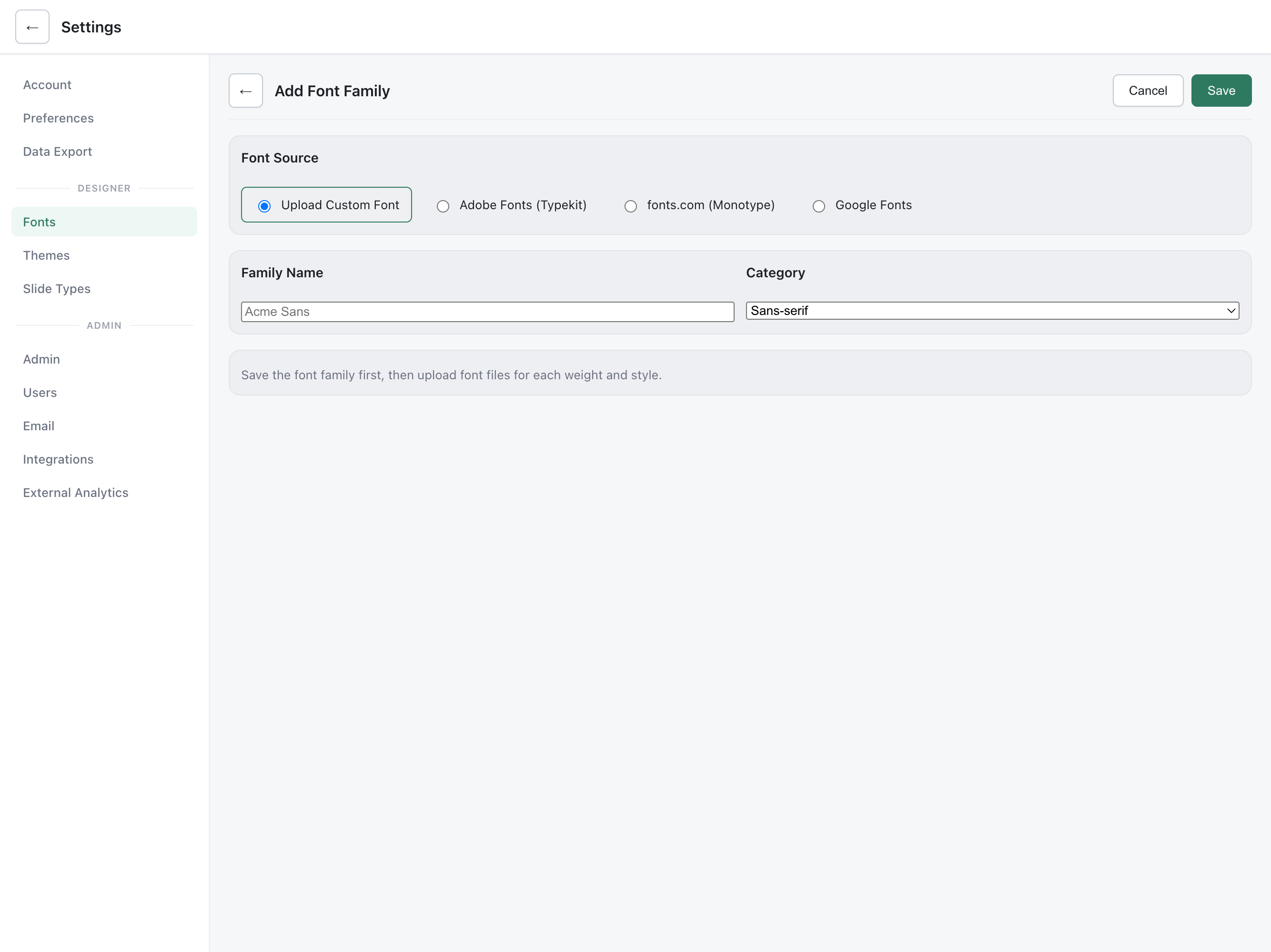
Accessing the Font Editor
Section titled “Accessing the Font Editor”- Navigate to Settings > Fonts
- Click Add Font Family to create a new entry
- Choose a source type
Font Sources
Section titled “Font Sources”Upload
Section titled “Upload”Upload your own .woff2 or .woff font files directly.
- Supported formats:
.woff2(recommended) and.woff - Maximum file size: 5 MB per file
- Files are validated by format (magic byte check) — renaming a non-font file won’t bypass validation
- Upload individual variants (weight + style combinations) after creating the family
Adding variants:
- Create the font family and select Upload as source
- In the variant grid, click Upload for the weight/style combination you need
- Select the font file
- Repeat for additional weights (e.g., Regular 400, Bold 700)
Adobe Fonts (Typekit)
Section titled “Adobe Fonts (Typekit)”Connect fonts from your Adobe Fonts subscription.
- Select Adobe Fonts as source
- Enter your Typekit Project ID (found in your Adobe Fonts web project settings)
- Click Discover Fonts to see all fonts in the project
- Select the font family to import
Adobe Fonts load via an external stylesheet from use.typekit.net. The font is available as long as your Adobe subscription and web project remain active.
Monotype (fonts.com)
Section titled “Monotype (fonts.com)”Connect fonts from your Monotype/fonts.com account.
- Select Monotype as source
- Enter your Project ID
- Optionally specify a version number
- Save the font family
Monotype fonts load via an external script from fast.fonts.net.
Google Fonts
Section titled “Google Fonts”Add any Google Font — including fonts not in the curated library.
- Select Google Fonts as source
- Enter the font family name (e.g.,
Raleway) - Optionally specify weights (e.g.,
400,600,700). If omitted, defaults to 400, 600, and 700 - Save the font family
Google Fonts load via the Google Fonts CSS2 API.
Font Categories
Section titled “Font Categories”Every font family is assigned a category: sans-serif, serif, display, or monospace. This determines:
- How the font is grouped in the font picker
- The CSS fallback stack (e.g., serif fonts fall back to
serif, monospace tomonospace)
Deleting Fonts
Section titled “Deleting Fonts”When you delete a font family:
- All associated variants and uploaded files are removed
- Any themes referencing the font automatically fall back to their curated font setting
- No presentations are broken — they just revert to the theme’s fallback font
Assigning Fonts to Themes
Section titled “Assigning Fonts to Themes”Fonts are assigned to themes through the Theme Editor:
- Open a theme in the Theme Editor
- Use the Heading Font and Body Font dropdowns
- Both curated and custom fonts appear in the picker — custom fonts are listed in a separate “Custom Fonts” group
- Save the theme
Body Font Requirements
Section titled “Body Font Requirements”Body fonts need both Regular (400) and Bold (700) weights to properly render slide content (paragraphs, lists, bold text). The font picker enforces this:
- Uploaded fonts only appear in the body font picker if they have both weight 400 and 700 variants uploaded
- Adobe, Monotype, and Google fonts are always available for body use, since their variant availability is managed externally
Heading fonts have no weight restriction — a single weight is fine for titles.
How Fonts Load
Section titled “How Fonts Load”Fonts load differently depending on the context:
| Context | Upload fonts | Adobe / Monotype / Google fonts |
|---|---|---|
| Editor | @font-face rules with file URLs | External <link> or <script> tags |
| Embed views | @font-face rules with file URLs | External <link> or <script> tags |
| Published HTML | Base64-embedded @font-face (works offline) | External <link> or <script> tags |
| PDF / PNG export | Loaded via network (Puppeteer) | Loaded via network (Puppeteer) |
Export Considerations
Section titled “Export Considerations”- Uploaded fonts are fully embedded in HTML exports as base64 data — exports work offline
- External fonts (Adobe, Monotype, Google) require network access in exports. The external
<link>and<script>tags are included, but the export won’t display correctly without internet - PDF and PNG exports always work because the server-side renderer (Puppeteer) has network access during generation
Permissions
Section titled “Permissions”| Action | Required role |
|---|---|
| View available fonts | Any user |
| Select fonts in Theme Editor | Admin |
| Add / edit / delete font families | Designer |
| Upload font variants | Designer |