

Export Formats
Export your presentations for different purposes.
Overview
Section titled “Overview”Deckyard supports exporting presentations to multiple formats for offline use, sharing, and integration with other tools.
Available Formats
Section titled “Available Formats”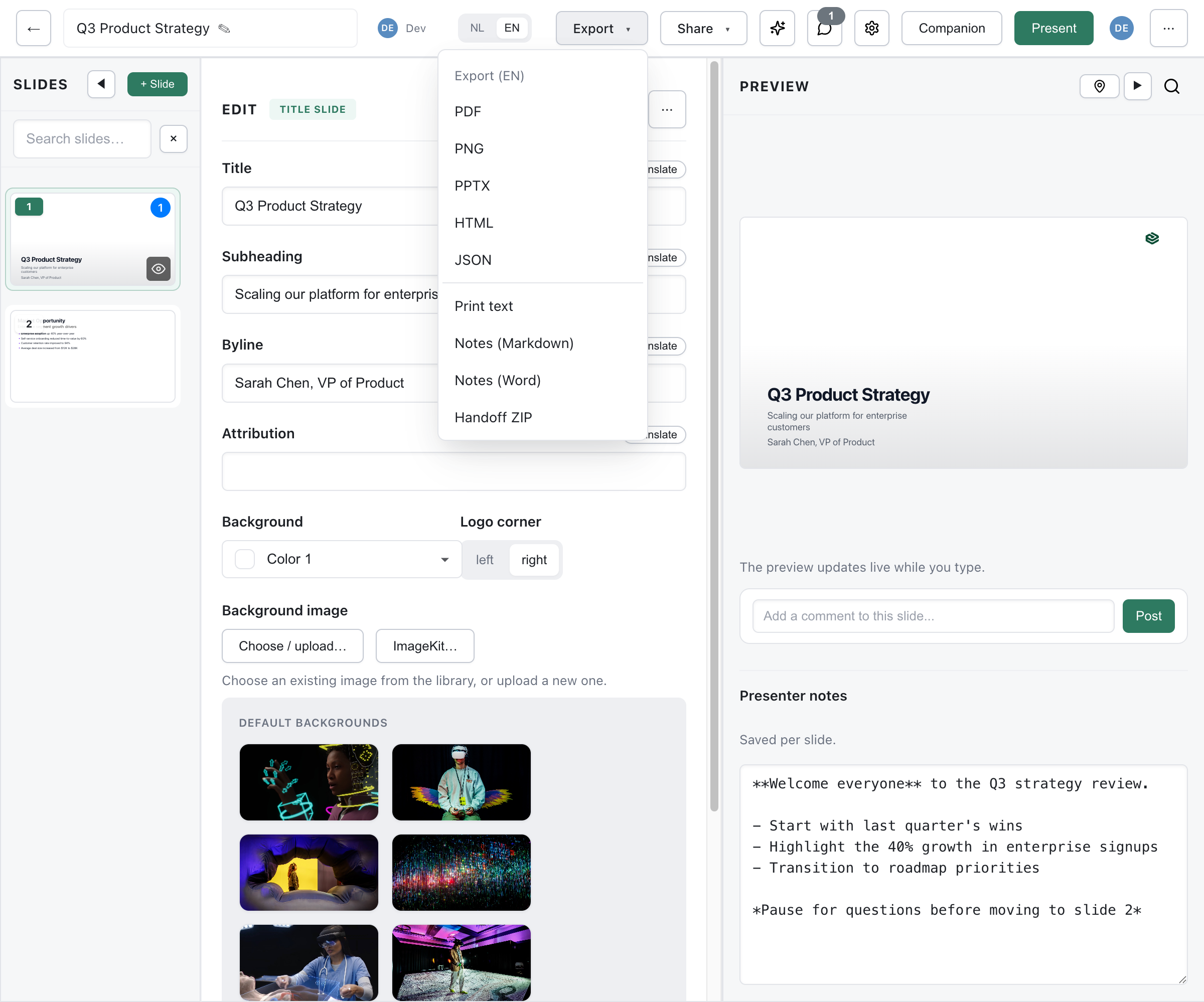
The Export to file dialog groups the formats under Slides, Documents and Data & bundle. The workspace-wide Data Backup is not in this dialog; it lives in your settings.
Standard document format for sharing and printing.
- One slide per page, 16:9
- Rendered on the server, so it looks the same everywhere
- Print-ready output
PowerPoint (PPTX)
Section titled “PowerPoint (PPTX)”Two PowerPoint files, for two purposes.
- PowerPoint: each slide is a full-slide image, so it looks exactly like the deck but the text is not editable. Speaker notes are included; Bunny videos can be embedded, other videos become a placeholder with a link
- PowerPoint, editable: text and pictures you can edit, on the theme’s layouts
Learn more about PowerPoint export
Images (PNG)
Section titled “Images (PNG)”Export slides as individual images.
- View opens every slide as an image in a new tab
- ZIP downloads one PNG per slide
- High-resolution output
The deck as one self-contained web page.
- Images, theme fonts and slide navigation embedded in the file
- Opens from disk without a server
- Linked images, externally hosted fonts, videos and live features (polls, Q&A) still need a network; see Handoff Bundle
Text Handout
Section titled “Text Handout”A readable version of the deck’s text without the slide layout, opened in a new tab to read or print.
Export speaker notes separately.
- Word document (DOCX)
- Markdown format
- For printing or reference
.deck and JSON
Section titled “.deck and JSON”The deck as data, for a technical handover or to import it elsewhere. Both carry every language version, whichever language is selected in the dialog.
- .deck: the portable deck, with images, theme and custom slide types; see Deck Bundle
- JSON: the raw deck data; see From JSON
Handoff Bundle
Section titled “Handoff Bundle”PDF, PowerPoint, HTML, slide images and speaker notes in one ZIP.
- One language version per bundle
- For recipients without Deckyard access
- Slide content is not editable in any of the files
Learn more about handoff bundles
Data Backup
Section titled “Data Backup”Full workspace backup as a ZIP archive, started from Settings > Export my data.
- All presentations as JSON
- Referenced images (local and remote)
- Optional: version history, image library, slide library, themes
Getting Started
Section titled “Getting Started”- Open your presentation in the editor
- Click Export in the top bar. On a narrow window the button moves into the ⋯ menu; the Public tab of the Share dialog also links to it
- Choose the language version at the top of the Export to file dialog, if the deck has more than one
- Click the format you want
A quick file (HTML, notes, .deck, JSON) downloads straight away. PDF, PNG ZIP, both PowerPoint files and the Handoff ZIP are rendered on the server: a progress window counts the slides and has a Cancel button, and the browser downloads the file when it is done.
Export is only available from the editor; there is no keyboard shortcut and no export item on the presentation cards in the overview.
Who Can Export
Section titled “Who Can Export”Anyone who can open a presentation can export it. What ends up in the file depends on your access:
- With edit access you export the deck as it is in the editor, including speaker notes.
- With view access you export what a viewer sees: speaker notes and slides that viewers do not see are left out, and the two notes exports are not available.
There is no setting to turn export off for a presentation.
Options
Section titled “Options”The top of the dialog has two choices:
- Language, shown when the deck has more than one language version. It applies to every format except .deck and JSON, which always carry all languages.
- Which slides, shown when the deck has more than one slide: All slides, Current slide or Selection, where you type slide numbers and ranges such as
1,3-5. It applies to PDF and the PNG ZIP; every other format always contains the whole deck.
There is no quality setting: every export renders at a fixed resolution. In every format except .deck and JSON, two kinds of slide are left out:
- Follow-along invite slides, because they only mean something during a live session
- Incomplete slides; Deckyard names them and asks you to confirm before the dialog opens