

PDF Export
Export a presentation as a PDF with one slide per page, for offline viewing, printing or archiving.
How to Export
Section titled “How to Export”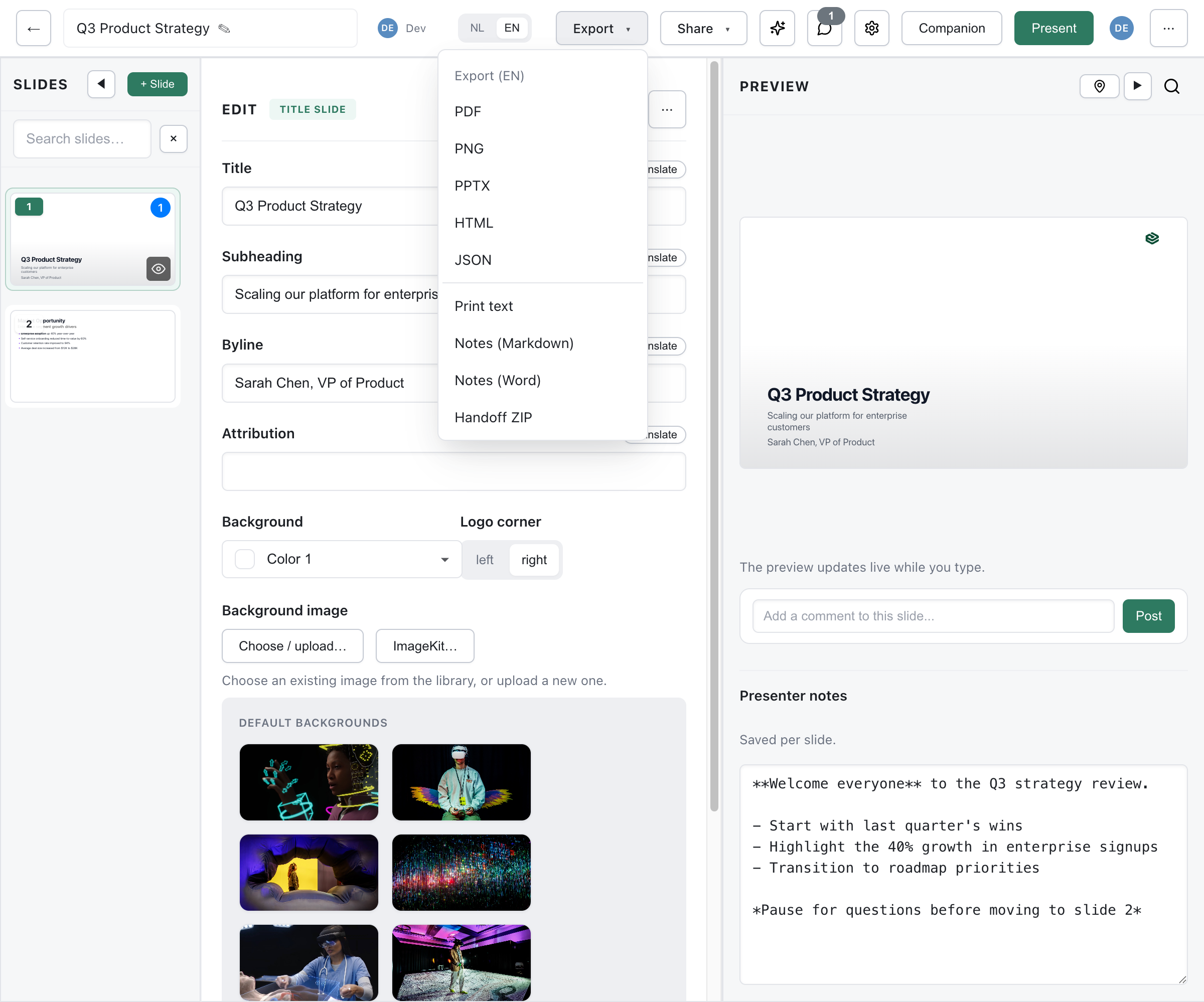
- Open your presentation in the editor
- Click Export in the top bar. On a narrow window the button moves into the ⋯ menu
- If the deck has more than one language version, choose the language at the top of the Export to file dialog
- If the deck has more than one slide, choose the slides under Which slides
- Click Export on the PDF row under Slides (clicking anywhere on the row does the same)
Deckyard renders the PDF on the server. A progress window shows while it works and has a Cancel button that stops the render; when it is done, the browser downloads the file.
The PDF is only available from the editor’s export dialog. There is no keyboard shortcut for it and no export entry in the presentation list or the slide list’s right-click menu.
If the Render Fails
Section titled “If the Render Fails”When the server render fails or takes longer than about 90 seconds, the PDF row shows Print in browser. It opens a printable page of the chosen slides in a new tab; use your browser’s print command (Ctrl/Cmd + P) and choose Save as PDF.
Which Slides
Section titled “Which Slides”Which slides starts on All slides. It is left out of the dialog when the deck has only one slide.
- Current slide exports the slide open in the editor
- Selection exports the slide numbers and ranges you type, such as
1,3-5. The field starts with the slides selected in the slide list, or otherwise the current slide
Numbers are positions in the deck, and the pages stay in deck order whatever order you type. The file name gains -slide-03 for one slide or -slides-1_3-5 for more. A number past the last slide, or a selection with nothing left to export, gets an error below the choice and no file.
What’s in the File
Section titled “What’s in the File”- One slide per page, at the 16:9 slide size (1600 × 900)
- Text, images, charts and theme backgrounds as they look in Deckyard
- The slides and the language version chosen in the dialog
Left out or changed:
- Follow-along invite slides are left out: they only mean something during a live session
- Slides with an empty image are left out. Before the dialog opens, Deckyard names those slides and asks whether to continue
- Video slides become a still with a play badge and a line pointing the reader to where the video can be watched
- Animations are not exported, and interactive slides (polls, Q&A) show only their static content
There are no options for page size, quality, slides per page or speaker notes. For notes, use the Notes export; for a readable text version without the slide layout, use Text handout in the same dialog.
Troubleshooting
Section titled “Troubleshooting”Export Takes Too Long
Section titled “Export Takes Too Long”Large decks with many images take longer. Wait for the progress window, or use Print in browser when it appears.
A Slide Is Missing
Section titled “A Slide Is Missing”Check Which slides in the dialog first. Otherwise, check whether it is a follow-along invite slide or a slide whose image is still empty; both are left out on purpose.