

Trash & Recovery
Recover accidentally deleted presentations from the trash.
How Trash Works
Section titled “How Trash Works”When you delete a presentation, it moves to trash instead of being permanently deleted. This gives you a safety net.
Moving to Trash
Section titled “Moving to Trash”- Open the ⋯ menu on the presentation card
- Click Move to trash
- Confirm
To move several presentations at once, select their cards and click Move to trash in the action bar.
Viewing Trash
Section titled “Viewing Trash”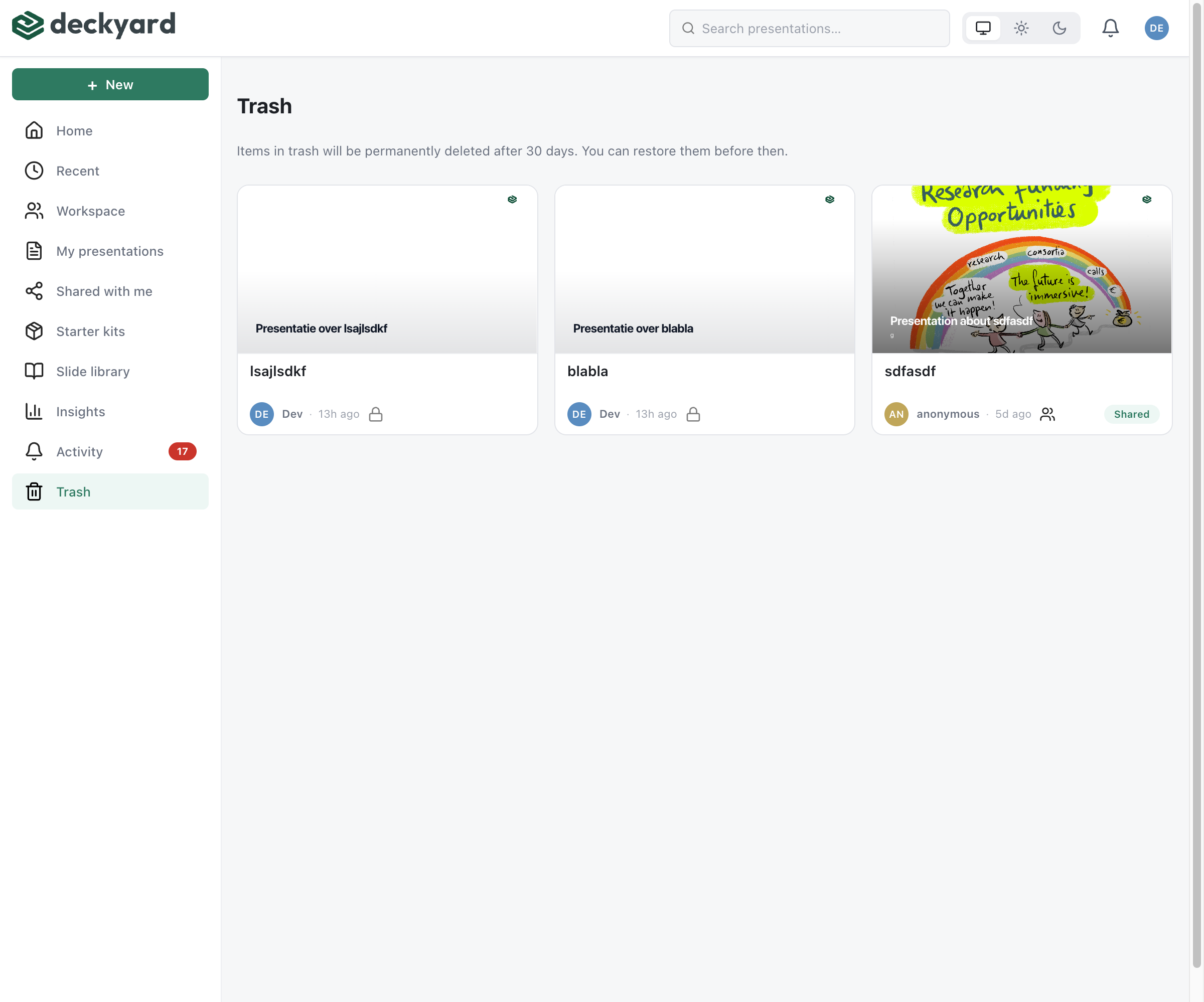
Click Trash in the sidebar of the presentation list. Trashed presentations can’t be opened from there; restore one first.
You see the presentations you own, created or moved to trash yourself. Admins see all trashed presentations in the workspace.
Restoring Presentations
Section titled “Restoring Presentations”- Open the ⋯ menu on the card in the trash
- Click Restore
- The presentation returns to your list; click Open presentation in the confirmation to go straight to it
All content, slides, and settings are preserved. You can also select several cards and click Restore in the action bar.
Permanent Deletion
Section titled “Permanent Deletion”- Open the ⋯ menu on the card in the trash
- Click Delete permanently
- Confirm - this cannot be undone
How Long Items Stay in Trash
Section titled “How Long Items Stay in Trash”A trashed presentation stays recoverable for 30 days by default. After that it is deleted for good, thumbnails included, by the same deletion as Delete permanently.
- The cleanup runs once a day, not the moment the window ends, so a presentation can still be in the trash up to a day after its term.
- Restoring stops the clock. A restored presentation stays; if you move it to the trash again, it starts a fresh window.
- The trash page shows your instance’s own term. An administrator sets it with
TRASH_RETENTION_DAYS(see Environment). It is a whole number of days, at least 1; there is no setting that turns the cleanup off. For a longer safety net, raise the number.
Automatic cleanup arrived in Deckyard 1.36.0. Before that, nothing emptied the trash, so the first start after upgrading deletes everything that had already been in the trash longer than the window.
- Check trash before assuming content is lost
- For important presentations, consider duplicating before making major changes