

Live Preview
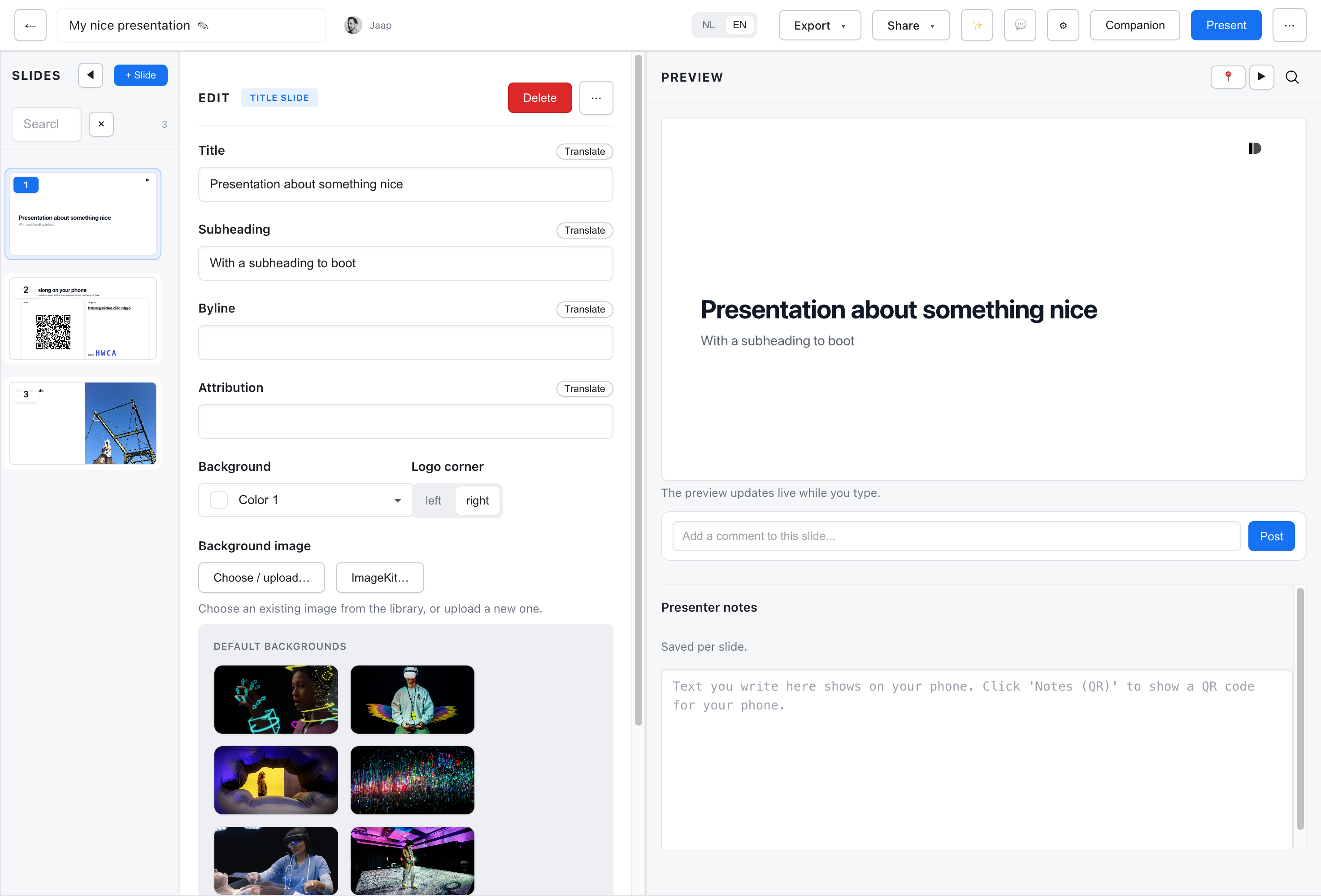
The canvas shows how your slide will look when presented.
Real-Time Updates
Section titled “Real-Time Updates”The preview updates live as you type. Every change you make is immediately reflected.
Canvas and Inspector
Section titled “Canvas and Inspector”The center column shows the current slide in Canvas view. Switch to Fields to edit the same content as a form, then return to Canvas to check the result. Presenter notes sit below the canvas.
The right-hand rail has Inspector and Comments tabs for slide settings and discussion.
Lightbox View
Section titled “Lightbox View”In Canvas view, click the magnifying glass icon at the top right of the canvas to open the slide in a larger lightbox view. On slides with inline editing, clicking the slide itself edits its content. The lightbox is useful for:
- Reviewing your deck slide-by-slide at near-presentation size
- Checking details on complex slides
- Reviewing image placement and positioned comments
Navigating Slides
Section titled “Navigating Slides”You can browse through your entire presentation without leaving the lightbox:
- Arrow keys - Press
←/→to move to the previous or next slide - Navigation buttons - Use the prev/next buttons in the header
- Slide counter - Shows your current position (e.g. “3 / 12”)
The slides panel and editor form stay in sync - when you navigate in the lightbox, the selected slide updates everywhere. When you close the lightbox, you’ll be on the slide you last viewed.
Positioned Comments
Section titled “Positioned Comments”If comments are enabled, positioned comment markers are visible on the slide. Click a marker to view its thread, or use the pin button to place a new comment on a specific spot.
Closing
Section titled “Closing”Press Escape or click outside the slide to close the lightbox. If a comment popup is open, Escape closes the popup first.
Preview vs. Presentation
Section titled “Preview vs. Presentation”The preview shows:
- Final rendered appearance
- Applied theme styles
- Image positioning
The preview does not show:
- Animations and transitions (these play in presentation mode)
- Step-by-step reveals
- Interactive elements (polls, etc.)
Language Preview
Section titled “Language Preview”The preview shows the current editing language. Switch languages at the top of the editor to preview the other version.