

RSS Feeds
Automatically syndicate your published presentations via RSS 2.0, Atom 1.0, and JSON Feed 1.1. Feed readers, Slack channels, Zapier workflows, and other tools can subscribe to stay updated whenever you publish a new edition. Editing the source deck alone does not update the feed.
Overview
Section titled “Overview”When RSS feeds are enabled, Deckyard serves three public feed URLs:
| Format | URL | Content-Type |
|---|---|---|
| RSS 2.0 | /feed/rss.xml | application/rss+xml |
| Atom 1.0 | /feed/atom.xml | application/atom+xml |
| JSON Feed 1.1 | /feed/feed.json | application/feed+json |
All three formats contain the same data. Most feed readers support RSS 2.0. Atom is preferred by some aggregators. JSON Feed is useful for programmatic integrations.
Feeds list the newest public edition of each publication. A published edition can remain listed after its source deck is deleted; unpublish it to withdraw it.
Enabling RSS Feeds
Section titled “Enabling RSS Feeds”RSS feeds are disabled by default. An admin enables them per-workspace:
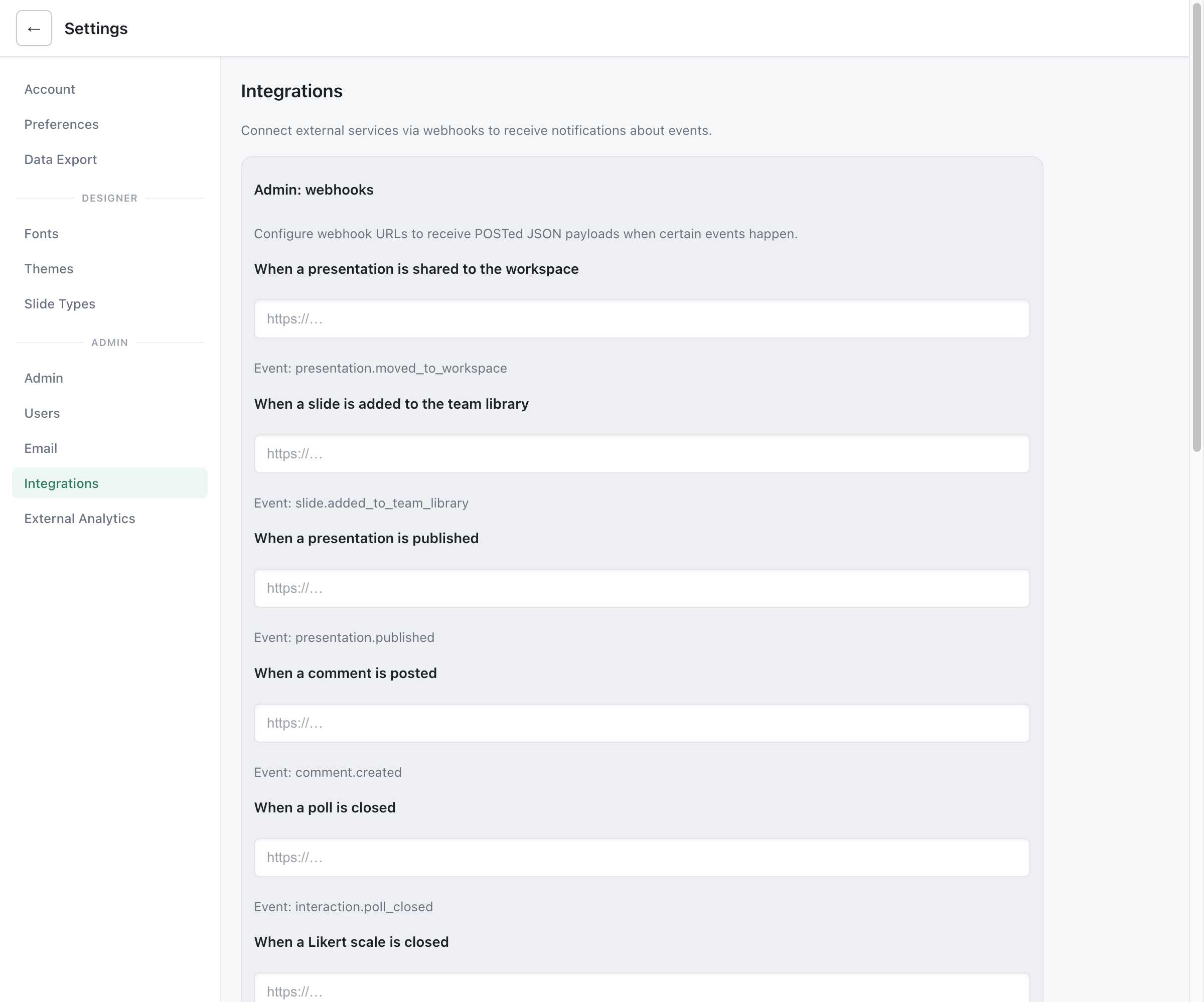
- Go to Settings > Integrations
- Scroll to the RSS Feed card
- Check Enable RSS feed
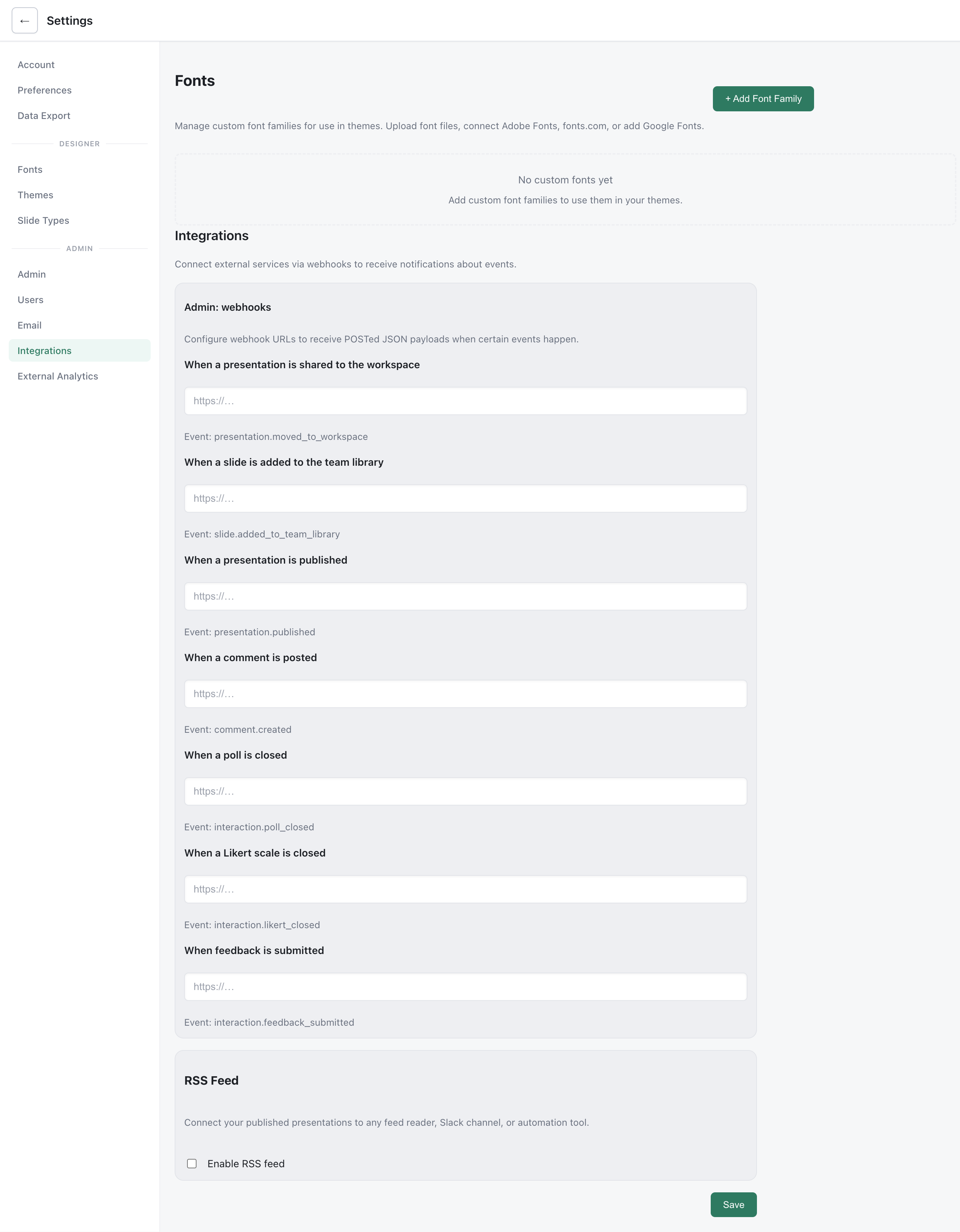 4. Fill in the optional fields (title, description, author, etc.)
5. Click Save
4. Fill in the optional fields (title, description, author, etc.)
5. Click Save
After saving, the feed URLs section appears with copy buttons for each format.
Configuration Fields
Section titled “Configuration Fields”| Field | Required | Default | Description |
|---|---|---|---|
| Enable RSS feed | Yes | Off | Master toggle for all feed endpoints |
| Title | No | {Org name} — Presentations | Feed title shown in readers |
| Description | No | Auto-generated | Short description of the feed |
| Language | No | en | Feed language tag (en, nl, de, fr, etc.) |
| Max items | No | 50 | Number of presentations in the feed (1-100) |
| Copyright | No | Empty | Copyright notice included in the feed |
| Author name | No | Empty | Author name for the feed |
Feed Content
Section titled “Feed Content”Each feed item describes the newest public edition of a publication:
| Feed field | Source |
|---|---|
| Title | Edition title |
| Link | Edition URL (/p/{publicationId}/{version}) |
| Description | Edition description |
| Date | Edition publication timestamp |
| Published | Edition publication timestamp |
| Author | No per-item author; the feed can have a configured author name |
| Image | Edition preview at its /og address |
Items are sorted by edition publication date, newest first.
Per-Deck Opt-Out
Section titled “Per-Deck Opt-Out”Individual presentations can be excluded from the feed:
- Open the presentation in the editor
- Open the ⋯ menu in the top bar and choose Settings, then pick the Publishing section of Deck settings
- Check Exclude from RSS feed; it saves as soon as you check it
The checkbox only appears when RSS feeds are enabled for your workspace.
Excluded presentations are filtered out on every feed request. They reappear if you uncheck the option.
Publish-Time Notice
Section titled “Publish-Time Notice”When you publish a presentation for the first time and RSS feeds are active, an info toast appears:
This presentation will appear in your public RSS feed. You can exclude it in Deck Settings.
This is informational only and does not block publishing. Re-publishing an existing presentation does not show the notice.
Feed Auto-Discovery
Section titled “Feed Auto-Discovery”When RSS feeds are enabled, Deckyard injects standard <link rel="alternate"> tags into the app HTML:
<link rel="alternate" type="application/rss+xml" title="Presentations (RSS)" href="/feed/rss.xml"><link rel="alternate" type="application/atom+xml" title="Presentations (Atom)" href="/feed/atom.xml"><link rel="alternate" type="application/feed+json" title="Presentations (JSON)" href="/feed/feed.json">Browsers and feed readers use these tags to detect available feeds automatically.
Caching
Section titled “Caching”Feed responses include caching headers:
Cache-Control: public, max-age=300(5 minutes)ETagbased on the editions listed
Feed readers that send If-None-Match receive a 304 Not Modified response when nothing has changed, reducing bandwidth.
Feature Flag
Section titled “Feature Flag”RSS feeds have a two-level gate:
- Environment variable
RSS_FEED_ENABLED- instance-wide kill switch. Defaults totrue(enabled). Set tofalseto disable feed routes entirely, regardless of workspace settings. - Workspace setting
rss.enabled- the user-facing toggle in Settings > Integrations. Defaults tofalse(off).
Both must be active for feeds to be served. Multi-organization mode disables public feeds and autodiscovery entirely. If the environment variable is false, all feed URLs return 404 and the RSS section is hidden in settings.
# Disable RSS feeds for the entire instanceRSS_FEED_ENABLED=falseCustom Domains
Section titled “Custom Domains”Feed URLs automatically use the request’s Host header. If your instance runs behind a custom domain, the feed links within the XML/JSON reference that domain. No additional configuration is needed.
For instances behind a reverse proxy where the public URL differs, use the Custom feed URL field and configure your proxy to forward the public host and protocol.
Use Cases
Section titled “Use Cases”- Slack integration - Add
/feed/rss.xmlas an RSS app source in a Slack channel to post new presentations automatically - Zapier / Make - Trigger workflows when new presentations appear in the feed
- Internal portals - Embed the feed in an intranet or wiki to surface the latest presentations
- Newsletter tools - Use the feed as a content source for automated email campaigns
- Monitoring - Track publishing activity across your workspace
Troubleshooting
Section titled “Troubleshooting”Feed returns 404
Section titled “Feed returns 404”- Check that RSS is enabled in Settings > Integrations
- Verify
RSS_FEED_ENABLEDis not set tofalsein your environment - Check that the instance is not running in multi-organization mode
- Confirm you’re accessing the correct URL (
/feed/rss.xml, not/rss.xml)
Feed is empty but presentations are published
Section titled “Feed is empty but presentations are published”- The publication must have an edition that has not been withdrawn; old publications may still need administrator conversion
- Presentations with Exclude from RSS feed checked are filtered out
- The Max items setting limits the total number of entries
Feed shows stale data
Section titled “Feed shows stale data”- Feeds are cached for 5 minutes. Wait and refresh, or use a cache-busting query parameter for testing
Auto-discovery tags not appearing
Section titled “Auto-discovery tags not appearing”- Auto-discovery requires both
RSS_FEED_ENABLED=true(or unset) and the workspace RSS toggle enabled - Tags only appear on app shell pages, not on published presentation pages