

Sharing & Permissions
Control who can access your presentations and what they can do.
Overview
Section titled “Overview”Everything about who can see a presentation happens in one place: the Share button in the editor toolbar. It opens the Share dialog, which has a tab per audience:
- Team - who in your workspace can find the deck, and which colleagues you invite as collaborators
- Guests - links for people without a Deckyard account
- Public - publish the deck on the open web, with a page link and an embed
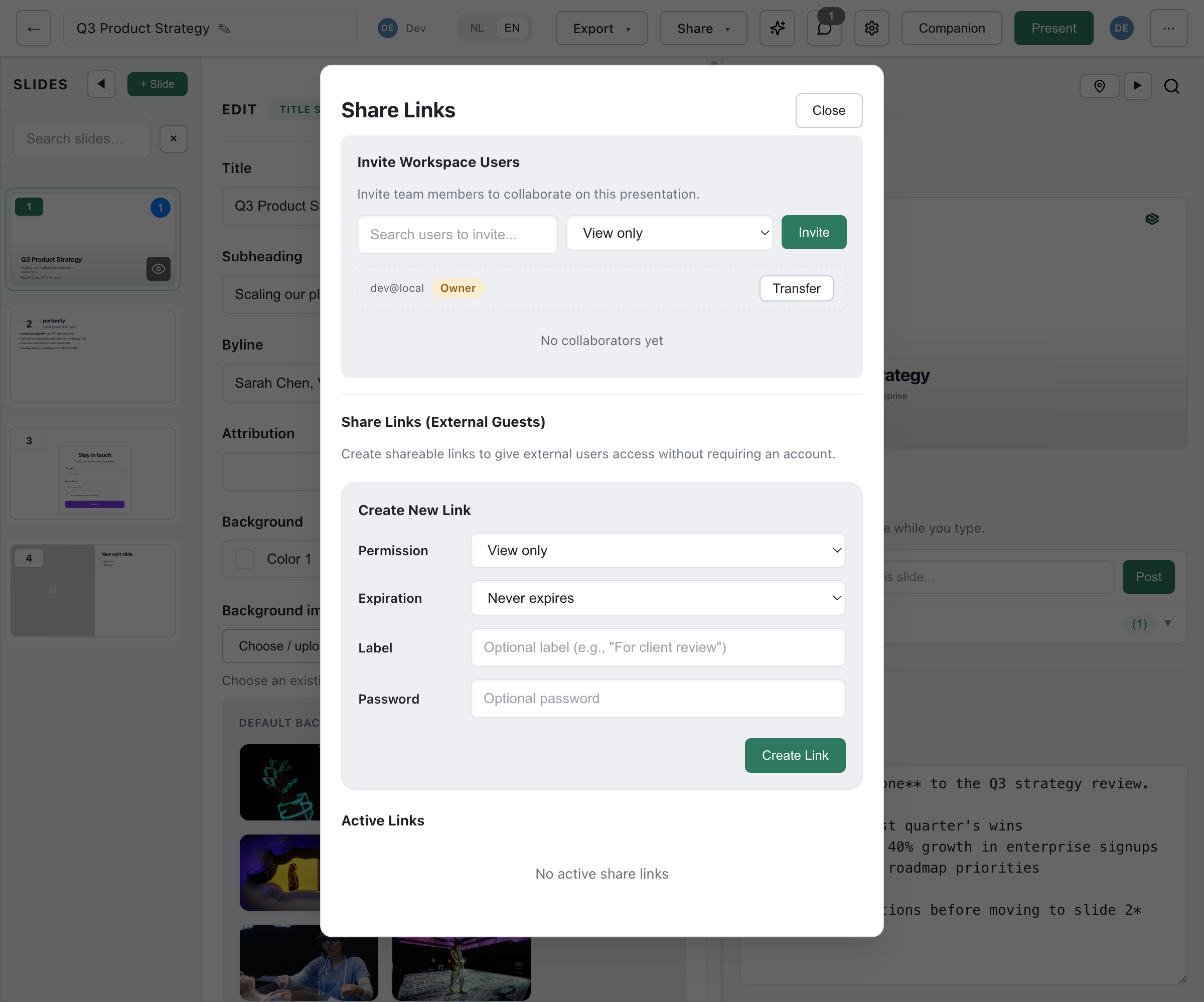
The Share button is marked when the deck is published.
Permission Levels
Section titled “Permission Levels”In the Share dialog the levels are called View only, Can comment, Can edit and Administrator. Each level includes everything of the level before it.
View Only
Section titled “View Only”Users with view permission can:
- Open the presentation in the viewer and navigate through the slides
- Export and duplicate the presentation
They cannot make changes, add comments or open the editor. Slides hidden in the deck are not shown to them.
Can Comment
Section titled “Can Comment”Users with comment permission can also:
- Add comments and reply
- Mention other collaborators
They cannot edit slide content, or resolve comments.
Can Edit
Section titled “Can Edit”Users with edit permission can also:
- Use the full editor: edit, add, reorder and delete slides
- Restore earlier versions
- Publish and unpublish, and create guest share links
- Start live sessions
They cannot:
- Invite, change or remove collaborators
- Change who in the workspace can find the deck
- Move the presentation to the trash, delete it or transfer ownership
Slides the author has locked stay locked for them.
Administrator
Section titled “Administrator”Administrators have all edit permissions, and can also invite collaborators, change their permissions and remove them.
Only the owner can move the presentation to the trash, delete it, transfer ownership, or make it visible to the whole workspace.
Team: Your Workspace
Section titled “Team: Your Workspace”The Team tab opens first. It answers two questions.
Who Can Find This in Your Workspace?
Section titled “Who Can Find This in Your Workspace?”- Only people you invite - the deck stays private; only you and the collaborators below can see it.
- Everyone in your workspace - the deck appears in the shared workspace for all members. Choose View & comment or Full access for them.
Only the owner or a workspace admin can change this setting. Once a deck is visible to the whole workspace, only a workspace admin can move it back to Only people you invite.
With Full access, every member of the workspace can edit the deck; with View & comment, they can view it and comment.
Inviting Collaborators
Section titled “Inviting Collaborators”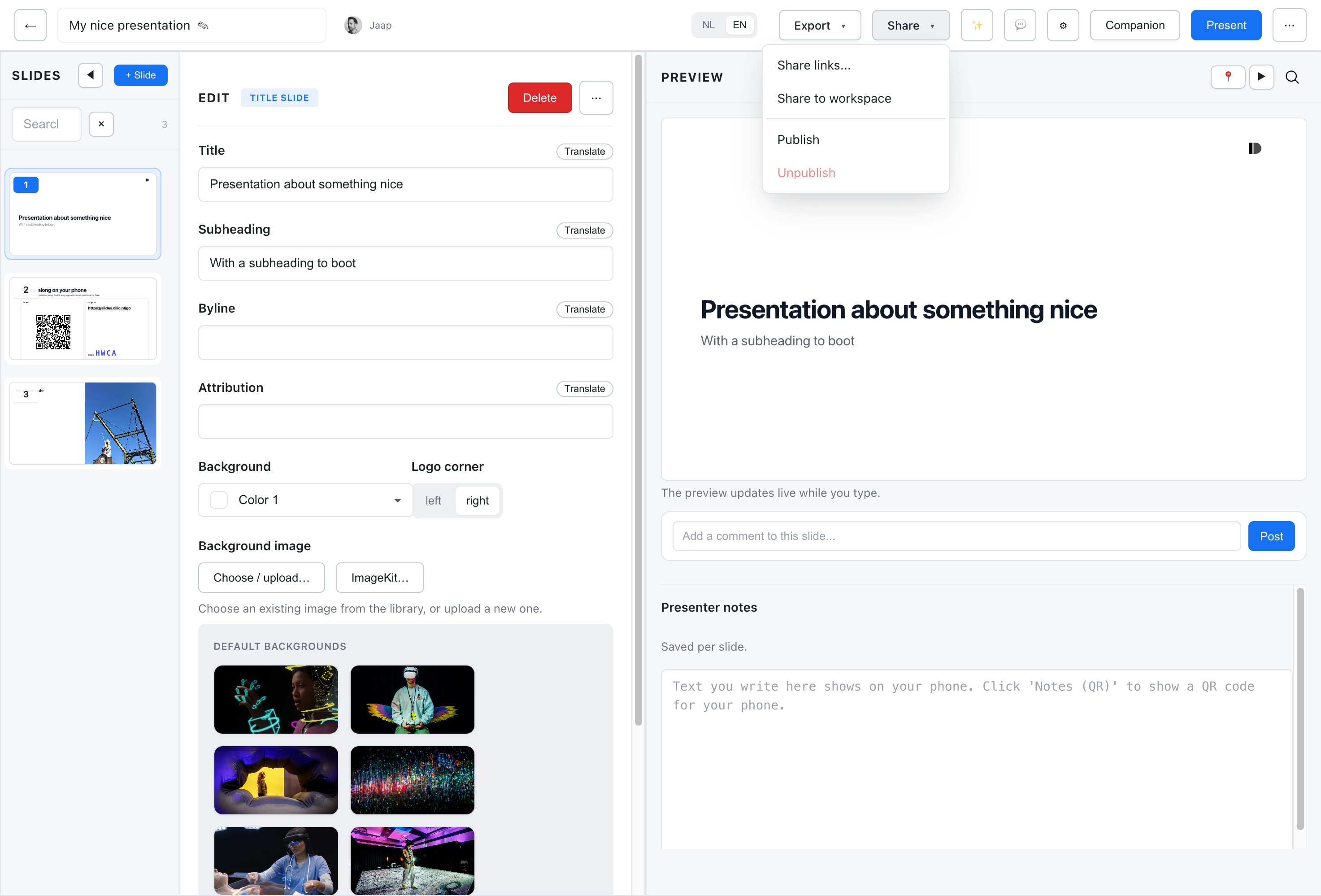
- Click Share in the editor toolbar
- Under Invite Workspace Users, search for people by name or email; you can select several
- Pick the permission level: View only, Can comment, Can edit or Administrator
- Click Invite
Collaborators are users of your workspace. The people you invite get an in-app notification and an email.
Changing and Removing Access
Section titled “Changing and Removing Access”The list under the invite form shows the owner and every collaborator.
- Change a permission level with the dropdown next to the person. It takes effect immediately.
- Remove takes a collaborator off the deck. You can add a message for them; they lose access immediately.
- Transfer next to the owner hands the deck to a collaborator with edit or admin permission. See Ownership Transfer.
Guests: Links Without an Account
Section titled “Guests: Links Without an Account”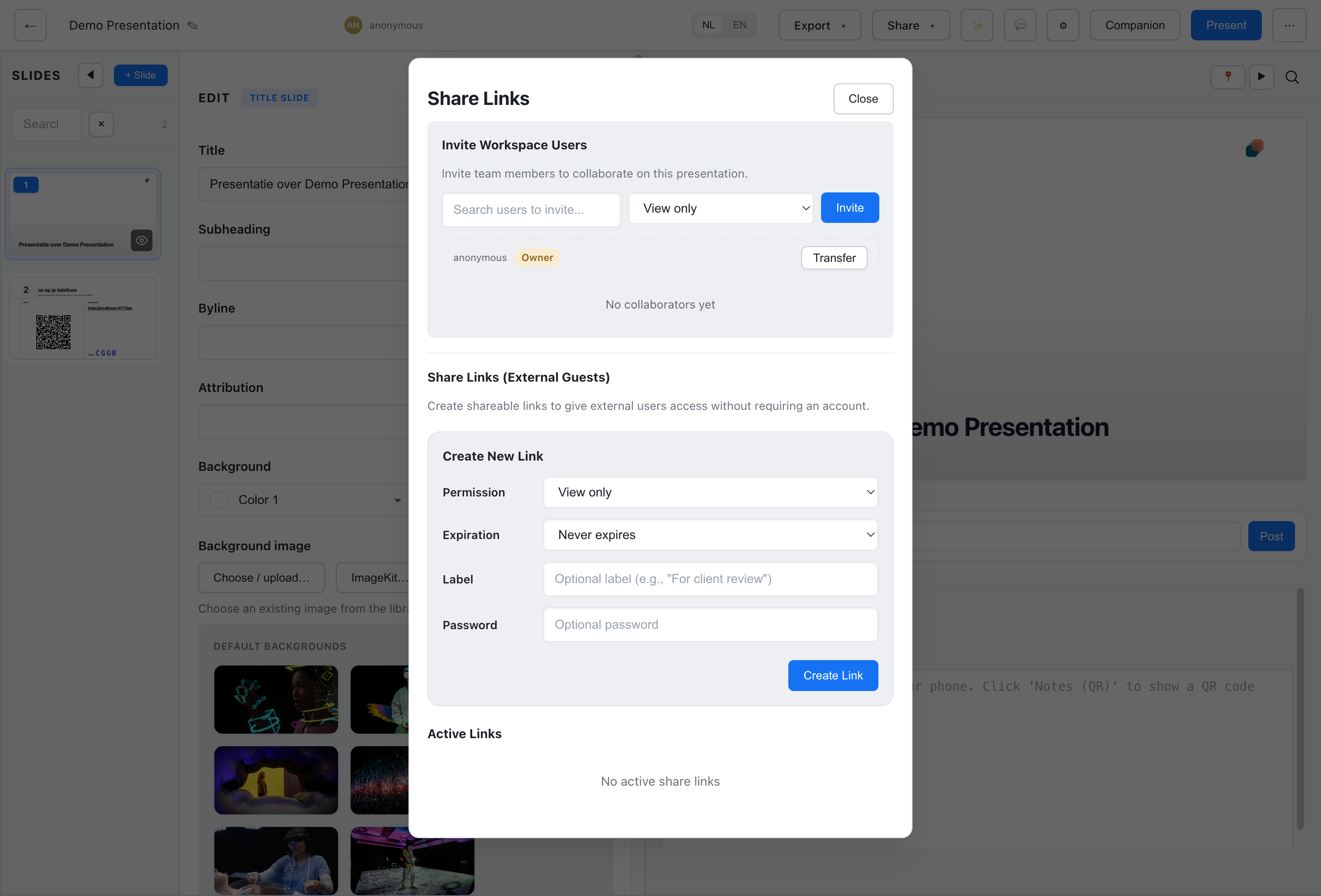
The Guests tab creates share links under Anyone with the link.
Creating a Share Link
Section titled “Creating a Share Link”- Click Share in the editor toolbar and open the Guests tab
- Under Create New Link, choose the options
- Click Create Link; the new link is copied to your clipboard
Share Link Options
Section titled “Share Link Options”- Permission - view, or comment
- Access (comment links only) - Invite specific people or Anyone with the link
- Expiration - never, or after 1 hour, 24 hours, 7 days or 30 days
- Label - an optional name, such as “For client review”
- Password - optional; viewers must enter it before the deck opens
Managing Links and Guests
Section titled “Managing Links and Guests”Active Links lists every link with its label, how often it was used, and whether it has expired. Copy copies it again; Revoke switches it off, with an optional message for anyone who still tries it.
A comment link set to Invite specific people has Manage Guests: add a guest by email, see whether they verified, Resend the invitation or Remove them. Guests confirm their email address before they can comment.
Public: The Open Web
Section titled “Public: The Open Web”The Public tab publishes the deck: a fixed public edition with its own address and social preview. Later edits do not change it, and you can unpublish all editions at any time. Once published, the tab shows two links side by side:
- Link - the page to open and share
- Embed - the player for Notion or your own site, with Snippets for your own site (iframe) folded underneath
A deck with more than one language gets one language choice that applies to all of them. Publish new version creates another edition; existing links keep showing their original edition. The tab is not there on a sandbox instance. See Publishing for the details.
API Access
Section titled “API Access”The Share dialog uses these endpoints of the app API (signed-in session, not an API key). Listing and managing collaborators needs the owner or an administrator collaborator.
List Collaborators
Section titled “List Collaborators”GET /api/presentations/{id}/collaboratorsAdd Collaborators
Section titled “Add Collaborators”POST /api/presentations/{id}/collaboratorsContent-Type: application/json
{ "userEmail": "user@example.com", "permission": "edit"}Use userEmails (an array, up to 20) to invite several people at once. Set "sendInvitation": false to skip the email.
Change a Permission
Section titled “Change a Permission”PATCH /api/presentations/{id}/collaborators/{email}Content-Type: application/json
{ "permission": "comment" }Remove a Collaborator
Section titled “Remove a Collaborator”DELETE /api/presentations/{id}/collaborators/{email}The email is URL-encoded. An optional JSON body { "message": "..." } adds a message for the person removed.
Best Practices
Section titled “Best Practices”Principle of Least Privilege
Section titled “Principle of Least Privilege”- Start with View only or Can comment
- Give Can edit only when someone needs to change the deck; it also lets them publish
- Reserve Administrator for people who manage the collaborator list with you
Regular Permission Audits
Section titled “Regular Permission Audits”- Review collaborator lists periodically
- Remove access for people who no longer need it
- Check for stale share links
Sharing with Everyone
Section titled “Sharing with Everyone”To give your whole workspace access, set the deck to Everyone in your workspace instead of inviting people one by one. Deckyard has no teams or groups within a workspace.