

Presenter Mode
Take control of your presentations with the presenter view.
Overview
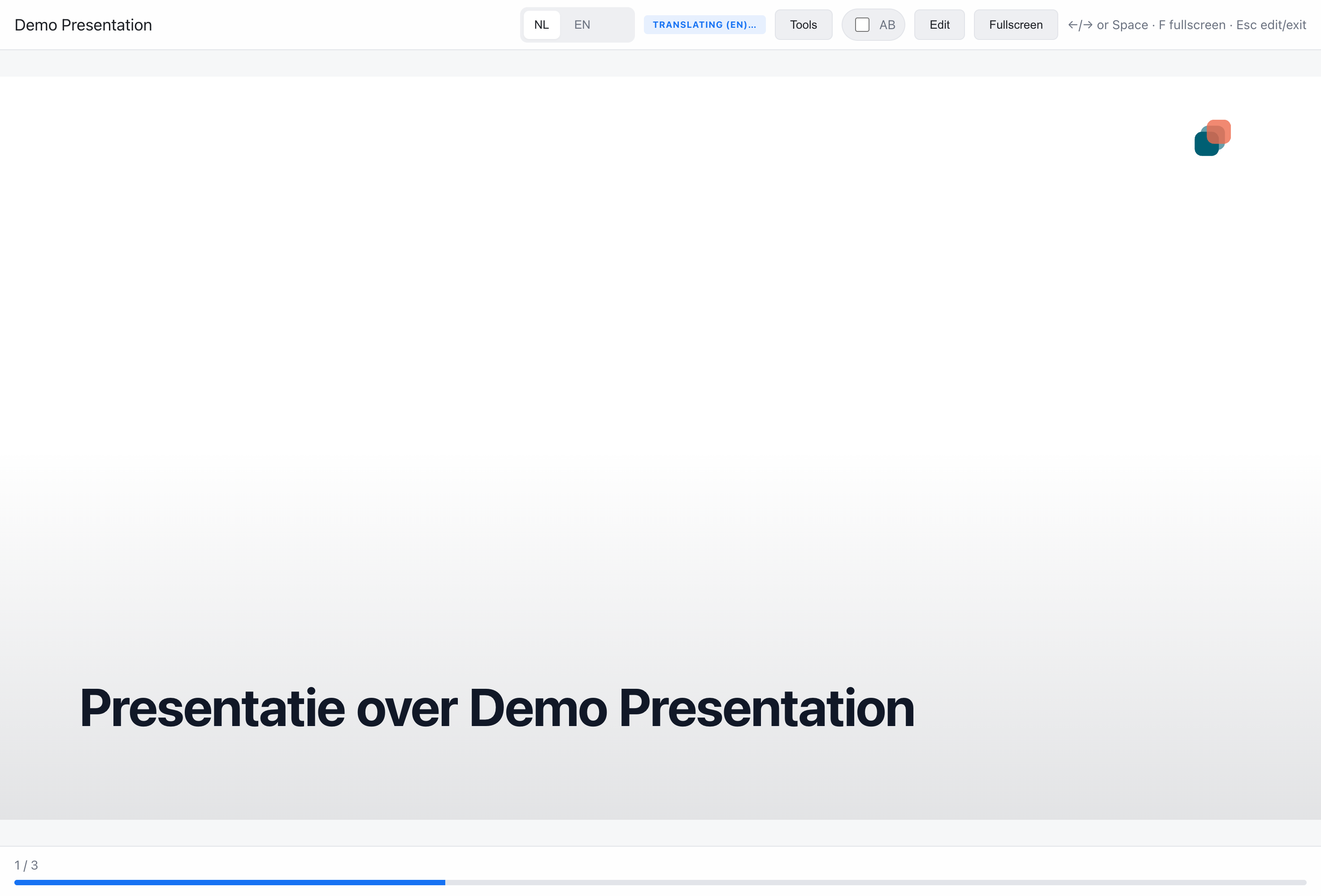
Section titled “Overview”Presenter mode provides you with tools and information to deliver your presentation effectively. While your audience sees the main presentation, you have access to notes, controls, and timing information.
Features
Section titled “Features”- Speaker Notes - View your notes while presenting
- Slide Preview - See upcoming slides
- Timer - Track your presentation time
- Navigation Controls - Move through slides easily
- Laser Pointer & Drawing - Highlight content on your slides
- Slide Timing & Pacing - Auto-advance or pacing timer with per-slide durations
- Audience View - See what your audience sees
- Q&A Monitoring - Watch for audience questions
Getting Started
Section titled “Getting Started”Starting Presenter Mode
Section titled “Starting Presenter Mode”- Open your presentation
- Click Present in the toolbar
- Select Presenter View
- A new window opens with presenter controls
Keyboard Shortcut
Section titled “Keyboard Shortcut”Press P while viewing a presentation to enter presenter mode.
Two-Window Setup
Section titled “Two-Window Setup”Presenter mode works best with two screens:
- Main screen - Audience view (full screen)
- Secondary screen - Presenter controls
Move the presenter window to your laptop and project the audience view.
Presenter Interface
Section titled “Presenter Interface”Layout
Section titled “Layout”The presenter view includes:
Current Slide (large, left)
- Shows what the audience sees
- Click to advance
Next Slide (smaller, right)
- Preview of the upcoming slide
- Helps with smooth transitions
Speaker Notes (bottom)
- Your notes for the current slide
- Scrollable for long notes
Timer (top)
- Elapsed time
- Optional countdown timer
- Pause/reset controls
Navigation (top bar)
- Slide counter
- Previous/next buttons
- Jump to slide
Navigation
Section titled “Navigation”Advancing Slides
Section titled “Advancing Slides”Multiple ways to advance:
- Click on the current slide
- Press
Right Arrow,Space, orEnter - Use the Next button
- Click on the next slide preview
Going Back
Section titled “Going Back”- Press
Left ArroworBackspace - Use the Previous button
Jump to Slide
Section titled “Jump to Slide”- Click the slide counter
- Enter a slide number
- Or select from the slide overview
Slide Overview
Section titled “Slide Overview”Press G to open slide overview:
- See all slides as thumbnails
- Click any slide to jump to it
- Useful for Q&A or skipping sections
Elapsed Timer
Section titled “Elapsed Timer”Shows how long you’ve been presenting:
- Starts automatically when you begin
- Pause with the pause button
- Reset to start fresh
Countdown Timer
Section titled “Countdown Timer”Set a target duration:
- Click on the timer
- Enter your target time
- Timer counts down
- Warning when time is low
Timing Indicators
Section titled “Timing Indicators”- Green - Plenty of time
- Yellow - Approaching limit
- Red - Over time
Keyboard Shortcuts
Section titled “Keyboard Shortcuts”| Shortcut | Action |
|---|---|
Space, Right, Enter | Next slide |
Left, Backspace | Previous slide |
Home | First slide |
End | Last slide |
F | Toggle fullscreen |
L | Toggle laser pointer |
D | Toggle draw mode |
C | Clear drawings |
P | Toggle persistent drawings |
G | Slide overview |
B | Black screen |
A | Pause/resume timer |
N | Notes toggle |
Esc | Disable highlighter / exit presenter mode |
Black Screen
Section titled “Black Screen”Press B to show a black screen:
- Hides the presentation
- Useful for breaks
- Keeps timer running
- Press again to resume
Presenting Without Presenter Mode
Section titled “Presenting Without Presenter Mode”If you don’t need presenter features:
- Click Present > Audience View
- Full-screen presentation starts
- Navigate with keyboard
Notes Companion
Section titled “Notes Companion”Control from your phone:
- Open your presentation in the editor
- Click Companion in the toolbar
- Scan QR code with your phone
- View notes and control slides from your phone
See Notes View for details.
Multi-Presenter
Section titled “Multi-Presenter”For panels or co-presentations:
- Share the presenter link with co-presenters
- Each person can advance slides
- Use locks to coordinate (see Presentation Locks)