Comments
Provide feedback and collaborate through slide comments.
Overview
Section titled “Overview”Comments let team members discuss specific slides, suggest changes, and track decisions. Use comments to gather feedback without modifying the presentation content.

Adding Comments
Section titled “Adding Comments”On a Slide
Section titled “On a Slide”- Navigate to the slide you want to comment on
- Click the Comments icon in the toolbar (or press
C) - Type your comment in the text field
- Click Post or press
Enter
On Specific Content
Section titled “On Specific Content”To comment on a specific element:
- Select the element (text, image, etc.)
- Right-click and select Add Comment
- Type your comment
- Click Post
The comment is anchored to that element.
Quick Comment
Section titled “Quick Comment”Use keyboard shortcuts for faster commenting:
- Press
Cto open comment mode - Type your comment
- Press
Enterto post
Comment Panel
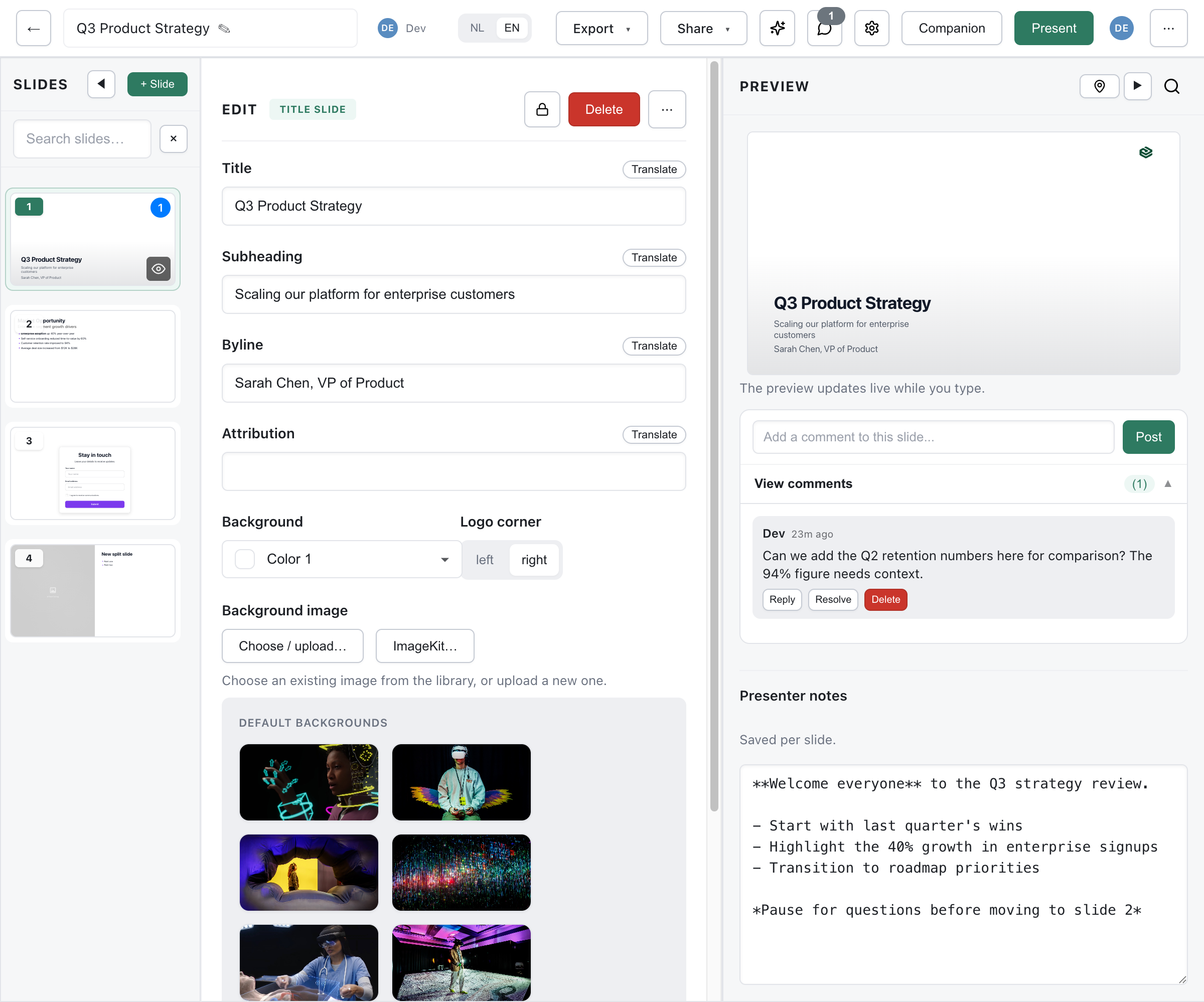
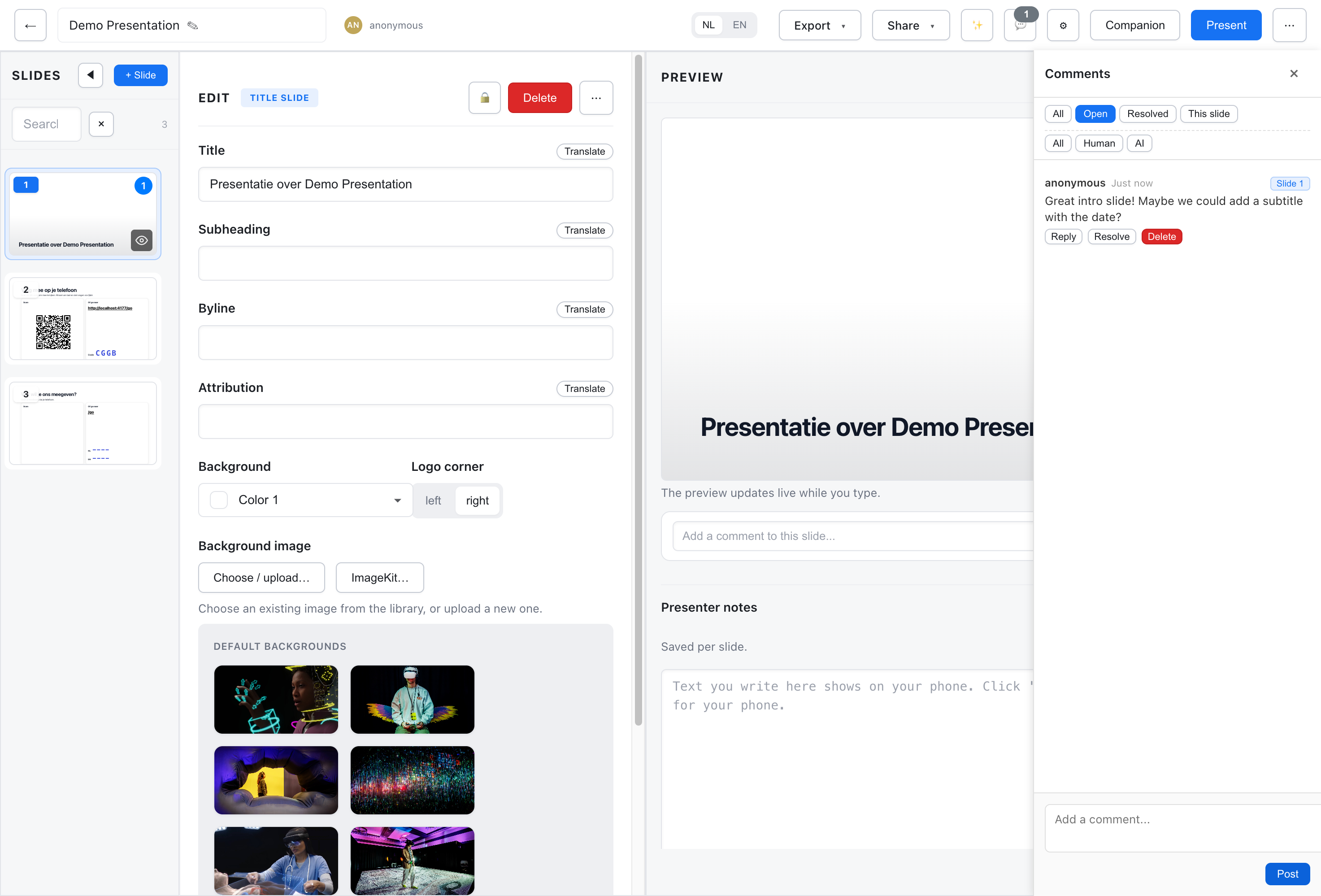
Section titled “Comment Panel”The comment panel shows all comments for the current presentation.

Opening the Panel
Section titled “Opening the Panel”- Click the Comments icon in the toolbar
- Use the keyboard shortcut
C - Click on a comment indicator on a slide
Panel Features
Section titled “Panel Features”- Filter by slide - Show comments for current slide only
- Filter by status - Show open, resolved, or all comments
- Sort order - Newest first or oldest first
- Search - Find comments by text
Comment Threads
Section titled “Comment Threads”Each comment can start a discussion thread:
- Click on a comment to expand it
- Type a reply in the reply field
- Click Reply
Threads keep related discussions organized.
Resolving Comments
Section titled “Resolving Comments”When feedback has been addressed:
- Click on the comment
- Click Resolve
- Comment is marked as resolved and faded
Resolved Comments
Section titled “Resolved Comments”Resolved comments:
- Remain visible but are de-emphasized
- Can be filtered out of the view
- Can be reopened if needed
Reopening Comments
Section titled “Reopening Comments”To reopen a resolved comment:
- Find the resolved comment
- Click Reopen
- Comment becomes active again
Bulk Actions
Section titled “Bulk Actions”Resolve multiple comments at once:
- Select multiple comments (Shift+click)
- Click Resolve Selected
Mentions and Notifications
Section titled “Mentions and Notifications”When you mention a team member in a comment, they’ll receive a notification.
Mentioning Collaborators
Section titled “Mentioning Collaborators”To notify someone:
- Type
@in your comment - Start typing their name
- Select from the autocomplete list
- They receive a notification
Notification Behavior
Section titled “Notification Behavior”When mentioned, users receive:
- In-app notification - Badge on the bell icon
- Email notification - If enabled in their settings
- Direct link - Click to go straight to the comment
Notification Settings
Section titled “Notification Settings”Users can configure their notification preferences:
- Go to Settings > Notifications
- Toggle email notifications on/off
- Set notification frequency (immediate, daily digest)
Comment Features
Section titled “Comment Features”Formatting
Section titled “Formatting”Comments support basic formatting:
- Bold - Wrap text in
**asterisks** - Italic - Wrap text in
*single asterisks* Code- Wrap text in backticks- Links - Paste URLs, they auto-link
Suggestions
Section titled “Suggestions”AI-generated suggestions appear as special comments:
- Marked with a suggestion indicator
- Include the proposed change
- One-click to apply or dismiss
Action Items
Section titled “Action Items”Mark comments as action items:
- Create a comment
- Check the Action Item box
- Optionally assign to someone
Action items can be tracked and filtered separately.
Comment Visibility
Section titled “Comment Visibility”Who Can See Comments
Section titled “Who Can See Comments”- All collaborators with comment or edit permission
- Comments are private to the collaboration team
- Public viewers cannot see comments
Comments Are Not Exported
Section titled “Comments Are Not Exported”Comments are not included in:
- Published presentations
- PDF exports
- PowerPoint exports
- Public share links
Keyboard Shortcuts
Section titled “Keyboard Shortcuts”| Shortcut | Action |
|---|---|
C | Open/close comment panel |
Enter | Post comment |
Shift + Enter | New line in comment |
Esc | Cancel comment |
Best Practices
Section titled “Best Practices”Be Specific
Section titled “Be Specific”Good: “The Q3 revenue figure should be $2.3M, not $2.1M” Bad: “This number is wrong”
Use Threads
Section titled “Use Threads”- Reply to existing comments instead of creating new ones
- Keeps related discussion together
- Makes it easier to follow conversations
Resolve Promptly
Section titled “Resolve Promptly”- Mark comments resolved when addressed
- Add a brief note about what was done
- Keeps the comment list manageable
Use Mentions Wisely
Section titled “Use Mentions Wisely”- Mention people when you need their input
- Don’t over-mention (notification fatigue)
- Use for questions and decisions