

Data Backup
Export all your presentations and related data as a single ZIP archive for backup, migration, or compliance purposes.
Overview
Section titled “Overview”The data backup feature lets you download everything in one go: all presentations (as JSON), referenced images, and optionally version history, image library, slide library, and themes.
Unlike single-presentation exports (PDF, PPTX, etc.), a data backup creates a portable archive of your entire workspace.
Starting an Export
Section titled “Starting an Export”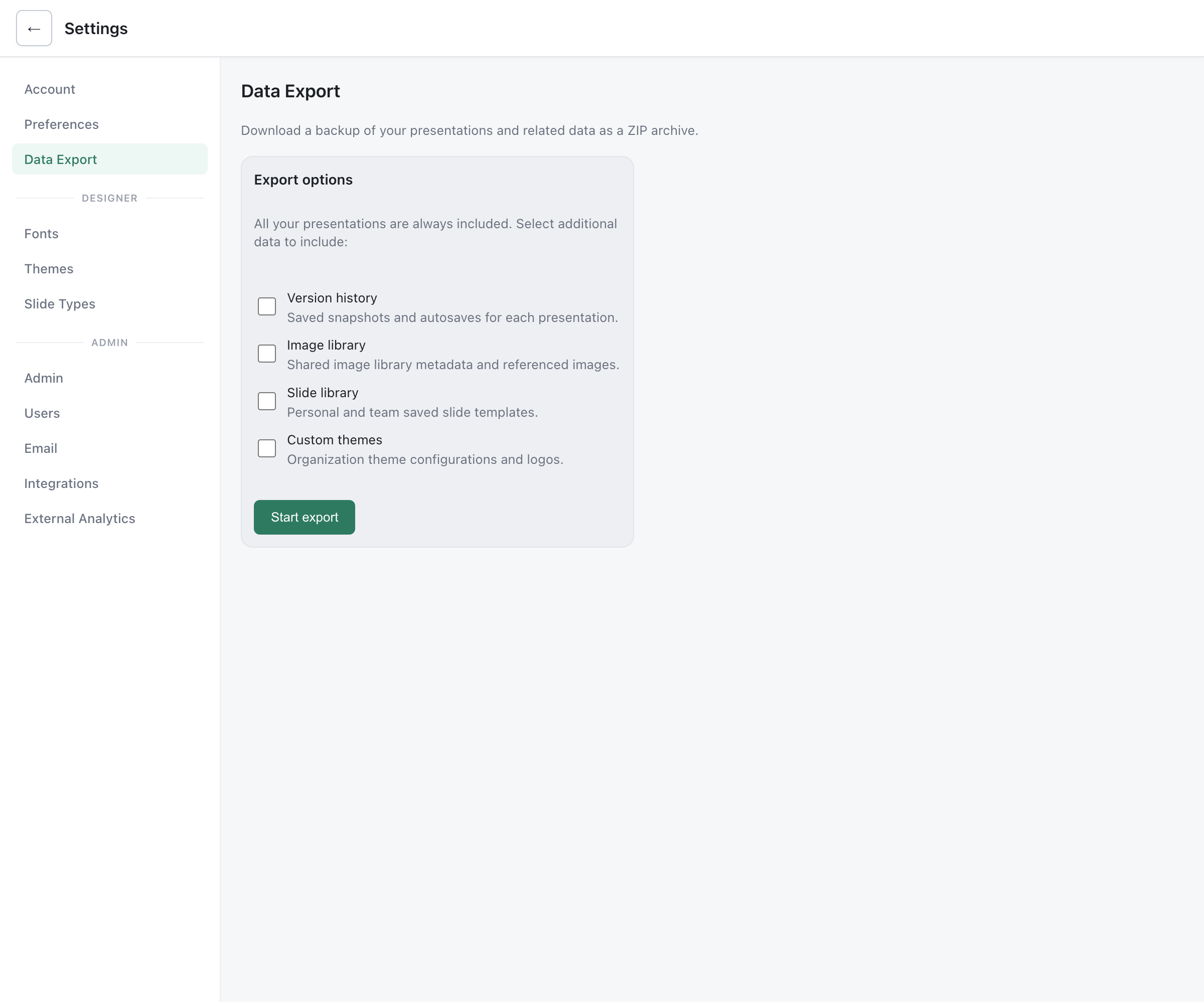
- Go to Settings > Export my data
- Select which additional data to include (see options below)
- Click Start export
The export runs in the background. You can navigate away from the settings page and come back later — the progress is preserved. When the export finishes, you’ll receive a notification and can download the ZIP.
Export Options
Section titled “Export Options”All your presentations are always included. The following are optional:
| Option | What it includes |
|---|---|
| Version history | Saved snapshots and autosaves for each presentation |
| Image library | Shared image library metadata and referenced images |
| Slide library | Personal and team saved slide templates |
| Custom themes | Organization theme configurations and logos |
What’s in the ZIP
Section titled “What’s in the ZIP”deckyard-backup.zip├── manifest.json # Export metadata, stats, timestamps├── presentations/│ ├── {id}.json # Full presentation data (slides, settings, metadata)│ └── ...├── versions/ # (if selected)│ └── {presentation-id}/│ ├── {version-id}.json│ └── ...├── image-library/│ └── index.json # (if selected)├── slide-library/│ ├── personal.json # (if selected)│ └── organization.json├── themes/│ └── {theme-id}.json # (if selected)└── assets/ ├── {hash}.png # Referenced images (local and remote) ├── {hash}.jpg └── url-map.json # Maps original URLs to asset filenamesImages
Section titled “Images”Both local images (uploaded to your instance) and remote images (external URLs referenced in slides) are included in the assets/ folder. The url-map.json file maps original URLs to the downloaded filenames so you can reconstruct references.
Notifications
Section titled “Notifications”When the export finishes:
- An in-app notification appears in the notification bell
- An email notification is sent (if email is configured) with a link back to the download
The download link is available for 2 hours after the export completes. After that, you’ll need to start a new export.
Background Processing
Section titled “Background Processing”Large exports are processed as background jobs. This means:
- You can close the settings page and come back later
- The export tab shows the current progress when you return
- Only one export can run per user at a time
- The progress bar shows which phase the export is in (collecting data, downloading images, building ZIP)
- Schedule exports during low-traffic hours for instances with many presentations, as image downloading can be network-intensive.
- Check the manifest after downloading — it includes stats like how many images were resolved, skipped, or failed.
- The ZIP is written to a temporary directory on the server and streamed to your browser on download, so it doesn’t consume persistent disk space.
For Self-Hosters
Section titled “For Self-Hosters”If email notifications are desired for export completion, ensure:
- Brevo email is configured
APP_URLis set in your environment so email links point to the correct address (see Environment Variables)