

Themes
Themes control the visual identity of your presentations, including colors, fonts, logos, and slide styling.
Overview
Section titled “Overview”Every presentation in Deckyard uses a theme. Themes define:
- Colors - Background colors, accent colors, text colors
- Typography - Fonts for headings and body text
- Logos - Organization logos for title slides
- Assets - Background images and visual elements
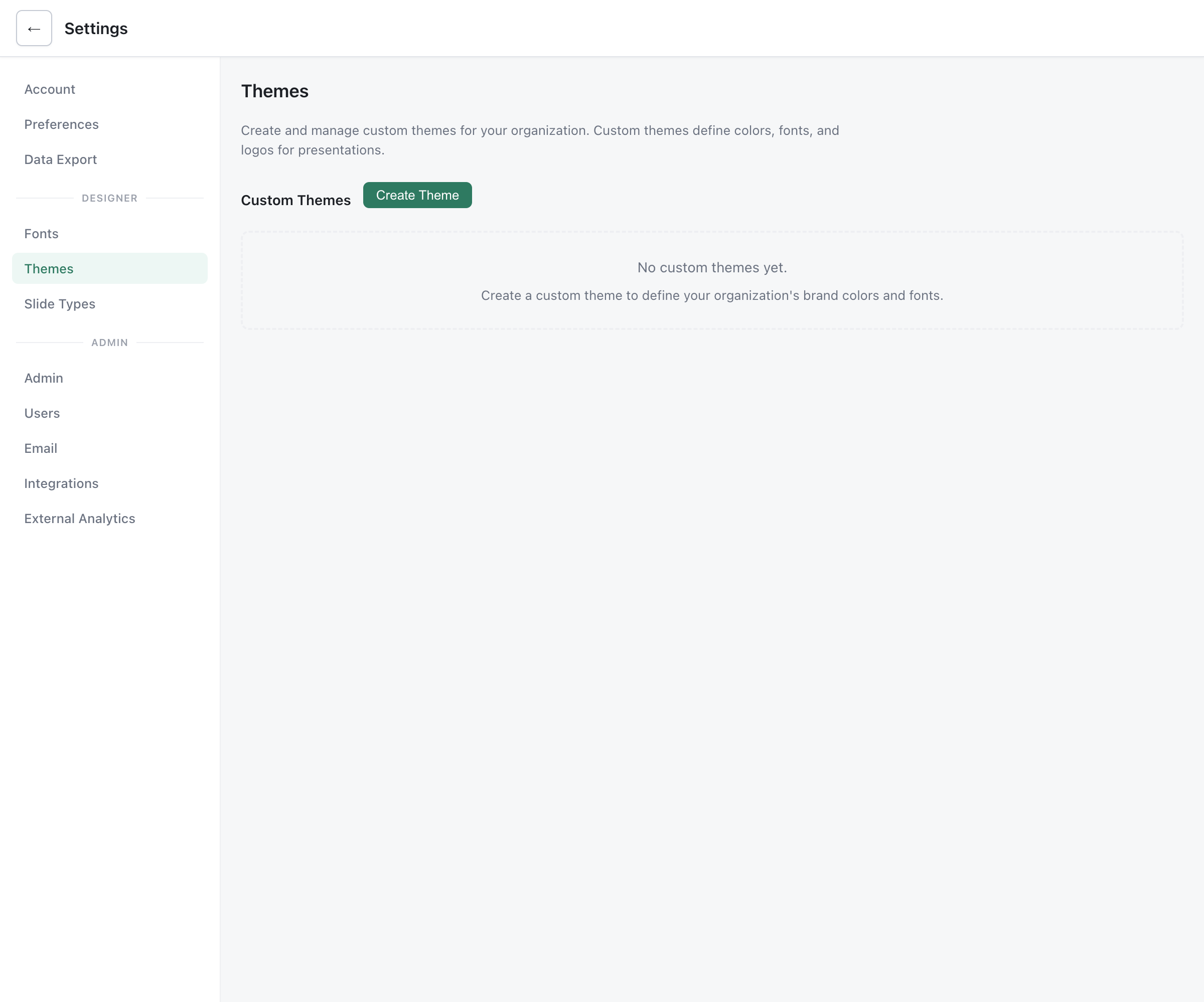
Theme Locations
Section titled “Theme Locations”Deckyard supports two theme directories:
| Location | Purpose |
|---|---|
themes/*.json | Core themes shipped with the system |
custom-themes/*.json | Organization-specific custom themes |
Custom themes take precedence over core themes with the same ID.
Selecting a Theme
Section titled “Selecting a Theme”For New Presentations
Section titled “For New Presentations”When creating a new presentation, select a theme from the available options. The default theme is configured by your administrator.
Changing Themes
Section titled “Changing Themes”To change a presentation’s theme:
- Open the ⋯ menu in the editor’s top bar and choose Settings, then pick the Appearance section of Deck settings
- Select a new theme
- Check the result in the slide preview next to the panel
Note: Changing themes may affect the visual appearance of existing slides. Review your presentation after switching themes.
Built-in Themes
Section titled “Built-in Themes”Six themes ship in themes/. Only one of them is Deckyard’s own; the rest are
neutral archetypes meant to be picked, forked or ignored.
Note that the id and the label are not the same string: the id is what a
deck stores and what DEFAULT_THEME takes, the label is only what the UI shows.
| id | label | Accent | Heading font | Body font |
|---|---|---|---|---|
brand | Forest | Forest green #254d38 with brass #b8860f on warm paper — the default | Bricolage Grotesque | Inter |
deckyard | Deckyard | Violet #7c3aed — was the default until the brand theme landed | Bricolage Grotesque | Inter |
corporate | Boardroom | Blue #2563eb | Archivo | Manrope |
editorial | Editorial | Carmine #9f1239 | Fraunces | Work Sans |
midnight | Midnight | Cyan #38bdf8 on near-black | Space Grotesk | Inter |
playful | Sunset | Orange #ea580c | Poppins | Nunito |
The default is brand because a theme is meant to be your house style rather
than the product’s: Deckyard’s own colours live in one theme among six, not in
the fallback everyone inherits by accident.
Creating Custom Themes
Section titled “Creating Custom Themes”Organizations can create branded themes with custom colors, fonts, and logos.
Quick Start
Section titled “Quick Start”- Create a theme file in
custom-themes/:
{ "id": "your-org", "label": "Your Organization", "assets": { "logo": "/custom-assets/images/logo.svg", "logoAlt": "Your Organization" }, "cssVars": { "--t-color-accent": "#0066cc", "--t-slide-bg-lime": "#your-brand-color" }}-
Add your logo to
custom-assets/images/ -
Set as default in
.env:
DEFAULT_THEME=your-org- Restart the server
Theme Configuration
Section titled “Theme Configuration”A theme file includes:
| Field | Required | Description |
|---|---|---|
id | Yes | Unique identifier (must match filename) |
label | Yes | Display name in the UI |
assets | Yes | Logo paths and alt text |
cssVars | Yes | CSS custom properties |
embedFonts | No | Custom font definitions |
backgroundPresets | No | Background image options |
slideTypes | No | Slide type availability |
CSS Variables
Section titled “CSS Variables”Control colors via CSS variables:
{ "cssVars": { "--t-color-accent": "#0066cc", "--t-slide-bg-lime": "#00cc66", "--t-slide-bg-mist": "#f0f4f8", "--t-slide-bg-night": "#1a1a2e", "--t-text-color-light": "#ffffff", "--t-text-color-dark": "#212121" }}All theme CSS variables must start with --t-.
Custom Fonts
Section titled “Custom Fonts”Deckyard includes 40 curated Google Fonts that are available out of the box. You can also add custom fonts from uploads, Adobe Fonts, Monotype, and Google Fonts through the Font Management settings.
For JSON-based themes, embed font files directly using the embedFonts array:
{ "embedFonts": [ { "family": "Your Brand Font", "path": "custom-assets/fonts/YourFont-Regular.woff2", "weight": 400, "style": "normal" }, { "family": "Your Brand Font", "path": "custom-assets/fonts/YourFont-Bold.woff2", "weight": 700, "style": "normal" } ]}Then reference the font in your CSS variables:
{ "cssVars": { "--t-font-heading": "'Your Brand Font', sans-serif", "--t-font-body": "'Your Brand Font', sans-serif", "--t-heading-weight": "700" }}Embedded fonts are:
- Loaded in the browser for editing and presenting
- Base64-embedded in HTML exports for offline viewing
- Available in PDF and PNG exports
See Font Management for the full guide on adding and managing fonts.
Background Presets
Section titled “Background Presets”Provide background images for title slides:
{ "backgroundPresets": [ "/custom-assets/images/backgrounds/bg1.jpg", "/custom-assets/images/backgrounds/bg2.jpg", "/custom-assets/images/backgrounds/bg3.jpg" ]}These appear in the background picker for slide types that support background images.
Theme Assets
Section titled “Theme Assets”Logo Requirements
Section titled “Logo Requirements”- Format: SVG preferred, PNG also supported
- Size: Design for ~200px width display
- Variants: Consider light and dark versions
Logo Fields
Section titled “Logo Fields”{ "assets": { "logo": "/custom-assets/images/logo.svg", "logoAlt": "Organization Name", "titleLogo": "/custom-assets/images/title-logo.svg", "payoffLogo": "/custom-assets/images/payoff-logo.svg" }}| Asset | Usage |
|---|---|
logo | Default logo for slides |
titleLogo | Smaller logo variant for title slides |
payoffLogo | Logo for payoff/tagline slides |
Slide Type Availability
Section titled “Slide Type Availability”Themes can control which slide types are available:
{ "slideTypes": { "exclude": ["stock-team-overview-slide"], "include": ["your-custom-slide"] }}- exclude: Hide slide types from the “add slide” UI
- include: Enable theme-specific custom slide types
Note: Excluding a slide type only affects inserting new slides. Existing slides still render and can be edited.
Directory Structure
Section titled “Directory Structure”Complete custom theme setup:
custom-themes/└── your-org.json
custom-assets/├── fonts/│   ├── YourFont-Regular.woff2│   └── YourFont-Bold.woff2└── images/    ├── logo.svg    ├── title-logo.svg    └── backgrounds/        ├── bg1.jpg        └── bg2.jpg
Complete Example
Section titled “Complete Example”{ "id": "acme-corp", "label": "Acme Corporation",
"assets": { "logo": "/custom-assets/images/acme-logo.svg", "logoAlt": "Acme Corp", "payoffLogo": "/custom-assets/images/acme-payoff.svg", "payoffAlt": "Acme Corp" },
"defaultTitleSlide": "title-slide",
"cssVars": { "--t-color-accent": "#0066cc", "--t-slide-bg-lime": "#00cc66", "--t-slide-bg-mist": "#f0f4f8", "--t-slide-bg-night": "#1a1a2e", "--t-text-color-light": "#ffffff", "--t-text-color-dark": "#212121" },
"embedFonts": [ { "family": "Acme Sans", "path": "custom-assets/fonts/AcmeSans-Medium.woff2", "weight": 500, "style": "normal" } ],
"backgroundPresets": [ "/custom-assets/images/backgrounds/acme-bg-1.jpg", "/custom-assets/images/backgrounds/acme-bg-2.jpg" ],
"slideTypes": { "exclude": [], "include": [] }}