

Digest Emails
Receive a weekly summary of how your presentations are performing.
Overview
Section titled “Overview”Deckyard can send each user a weekly digest email with the views on their presentations over the past seven days. The email links to the Engagement Insights dashboard for the full picture.
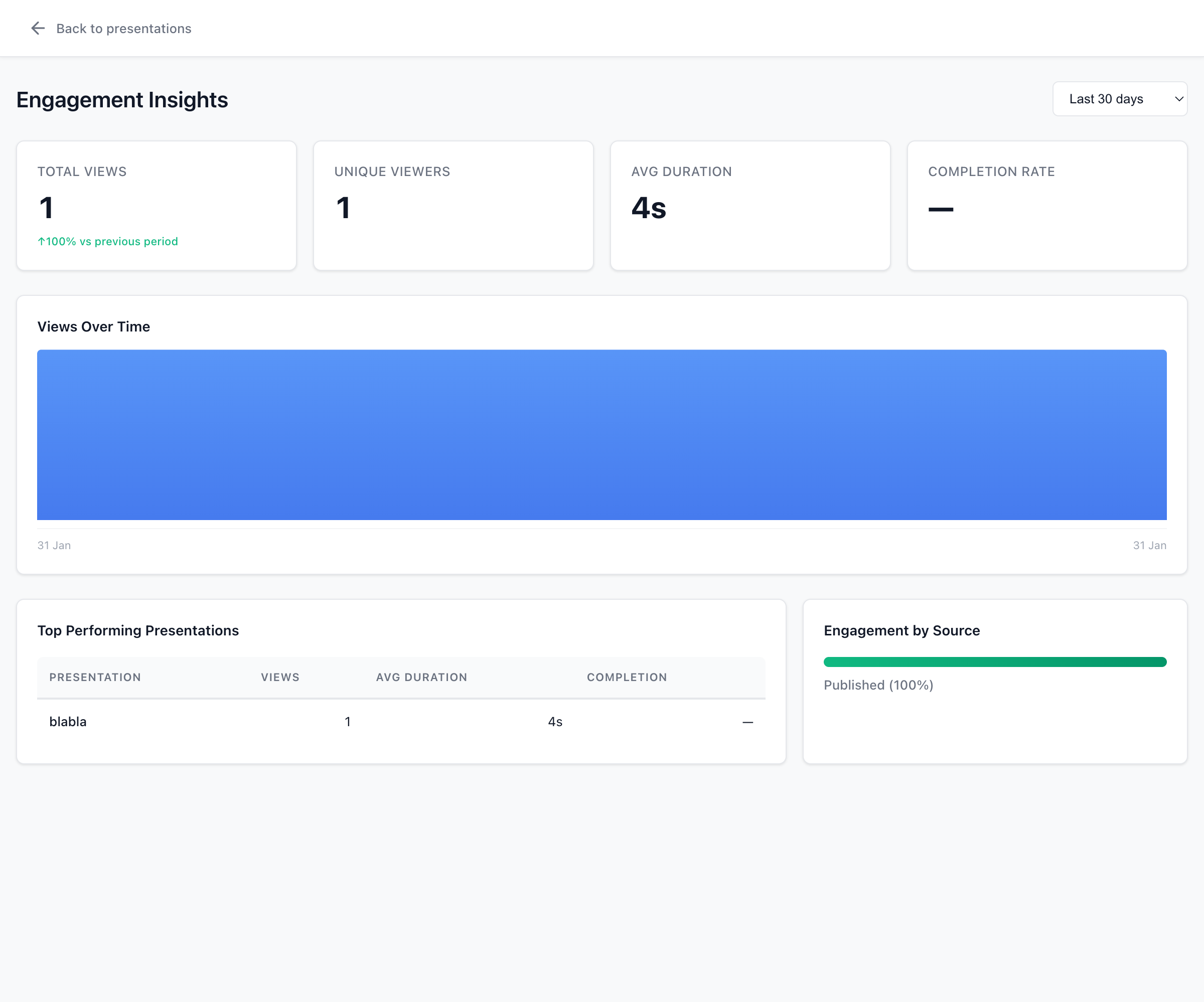
The digest summarizes the week and links to this dashboard; the email itself contains no charts.
Requirements
Section titled “Requirements”Digest emails need:
- Email sending configured with a Brevo API key (
BREVO_API_KEY); see Email Configuration - Enable engagement insights switched on in the Engagement Insights card of the Admin tab in Settings. When it is off, no digests are sent.
- Optionally, an AI provider for the written summary. Without AI, Deckyard sends a template-based digest with the same layout.
User Preferences
Section titled “User Preferences”Each user chooses whether and when to receive the digest:
- Go to Settings > Preferences
- In the Weekly Digest card, check or uncheck Receive weekly digest emails (on by default)
- Pick a day under Send digest on (any day of the week; Monday by default)
- Click Save
Every digest email ends with a Manage preferences link to this page.
Timing
Section titled “Timing”- Once a week, on the chosen day
- Around 08:00 in the server’s local time; there is no per-user timezone
- Covering the last seven days, compared with the seven days before
A user with no presentations and no views gets no digest. A user who has presentations but no views that week gets a short “quiet week” email instead.
What’s Included
Section titled “What’s Included”A personal digest contains, in this order:
- A short summary of the week, written by the AI provider when one is configured
- Top performing presentations: the three most viewed, each with its view count and average view duration
- Insights: up to three observations about the week
- Week over week: views, unique viewers and average duration, each with the change against the previous week
- A View Full Dashboard button that opens Engagement Insights
Team Digest
Section titled “Team Digest”Admins who belong to an organization also receive a team digest on their digest day, next to their personal one. It is sent only when the team had views that week and contains:
- Top performing presentations: the five most viewed in the organization
- Most active presenters: the top five, with their views and number of presentations
- Up to three insights
- A Team overview line with total views, active presenters and total presentations
- A View Team Dashboard button
There are no settings for the team digest; it follows each admin’s own digest preferences.
Customization
Section titled “Customization”The digest emails use a fixed template. They are not among the templates you can edit under Email Templates, and they are written in the recipient’s language, following the same rule as every other email: the language chosen under Settings > Preferences, otherwise the instance default (see Which Language an Email Uses). The sender name and address follow the Email Sender Identity set in the Admin tab.
Troubleshooting
Section titled “Troubleshooting”Digests Not Sending
Section titled “Digests Not Sending”If users aren’t receiving digests:
- Verify that email sending is configured (
BREVO_API_KEY) - Check that Enable engagement insights is on in the Admin tab
- Check that the user has Receive weekly digest emails checked
- Check the server logs for email errors
No AI Summary
Section titled “No AI Summary”If the digest shows a plain summary instead of an AI-written one:
- Verify that an AI provider is configured and its API key is valid
- Check that AI is not switched off for the instance
Deckyard falls back to the template digest whenever the AI call fails, so the email still goes out.