

Presentation Locks
Coordinate access to presentations with advisory locks.
Overview
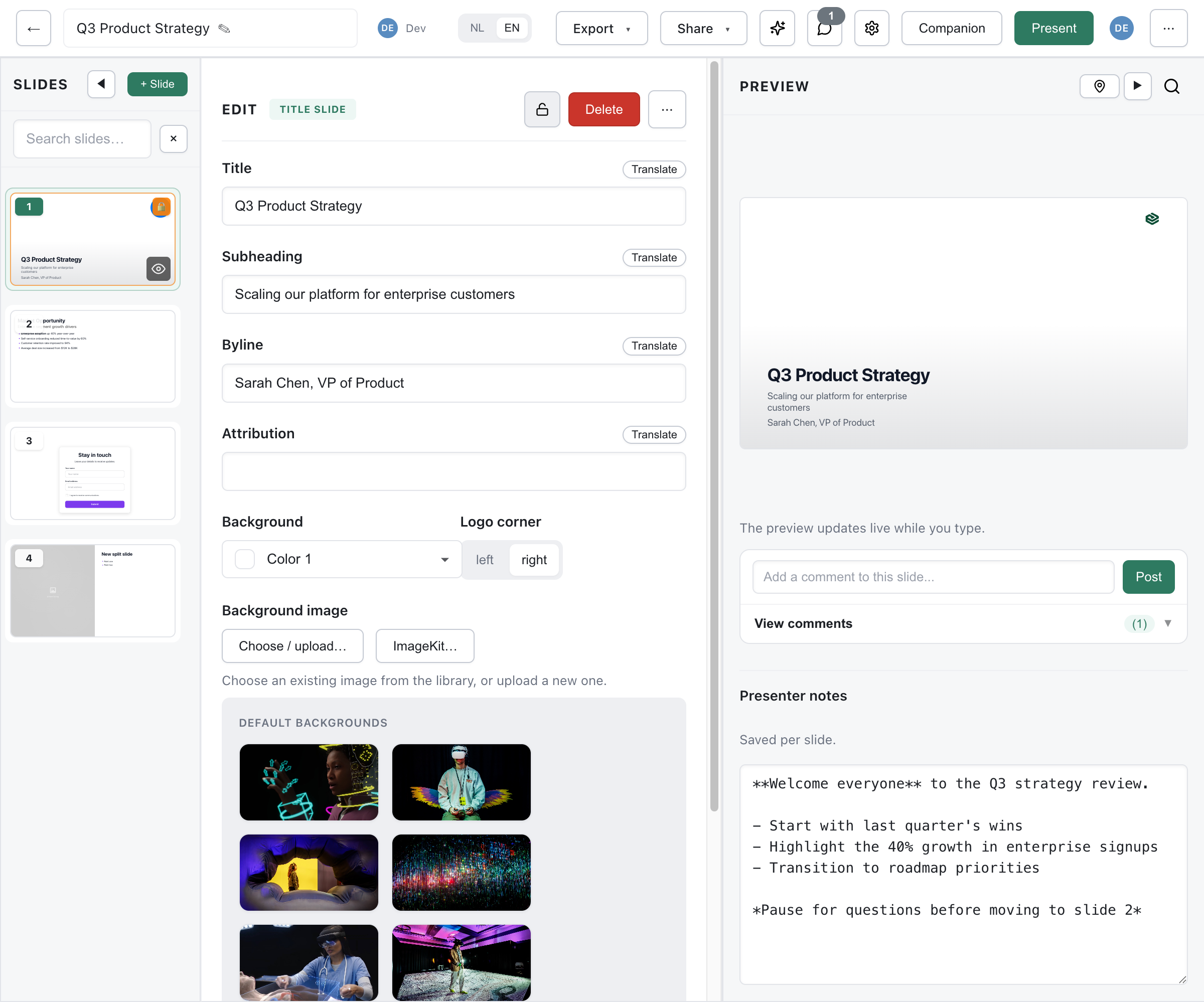
Section titled “Overview”Presentation-level locks provide an advisory system to prevent editing conflicts when multiple team members work on the same presentation. Unlike slide-level locks for real-time editing, presentation locks are for coordinating who is actively working on a presentation.
How Locks Work
Section titled “How Locks Work”Advisory Nature
Section titled “Advisory Nature”Locks are advisory (soft locks), meaning:
- They don’t physically block access
- They signal intent to others
- Users can override if necessary
- Designed for coordination, not enforcement
Lock Visibility
Section titled “Lock Visibility”Lock status is visible to all collaborators:
- Lock indicator on presentation card
- Lock details in the editor
- Who holds the lock
- When it was acquired
Automatic Expiration
Section titled “Automatic Expiration”Locks automatically expire:
- Default timeout: 2 hours of inactivity
- Prevents abandoned locks
- Activity extends the lock
- Configurable by admins
Acquiring a Lock
Section titled “Acquiring a Lock”Automatic Acquisition
Section titled “Automatic Acquisition”When you open a presentation for editing:
- System checks if it’s unlocked
- Lock is acquired automatically
- Other users see the lock indicator
- You can edit freely
Manual Lock
Section titled “Manual Lock”To explicitly lock a presentation:
- Open the presentation
- Click Lock in the toolbar
- Lock is acquired
- Add an optional message
Lock Messages
Section titled “Lock Messages”Add context to your lock:
- “Updating Q3 figures”
- “Major restructure in progress”
- “Please don’t edit until Friday”
Others see this message when they view the locked presentation.
When Presentation Is Locked
Section titled “When Presentation Is Locked”Viewing
Section titled “Viewing”You can always:
- View the presentation
- Navigate through slides
- Read content
- See comments
Editing
Section titled “Editing”When someone else holds the lock:
- You see a warning before editing
- You can proceed anyway (advisory)
- Or request the lock holder release it
- The lock holder is notified
Lock Requests
Section titled “Lock Requests”Request access when a presentation is locked by another user.
Requesting a Lock
Section titled “Requesting a Lock”- Open the locked presentation
- Click Request Access
- Optionally add a message
- Request is sent to lock holder
For Lock Holders
Section titled “For Lock Holders”When someone requests your lock:
- You receive a notification
- See who is requesting
- Read their message
- Choose to release or keep
Responding to Requests
Section titled “Responding to Requests”Options when you receive a request:
- Release - Give up the lock
- Keep - Maintain your lock
- Reply - Send a message back
Force Release (Admin)
Section titled “Force Release (Admin)”Administrators can force-release locks when needed.
When to Force Release
Section titled “When to Force Release”Use force release when:
- Lock holder is unavailable
- Urgent changes needed
- Lock appears abandoned
- Technical issues
How to Force Release
Section titled “How to Force Release”- Open the locked presentation
- Click the lock indicator
- Click Force Release
- Confirm the action
Notifications
Section titled “Notifications”When a lock is force-released:
- Original holder is notified
- Action is logged
- Reason can be provided
Use Sparingly
Section titled “Use Sparingly”Force release should be rare:
- Respect colleagues’ work
- Try requesting first
- Use for genuine urgency
- Follow up with communication
Best Practices
Section titled “Best Practices”Communication
Section titled “Communication”- Add meaningful lock messages
- Respond to lock requests promptly
- Communicate about ongoing work
Release When Done
Section titled “Release When Done”- Release locks when finished
- Don’t hold locks unnecessarily
- Set reminders for long work sessions
Coordinate for Major Changes
Section titled “Coordinate for Major Changes”- Discuss before major restructures
- Plan editing windows
- Use locks during critical periods
Lock Status
Section titled “Lock Status”In Presentation List
Section titled “In Presentation List”Locked presentations show:
- Lock icon
- Lock holder’s name
- Time since locked
In Editor
Section titled “In Editor”The editor shows:
- Banner if locked by another
- Lock controls if you hold it
- Request button if locked
Slide-Level vs Presentation Locks
Section titled “Slide-Level vs Presentation Locks”| Feature | Slide Locks | Presentation Locks |
|---|---|---|
| Scope | Individual slide | Entire presentation |
| Purpose | Conflict prevention | Access coordination |
| Blocking | Automatic | Advisory |
| Timeout | 2 minutes | 2 hours |
Both can be active simultaneously.