

AI Setup & API Keys
Get started with Deckyard’s AI-powered features.
Overview
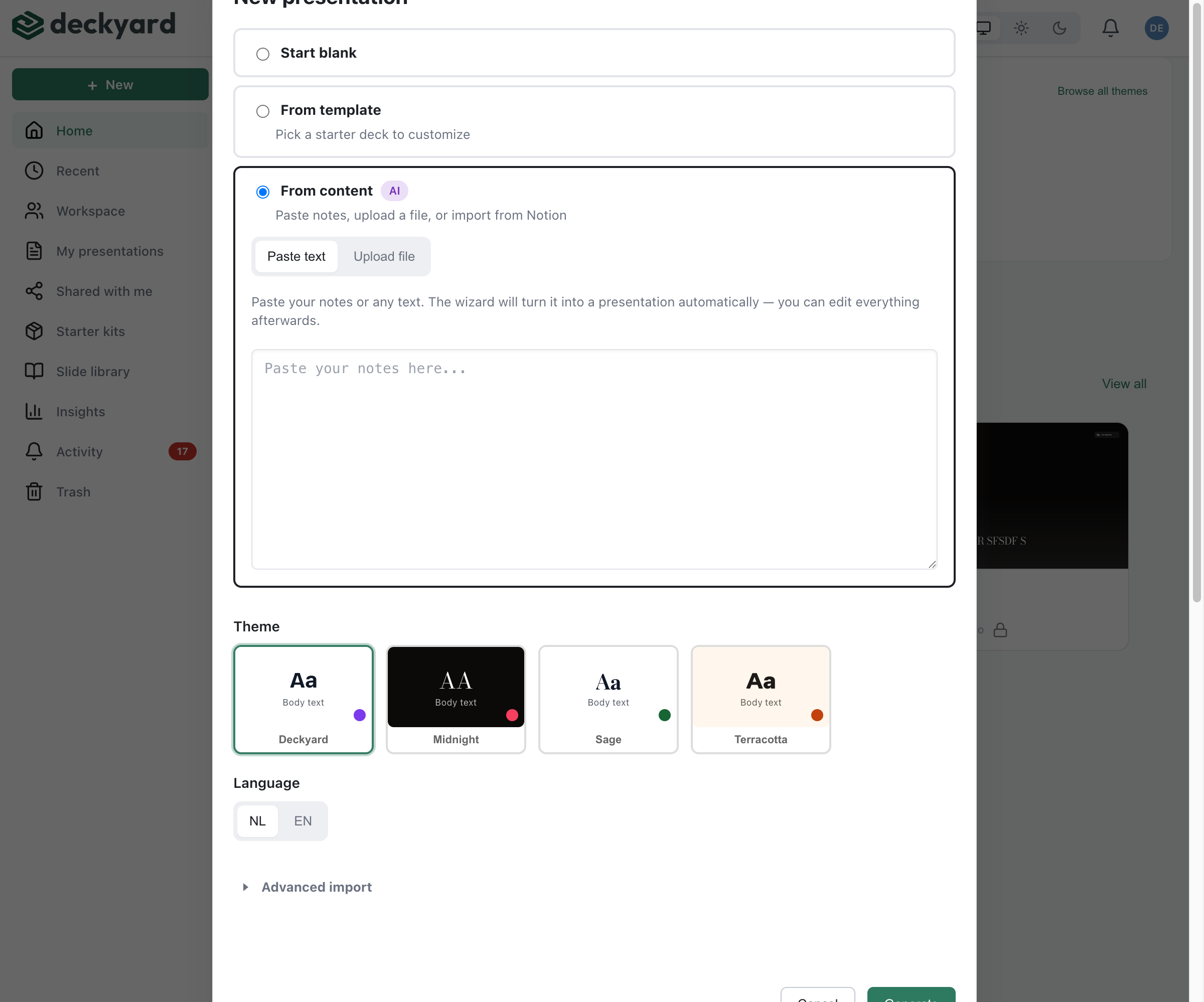
Section titled “Overview”Deckyard can call a large language model to help you build and maintain a deck. The features are:
- Deck Generation - Turn your own notes, documents or outlines into slides
- Translation - Translate a field, a slide or the whole deck
- Analysis - Let the AI review the deck and leave suggestions as comments
- Description Generation - Write the public meta description for a deck
- Alt Text - Describe images for screen reader users
AI is not required. Deckyard runs without a single key configured; the AI affordances simply stay unavailable.
Supported AI Providers
Section titled “Supported AI Providers”Deckyard supports five vendors. openai, claude, mistral and deepseek are the hosted APIs; openai-compat is any OpenAI-compatible chat-completions endpoint, which is how you point Deckyard at a local or self-hosted model (Ollama, vLLM, Together, Fireworks).
| Vendor | Environment variable | Default model |
|---|---|---|
openai | OPENAI_API | gpt-5.2 |
claude | CLAUDE_API | claude-sonnet-5 |
mistral | MISTRAL_API | mistral-large-latest |
deepseek | DEEPSEEK_API | deepseek-chat |
openai-compat | OPENAI_COMPAT_ENDPOINT + OPENAI_COMPAT_MODEL | the model you name |
Each hosted vendor takes an optional model override: OPENAI_MODEL, CLAUDE_MODEL, MISTRAL_MODEL, DEEPSEEK_MODEL.
API Key Configuration
Section titled “API Key Configuration”Configure a provider by setting its environment variable. Note the names: they end in _API, not _API_KEY.
OpenAI
Section titled “OpenAI”OPENAI_API=sk-your-api-key-hereGet an API key from platform.openai.com.
Anthropic (Claude)
Section titled “Anthropic (Claude)”CLAUDE_API=sk-ant-your-api-key-hereGet an API key from console.anthropic.com.
Claude is the one vendor that uses two models. Deck planning (the outline and slide-type step) runs on a stronger model than content generation, because that is where the choice of slide type is made:
# Generation and field fillCLAUDE_MODEL=claude-sonnet-5# Outline and plan stepCLAUDE_MODEL_PLAN=claude-opus-4-8Setting only CLAUDE_MODEL pins both steps to that model.
Mistral
Section titled “Mistral”MISTRAL_API=your-api-key-hereGet an API key from console.mistral.ai.
DeepSeek
Section titled “DeepSeek”DEEPSEEK_API=sk-your-api-key-hereAn OpenAI-compatible endpoint
Section titled “An OpenAI-compatible endpoint”For a local model or any gateway that speaks the OpenAI chat-completions API:
OPENAI_COMPAT_ENDPOINT=http://localhost:11434/v1/chat/completionsOPENAI_COMPAT_MODEL=qwen2.5:72b# Optional, not needed for OllamaOPENAI_COMPAT_API=# Optional, the name shown in the UIOPENAI_COMPAT_LABEL=OllamaBoth the endpoint and the model are required for this vendor to count as configured.
Multiple Providers
Section titled “Multiple Providers”You can configure several vendors at once. One of them is the default, and the editor’s AI dialogs let you pick another per call from the vendors that are configured.
The default is resolved in a fixed order:
-
LLM_VENDOR, when set, winsTerminal window LLM_VENDOR=claude -
Otherwise the first configured vendor in this order:
openai,claude,mistral,deepseek,openai-compat
There is no automatic failover. If the chosen vendor’s API errors, the call fails and the error surfaces; Deckyard does not retry against a second vendor. Nor does it pick a different vendor per feature, with one exception: alt text requires OpenAI (see below).
Feature Availability
Section titled “Feature Availability”| Feature | Requirement |
|---|---|
| Deck generation | Any configured vendor |
| Translation | Any configured vendor |
| Analysis | Any configured vendor |
| Description generation | Any configured vendor |
| Alt text (images) | OpenAI |
Alt text needs to look at the image, and the vision path is written against OpenAI’s API. Asking for alt text with another vendor resolved returns an error rather than a text-only guess.
Checking Which Providers Are Available
Section titled “Checking Which Providers Are Available”The server reports its own LLM configuration, which is how the editor knows which vendors to offer:
GET /api/ai/vendorsResponse:
{ "knownVendors": ["openai", "claude", "mistral", "deepseek", "openai-compat"], "configuredVendors": ["openai", "mistral"], "defaultVendor": "openai", "vendorLabels": {}}knownVendors is what this build supports, configuredVendors is what this instance has keys for, and defaultVendor is the one a call gets when it names none. vendorLabels carries the display name for openai-compat when OPENAI_COMPAT_LABEL is set. No key material is ever returned.
Cost Considerations
Section titled “Cost Considerations”Hosted providers generally bill by usage; a self-hosted endpoint has its own infrastructure costs. Deckyard does not meter or cap spending, and it has no per-user or per-role budget: manage cost in your provider’s dashboard, with the spending limits and alerts it offers.
To control it from Deckyard’s side:
- Use the AI switch with the exceptions below in mind, or remove provider credentials
- Pin a cheaper model with the
*_MODELoverrides - Point
openai-compatat a model you host yourself, where there is no per-token bill
Disabling AI Features
Section titled “Disabling AI Features”Leaving every vendor variable unset is enough: with no vendor configured, AI calls fail with “No LLM vendor configured” and the features stay out of reach.
The canonical setting for disabling AI features is:
AI_ENABLED=falseNot every AI path checks this setting. The editor’s AI Analysis (its menu item and its endpoint), the public API’s /api/v1/ai/* endpoints and the MCP server’s AI tools keep working while a vendor key is configured, and can incur provider charges. Remove the vendor keys if you need to prevent all model calls. See Environment Variables.
The older spelling DISABLE_AI=true still works, with a warning at boot, and is removed in the first release after 1 November 2026. Use AI_ENABLED in new configuration. There are no separate switches per AI feature.
Two other modes affect AI:
- Demo mode (
DEMO_MODE=true) is a read-mostly showcase install: no AI, no uploads. - Sandbox mode switches AI features off, like demo mode. The paths that
do not check the AI switch (see above) are restricted to Mistral, with
mistral-small-latestas the default model; a request that names another vendor is refused.
Security
Section titled “Security”API Key Security
Section titled “API Key Security”- Keys live in the server environment (
.env), never in a deck or in client-side code. They are not exposed by/api/ai/vendors. - Use provider-level restrictions and spending limits where your provider offers them.
Data Privacy
Section titled “Data Privacy”When you use an AI feature, the content that feature needs is sent to the configured provider: deck text for generation, analysis and translation, and the image itself for alt text. Check your provider’s data retention policy, and pick a vendor whose data residency matches your requirements. For a self-hosted path, point openai-compat at an endpoint whose hosting location and data handling you control.
Troubleshooting
Section titled “Troubleshooting”AI Features Not Appearing
Section titled “AI Features Not Appearing”- Check that a vendor variable is set, and that the name ends in
_API - Check
GET /api/ai/vendors: an emptyconfiguredVendorsmeans the server sees no keys - Check that
AI_ENABLEDis notfalseand that the instance is not in demo mode - Check the server log for configuration errors
Errors During AI Operations
Section titled “Errors During AI Operations”- No LLM vendor configured - no vendor variable is set, or only half of the
openai-compatpair is - Invalid LLM vendor - a call named a vendor outside the five known ones
- Alt-text generation currently requires OpenAI - the resolved vendor has no vision path
- Rate limits or quota - raised by the provider, not by Deckyard; check the provider dashboard
To see what the model was actually asked and what came back while debugging generation, switch on validation logging:
AI_VALIDATION_LOGGING=trueSlow Responses
Section titled “Slow Responses”AI operations take seconds, and deck generation takes longer than a single field. If it is consistently slow, check your provider’s status page and consider pinning a faster model with the vendor’s *_MODEL override.