

Slides Panel
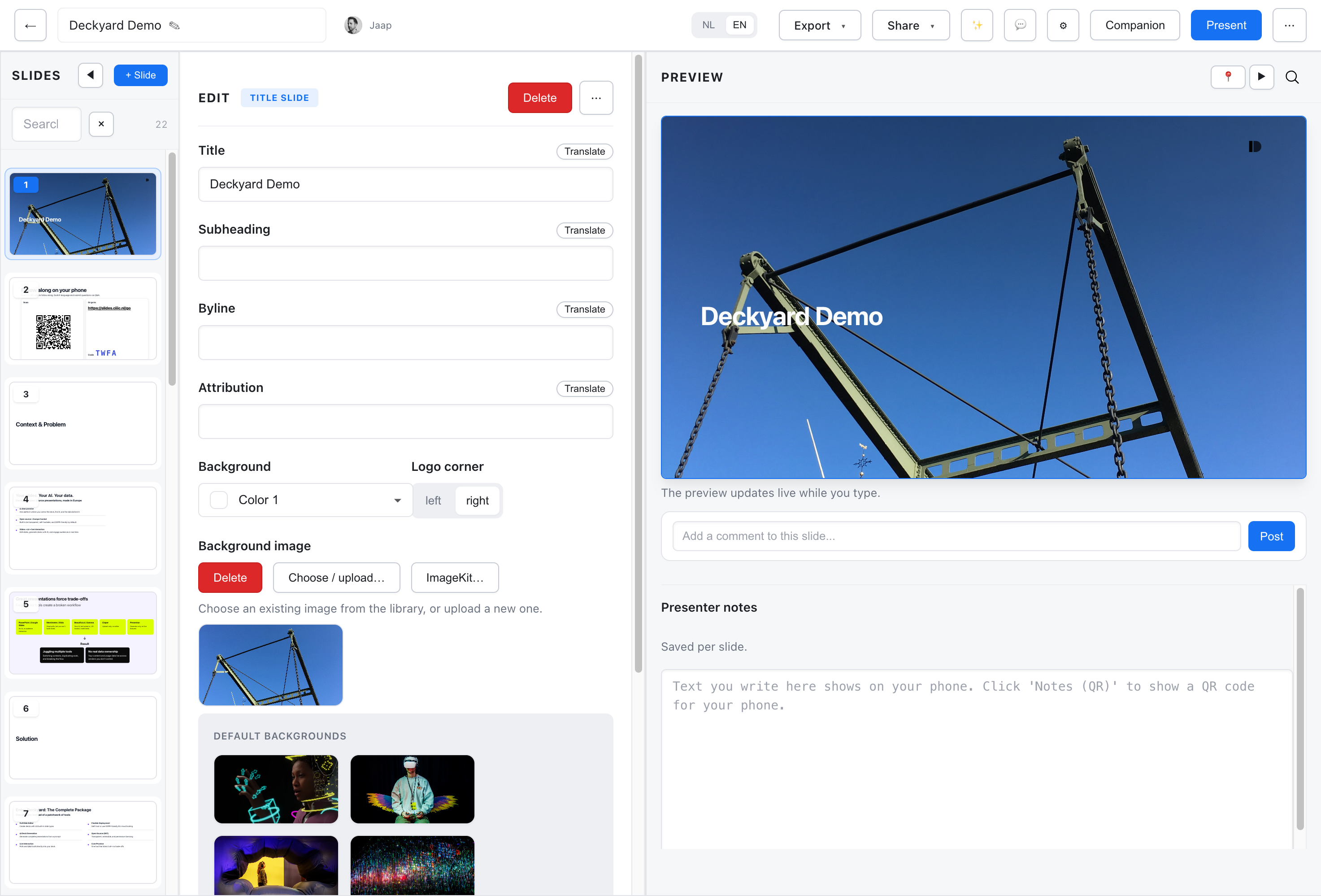
The slides panel on the left side of the editor is your command center for managing slides.
Navigating Slides
Section titled “Navigating Slides”- Click a slide thumbnail to select and edit it
- Arrow keys move through the list when the panel is focused
- The selected slide shows in the edit and preview panels
Adding Slides
Section titled “Adding Slides”- + Slide button at the top adds a new slide at the end
- Insert between - Hover between slides to reveal an insert button
- Choose a slide type when adding
Reordering Slides
Section titled “Reordering Slides”Drag and drop slides to reorder:
- Click and hold a slide thumbnail
- Drag to the new position
- Release to drop
Nesting Slides
Section titled “Nesting Slides”Create hierarchy by nesting slides under others:
- Drag a slide slightly to the right to nest it under the slide above
- Nested slides appear indented
- Parent slides can be collapsed to hide their children
- Useful for organizing sections or creating “appendix” slides
Hiding Slides
Section titled “Hiding Slides”Hide slides without deleting them:
- Click the visibility icon on a slide
- Hidden slides are skipped during presentation
- Useful for backup slides or work-in-progress content
Deleting Slides
Section titled “Deleting Slides”- Click the delete icon on a slide
- Confirm the deletion
- Deleted slides cannot be recovered (duplicate your presentation first if unsure)
Slide Thumbnails
Section titled “Slide Thumbnails”Thumbnails show a miniature preview of each slide. They update as you edit.