

Theme Editor
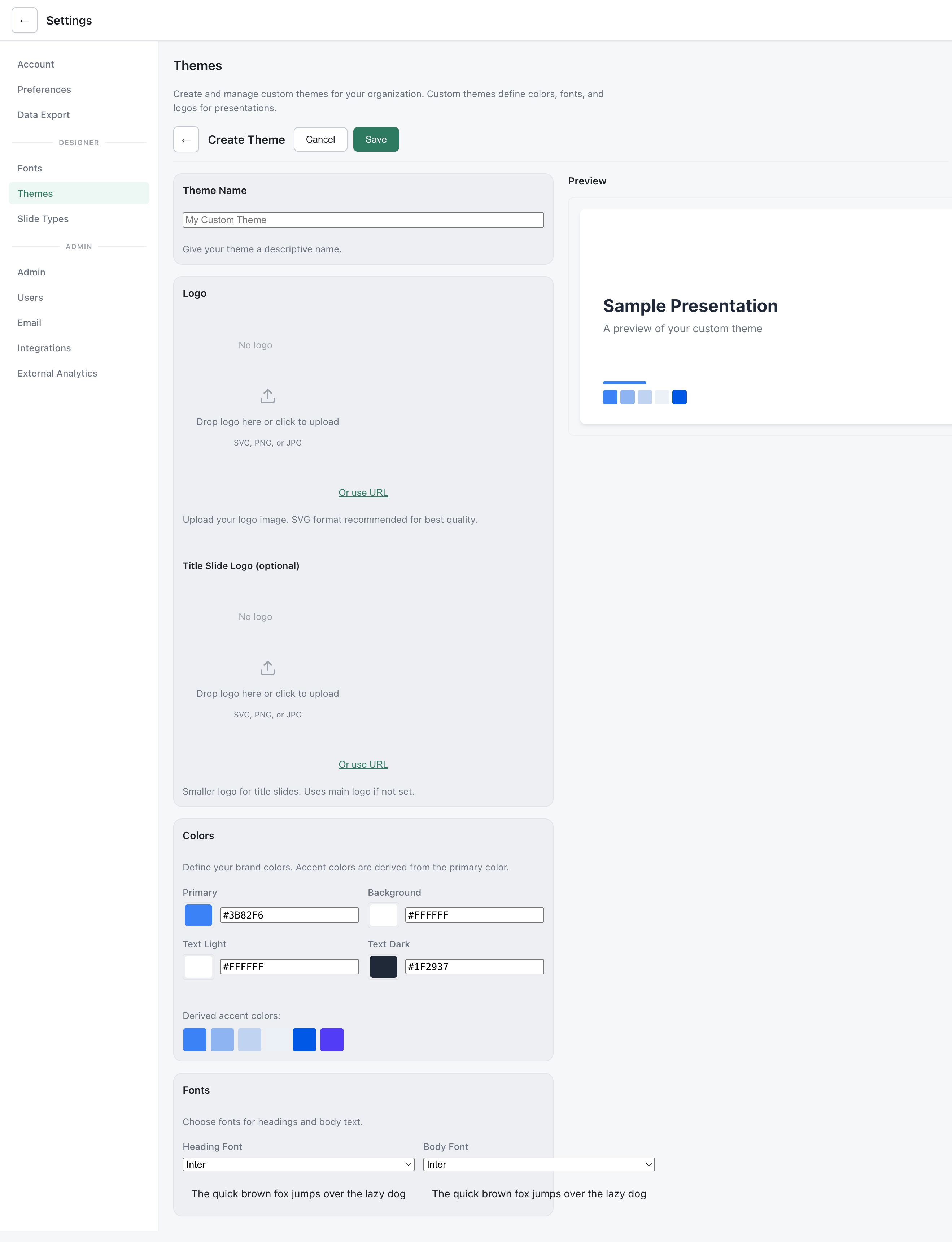
The Theme Editor provides a visual interface for creating and customizing themes without directly editing JSON files.
Overview
Section titled “Overview”The Theme Editor allows you to:
- Modify colors and typography
- Upload logos and assets
- Preview changes in real-time
- Export theme configurations
Accessing the Theme Editor
Section titled “Accessing the Theme Editor”From Admin Panel
Section titled “From Admin Panel”- Navigate to Admin > Themes
- Click Edit on an existing theme, or
- Click Create New Theme
Permissions
Section titled “Permissions”Theme editing requires admin access. Regular users can select themes but cannot modify them.
Color Configuration
Section titled “Color Configuration”Primary Colors
Section titled “Primary Colors”| Variable | Usage |
|---|---|
| Accent Color | Buttons, links, highlights |
| Text Dark | Primary text on light backgrounds |
| Text Light | Primary text on dark backgrounds |
Background Colors
Section titled “Background Colors”Configure the predefined background options:
| Background | Default | Usage |
|---|---|---|
| Lime | Brand primary | High-energy slides |
| Mist | Light neutral | Content-heavy slides |
| Night | Dark | Low-light presentations |
Color Picker
Section titled “Color Picker”- Click any color swatch
- Use the color picker or enter a hex code
- Preview updates automatically
- Click Apply to confirm
Typography
Section titled “Typography”Font Picker
Section titled “Font Picker”The Theme Editor provides font picker dropdowns for heading and body fonts. Each picker shows:
- Curated fonts — 40 pre-selected Google Fonts, grouped by category (sans-serif, serif, display, monospace). Available to all organizations.
- Custom fonts — Organization-specific fonts added through Font Management. Shown in a separate group at the top of the picker.
Font previews load automatically so you can see each typeface before selecting it.
Heading and Body Fonts
Section titled “Heading and Body Fonts”| Element | CSS Variable | Usage |
|---|---|---|
| Heading Font | --t-font-heading | Titles, section headers, emphasis text |
| Body Font | --t-font-body | Paragraphs, lists, slide content |
Body Font Requirements
Section titled “Body Font Requirements”Body fonts need both Regular (400) and Bold (700) weights to properly render slide content. The body font picker only shows fonts that meet this requirement:
- Uploaded custom fonts must have both weight 400 and 700 variants
- Adobe, Monotype, and Google fonts are always available (variants managed externally)
- Curated fonts always qualify (pre-selected with appropriate weights)
Heading fonts have no weight restriction — a single weight works fine for titles.
Heading Weight
Section titled “Heading Weight”Use the heading weight setting to control how bold headings appear. This maps to --t-heading-weight in the theme configuration. Common values:
| Weight | Style |
|---|---|
| 400 | Regular |
| 600 | Semi-bold |
| 700 | Bold |
Font Recommendations
Section titled “Font Recommendations”- Limit to 2 font families (one heading, one body) for visual consistency
- Pair a distinctive heading font with a readable body font
- Test at various sizes — headings, body text, and captions
- Verify fonts render correctly in exports (PDF, PNG, HTML)
Logo and Assets
Section titled “Logo and Assets”Primary Logo
Section titled “Primary Logo”The main logo appears on title slides and headers:
- Click Upload Logo
- Select your logo file (SVG recommended)
- Enter alt text for accessibility
- Preview on sample slides
Logo Variants
Section titled “Logo Variants”| Variant | Purpose |
|---|---|
| Primary Logo | Default for most slides |
| Title Logo | Smaller version for title slides |
| Payoff Logo | Used on payoff/tagline slides |
Background Images
Section titled “Background Images”Add preset background images:
- Click Add Background
- Upload high-resolution images (1920x1080+)
- Preview on title slide
- Reorder by dragging
Live Preview
Section titled “Live Preview”Preview Panel
Section titled “Preview Panel”The right side shows a live preview that updates as you make changes:
- Sample title slide with logo
- Content slide with colors
- Chart slide with palette
Preview Modes
Section titled “Preview Modes”- Light mode - Preview on light backgrounds
- Dark mode - Preview on dark backgrounds
- All slides - Cycle through all sample types
Saving and Publishing
Section titled “Saving and Publishing”Draft Mode
Section titled “Draft Mode”Changes are saved as drafts until published:
- Only you can see draft changes
- Preview without affecting live presentations
Publishing
Section titled “Publishing”- Review all changes in preview
- Click Publish Theme
- Confirm the update
- Changes apply to all presentations using this theme
Version History
Section titled “Version History”View previous versions of the theme:
- Click Version History
- Compare versions
- Restore a previous version if needed
Exporting Themes
Section titled “Exporting Themes”Export to JSON
Section titled “Export to JSON”Download the theme configuration:
- Click Export
- Choose JSON Format
- Save the file
Use for:
- Backup
- Sharing with other instances
- Version control
Import Theme
Section titled “Import Theme”Import a theme from JSON:
- Click Import Theme
- Select the JSON file
- Review the configuration
- Click Import
CSS Variables Reference
Section titled “CSS Variables Reference”Color Variables
Section titled “Color Variables”--t-color-accent /* Primary accent color */--t-color-background /* Default slide background */--t-color-text /* Primary text color */--t-color-text-muted /* Secondary/muted text */--t-slide-bg-lime /* Lime background variant */--t-slide-bg-mist /* Mist background variant */--t-slide-bg-dark /* Dark background variant */--t-quote-author-color /* Quote attribution text */--t-quote-text-color /* Quote body text */Chart Colors
Section titled “Chart Colors”--t-chart-0 through --t-chart-7 /* 8 chart series colors */Typography Variables
Section titled “Typography Variables”--t-font-heading /* Font family for headings */--t-font-body /* Font family for body text */--t-font-caption /* Font family for captions (defaults to body) */--t-font-mono /* Font family for code blocks */--t-heading-weight /* Font weight for headings (e.g. 600, 700) */--t-heading-transform /* Text transform for headings (e.g. none, uppercase) */Layout Variables
Section titled “Layout Variables”--t-radius /* Default border radius */--t-radius-sm /* Small border radius */--t-radius-lg /* Large border radius */Asset Variables
Section titled “Asset Variables”--t-logo-url /* Logo as CSS url() for background-image use */Best Practices
Section titled “Best Practices”Colors
Section titled “Colors”- Ensure sufficient contrast (WCAG AA minimum). The editor measures it for you: each pair shows its ratio and a WCAG verdict, and the automatic text color goes to whichever candidate measures higher. It reports rather than blocks, so a failing pair can still be saved. See Color Contrast
- Test colors in both light and dark modes
- Consider colorblind accessibility
Typography
Section titled “Typography”- Limit to 2 font families maximum
- Test at various sizes (headings to captions)
- Ensure fonts work in exports
- Use SVG for best quality at any size
- Ensure logos work on all backgrounds
- Provide appropriate alt text
Testing
Section titled “Testing”- Preview all slide types
- Test exports (PDF, PNG)
- View on different devices