

Audience Follow Mode
Enable your audience to follow your presentation on their own devices.
Overview
Section titled “Overview”Follow mode gives audience members a companion view of your live presentation on their own phone, tablet or laptop. It is useful in large venues, at hybrid events, or for an audience that reads along in another language.
There is no switch to turn it on per deck. Follow mode is part of the installation’s live features (follow-along, the notes companion, remote control, Q&A and live polls). It is on by default; an administrator can switch the whole cluster off with LIVE_ENABLED=false, and then none of the controls below appear. See Environment Variables.
How It Works
Section titled “How It Works”When you start presenting, Deckyard opens a live session for the deck and creates a follow code for each language version of the deck. Audience members who join can:
- See the slide you are currently showing; their view moves when you move
- Switch between the deck’s language versions
- Vote in polls and Likert scales, and send feedback
- Ask and upvote questions while Q&A is on
The audience always sees the slide you are on. The follow view has no controls to browse ahead or back.
Sharing the Follow Link
Section titled “Sharing the Follow Link”From the presenter view
Section titled “From the presenter view”- Click Present in the editor
- Open Tools in the presenter toolbar
- Under Audience companion (marked “For your audience”), use Copy link to copy the follow link, or Open ↗ to check it yourself
- The same menu shows the short code as
/goplus the code, with a Copy button
The link opens the follow view in the language you are presenting. Do not share the Presenter companion link from the same menu: that one is your private notes view.
Follow codes
Section titled “Follow codes”Each code is five letters, for example KMRTA. The letters leave out characters that are easy to misread, such as O and 0 or I and 1. Each language version of the deck gets its own code, so an audience member who enters the English code lands in the English version.
To join with a code, audience members go to /go on your Deckyard address (for example https://your-instance.com/go), type the code and press Continue. A code stays valid for 24 hours.
Sharing methods
Section titled “Sharing methods”Verbally:
“Go to [your-domain]/go and enter KMRTA”
On a slide:
Add a Follow-along invite slide (see below). It shows the QR code, the /go address and the code.
Via chat or email: Paste the copied follow link into your meeting chat or event materials.
The Follow-along invite slide
Section titled “The Follow-along invite slide”The invite slide is the easiest way to get people in: it shows a QR code that opens the follow view directly, and the /go address with the code for people who would rather type.
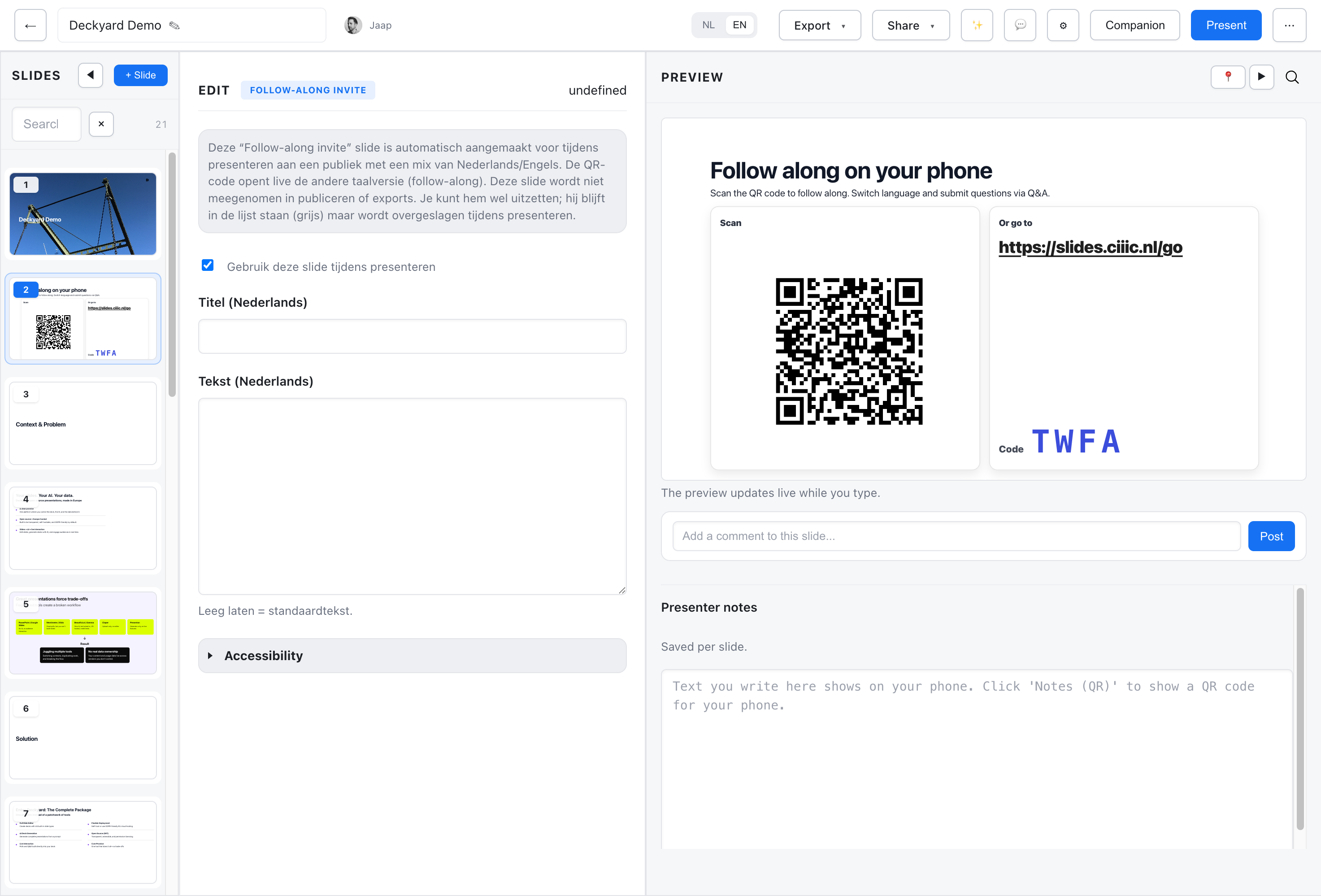
The screenshot shows a local example installation. Its address, QR code and access code are examples, not a working invitation. For your audience, use your own Deckyard address that their devices can reach.
- Add a new slide
- Select the Follow-along invite type
- Optionally fill in your own title and text; leave them empty to use the standard wording
- Present: the QR code and the code for the current language fill in automatically
The editor preview can already show the QR code and retrieve a follow code for the deck. It shows ---- until a code is available. When you present, the invite uses the code for the current language. The invite slide is left out of publishing and exports. Untick Use this slide while presenting to keep the slide in the deck but skip it while presenting.
When you add a poll, Likert or feedback slide to a deck without an invite, the editor suggests adding one. You choose where it goes.
QR Code Tips
Section titled “QR Code Tips”- Make it large enough to scan from the back
- Leave it on screen for at least 30 seconds
- Consider showing it at the start
- Show it again before interactive slides
Language Switching
Section titled “Language Switching”For decks with more than one language version:
- The audience joins in the language of the link or code they used
- A language selector appears in the follow view: buttons for two languages, a dropdown for more
- Choosing another language switches the slides and the follow view itself
Only the deck’s existing language versions are offered. A deck with one version shows no selector. If a version is still being translated, the follow view says so and refreshes on its own when the translation is ready.
Interaction Participation
Section titled “Interaction Participation”When you show a Poll or Likert slide:
- Audience sees the answer buttons or a slider
- They tap to vote; voting again changes their vote
- Results update live on the slide
- You open, close or reset voting from the presenter view
See Polls.
While Q&A is enabled:
- Audience asks and upvotes questions in the Q&A panel
- Questions appear in the notes view, with questions added to the deck first and the rest ranked by votes
- You can add a question to the deck as a slide
- Audience sees which questions will be addressed
See Q&A.
Feedback
Section titled “Feedback”For feedback slides:
- Audience types an open answer and presses Send; they can update it afterwards
- You download the answers as CSV from the presenter view
See Feedback.
Viewer Experience
Section titled “Viewer Experience”What viewers see
Section titled “What viewers see”- The slide you are presenting
- The language selector, when the deck has more than one version
- Voting or feedback controls on interactive slides
- The Q&A panel while Q&A is on
What’s hidden
Section titled “What’s hidden”- Speaker notes
- Slides you have not reached yet
- Editing controls and admin features
Viewers do not need an account.
Before and After the Presentation
Section titled “Before and After the Presentation”The follow view only shows slides during a live session. Someone who opens the link before you start sees “The presentation hasn’t started yet.”; once the session has ended they see “The presentation is not active (anymore).” There is no setting to keep the slides browsable afterwards. To give people the slides after the talk, publish the deck or share a link to it.
Analytics
Section titled “Analytics”Where the installation has analytics on, follow-view visits count towards the deck’s analytics with “follow” as their source. Viewers get a Forget me button that erases the viewing history recorded for their device.
Limits
Section titled “Limits”- Anyone with the link or the code can follow along; there is no password or email gate.
- Codes cannot be regenerated by hand. A session that runs past the 24 hours gets fresh codes automatically.
- Creating codes requires a signed-in presenter and is limited to about 10 per hour per IP address; resolving codes at
/gois limited to about 60 per hour per IP address.