

AI Deck Generation
Transform your notes, documents, and outlines into structured presentations using AI.
Overview
Section titled “Overview”Deckyard’s AI transforms your existing content - notes, documents, outlines, or articles - into structured presentations. Rather than generating content from scratch, AI analyzes what you provide and organizes it into logical slides with appropriate formatting.
Features
Section titled “Features”- Content Transformation - Turn notes, documents, or articles into slides
- Smart Structuring - AI identifies logical sections and key points
- Outline Expansion - Convert bullet points into properly formatted slides
- Slide Type Selection - AI chooses appropriate slide types for your content
Getting Started
Section titled “Getting Started”In the presentation list, click New. The New presentation dialog offers four ways in:
| Option | What it does |
|---|---|
| Blank | An empty deck |
| From the library | Start from reusable slides |
| From content (badged AI) | Paste text, upload a file, or pull in a Notion page |
| Import | A .deck bundle, JSON, or Markdown, without AI |
From content is the AI path. It has three sub-tabs:
- Paste text - paste your notes, article or document text; the button reads Generate
- Upload file -
.pptx,.pdf,.docx,.rtfor.odt; the button reads Convert - Notion - a page from your Notion workspace; the button reads Import. This tab only appears once Notion is connected on the instance.
Before generating, you can set two things in the dialog: the theme and the language. Your theme choice wins over any the model suggests, and the language picker only appears when the instance has more than one deck language switched on.
What Happens While It Runs
Section titled “What Happens While It Runs”Generation is a single request. A progress dialog titled Generating presentation shows a percentage and a running commentary, and there is no cancel button: once you click Generate, the deck is going to be created.
Behind that progress bar the server works in two passes:
- Outline. The AI reads your content and divides it into sections, marking each as body content or as structure (a chapter break, a pull quote, a closing slide). Structural slides are assigned their type in code, not by the model.
- Content. Each section is written out in batches, and this is where slide types are chosen. The progress messages switch from generic to real here (“Wrote section 3 of 8”).
A title slide is added automatically, using the one your theme specifies.
There is no outline step you can edit. The outline exists inside that one request; you do not see it, reorder it, or change a slide’s type before generation. All editing happens on the finished deck.
Reviewing the Result
Section titled “Reviewing the Result”When generation finishes, the deck opens in the editor with a review layer over it. For each slide you see why the AI chose that slide type, and you get three moves:
- Try as {type} - swap a slide to an alternative type the AI also considered
- Adjust section - select several slides, describe what should change, and have that stretch rewritten
- Discard deck - throw the whole thing away and delete the presentation
After that it is an ordinary deck: edit any slide by hand.
Prompts and Best Practices
Section titled “Prompts and Best Practices”Understanding AI’s Role
Section titled “Understanding AI’s Role”Deckyard’s AI is designed to reorganize, structure, and format your existing content into slides, not to generate content from scratch. Think of it as a skilled assistant that takes your notes, drafts, or documents and transforms them into a well-organized presentation.
What AI does:
- Separates your content into logical sections
- Identifies key points and structures them as slides
- Selects appropriate slide types for different content
- Formats text for presentation (bullet points, headers, etc.)
What AI should NOT do:
- Invent information you didn’t provide
- Add facts, statistics, or claims not in your source material
- Fill in gaps with generic content
Why This Matters
Section titled “Why This Matters”When you give an AI a vague topic instead of actual content, it will generate generic, potentially inaccurate information. LLMs are prone to “filling in the blanks” when given insufficient input. By providing your actual content, you ensure the presentation reflects your knowledge, your data, and your message.
Ineffective Prompts (Avoid These)
Section titled “Ineffective Prompts (Avoid These)”These prompts ask AI to generate content, which leads to generic or fabricated information:
“A 10-slide presentation about sustainable energy”
“A professional presentation for executives about Q4 financial results. Include revenue highlights, key achievements, challenges faced, and 2025 outlook.”
“An educational presentation for high school students explaining how machine learning works.”
The problem: you’re asking the AI to make things up. It doesn’t know your Q4 results, your company’s achievements, or what specific examples you want to use.
Effective Prompts (Do This Instead)
Section titled “Effective Prompts (Do This Instead)”Provide your actual content and let AI structure it:
From meeting notes:
“Turn these notes into a presentation:
Q4 revenue was €2.3M, up 15% from Q3. Main drivers were the enterprise segment (+40%) and new APAC clients. We closed 12 new accounts including Acme Corp and GlobalTech. Challenges: supply chain delays cost us €200K, and we lost two key engineers. For 2025 we’re targeting €10M revenue, launching the mobile app in Q2, and expanding the sales team to 8 people.”
From a blog post or article:
“Convert this article into slides for a conference talk:
[paste your full article text here]”
From research notes:
“Structure these research findings as a presentation:
Study conducted Jan-March 2025 with 500 participants. Key finding: users who received personalized onboarding completed 3x more tasks in the first week. Secondary findings: email reminders increased retention by 22%, but push notifications had no significant effect. Methodology: A/B test across three cohorts…”
From bullet points:
“Organize these points into a cohesive presentation:
- Our product reduces energy costs by 30%
- Case study: Factory X saved €50K annually
- Three-step implementation process
- ROI typically seen within 6 months
- Currently used by 200+ companies
- Integration with existing systems takes 2 weeks”
Tips for Best Results
Section titled “Tips for Best Results”- Provide complete content - The more information you give, the better the result
- Include your data - Actual numbers, names, and facts you want in the presentation
- Specify structure preferences - “Start with the problem, then solution, then results”
- Mention your audience - “This is for technical stakeholders” helps with tone and detail level
- Review carefully - Always verify that AI hasn’t added information you didn’t provide
Since you cannot steer the outline afterwards, the source text is the only place where structure is decided. Saying “three sections, then a conclusion” in your input is how you get it.
How Slide Types Are Chosen
Section titled “How Slide Types Are Chosen”The AI is shown a catalog of the slide types your workspace actually has, with each type’s purpose and content schema. It picks from that catalog.
Two things follow from this:
- Disabling slide types shapes AI output. Types switched off for your organization are withheld from the catalog, so the AI will not produce them.
- Custom slide types are offered too, on the same footing as the built-in ones.
The catalog nudges the AI towards plain content types unless a specialized one genuinely fits, and away from using the same type several slides in a row.
Adding Slides to an Existing Deck
Section titled “Adding Slides to an Existing Deck”You can also let AI extend a deck you are already working on. In the editor’s slide-type picker, choose Add with AI… to open the AI: add slides dialog:
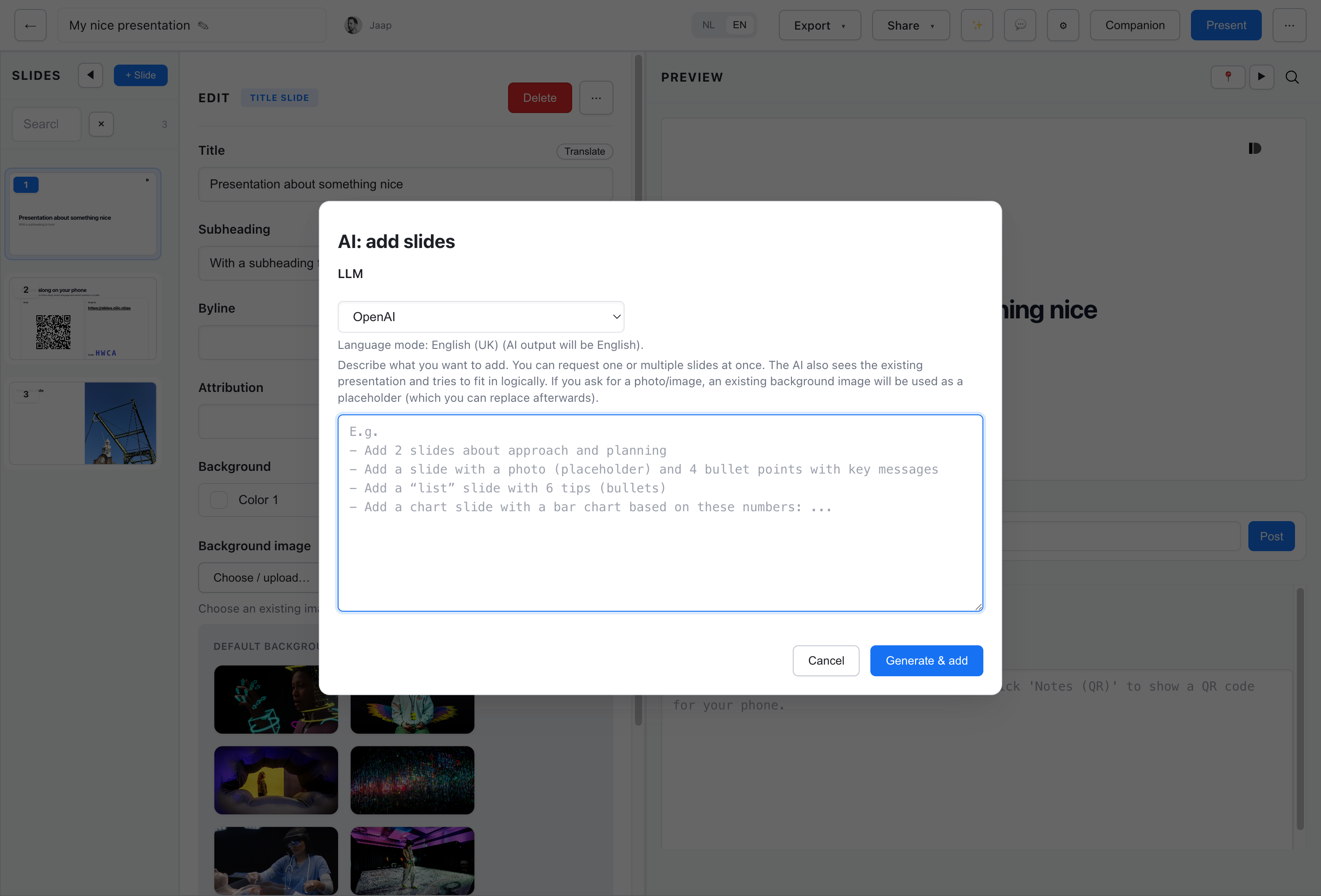
Describe what you want added; the AI also sees the existing deck and tries to fit in. Ask for a photo or image and you get an existing background image as a placeholder, which you replace afterwards. This dialog is also where you pick which LLM vendor to use, which the deck-generation flow does not offer.
What comes back arrives as a Review AI slides batch, where you can Discard, Adjust (describe what should change and regenerate), or Add {count} slides to accept them.
Changing a Slide with AI
Section titled “Changing a Slide with AI”Two more AI actions live on the individual slide, and neither is a full regeneration:
- Refine - at the bottom of the slide inspector, describe a change in plain language (“make this punchier”, “split this slide”). It applies immediately, with an Undo in the toast.
- AI Convert… - in the slide’s … menu, convert a slide to a different type and let AI rewrite the content to fit. Only some slide types have AI conversion targets, so the submenu may be short or absent.
Import and Convert
Section titled “Import and Convert”From Documents
Section titled “From Documents”The Upload file sub-tab accepts .pptx, .pdf, .docx, .rtf and .odt. The file is parsed to text and then goes through the same two-pass AI pipeline as pasted content, so the result is a Deckyard deck with Deckyard slide types, not a slide-for-slide copy of the original.
To import a deck without AI rewriting it, use the Import option in the new-presentation dialog instead: .deck, JSON and Markdown go in as they are.
From Notion
Section titled “From Notion”The Notion sub-tab imports a page and runs it through the same pipeline. It only appears when Notion is connected on the instance.
See Notion Integration for details.
Limitations
Section titled “Limitations”What AI Does Well
Section titled “What AI Does Well”- Identifying logical structure in your content
- Breaking content into appropriate slide-sized chunks
- Selecting the right slide type for different content
- Formatting text for presentation clarity
- Maintaining consistent tone throughout
What AI May Struggle With
Section titled “What AI May Struggle With”- Very technical or specialized content may need manual adjustment
- Complex hierarchical information might need restructuring
- Content with many interconnected references
- Highly visual concepts that need specific imagery
What It Does Not Do
Section titled “What It Does Not Do”- No outline you can edit before generating - structure comes from your input text
- No cancelling a generation run once it starts
- No length or duration setting - the number of slides follows from your content
- No per-slide regeneration - use Refine or AI Convert… instead
- No vendor choice on this path; the instance default is used
Always Review
Section titled “Always Review”Even when working from your own content, AI output should be reviewed:
- Verify AI hasn’t added information you didn’t provide
- Check that key points weren’t omitted
- Ensure the structure matches your intended flow
- Adjust slide types if AI made suboptimal choices