

Real-time Editing
Edit presentations together with your team at the same time.
Overview
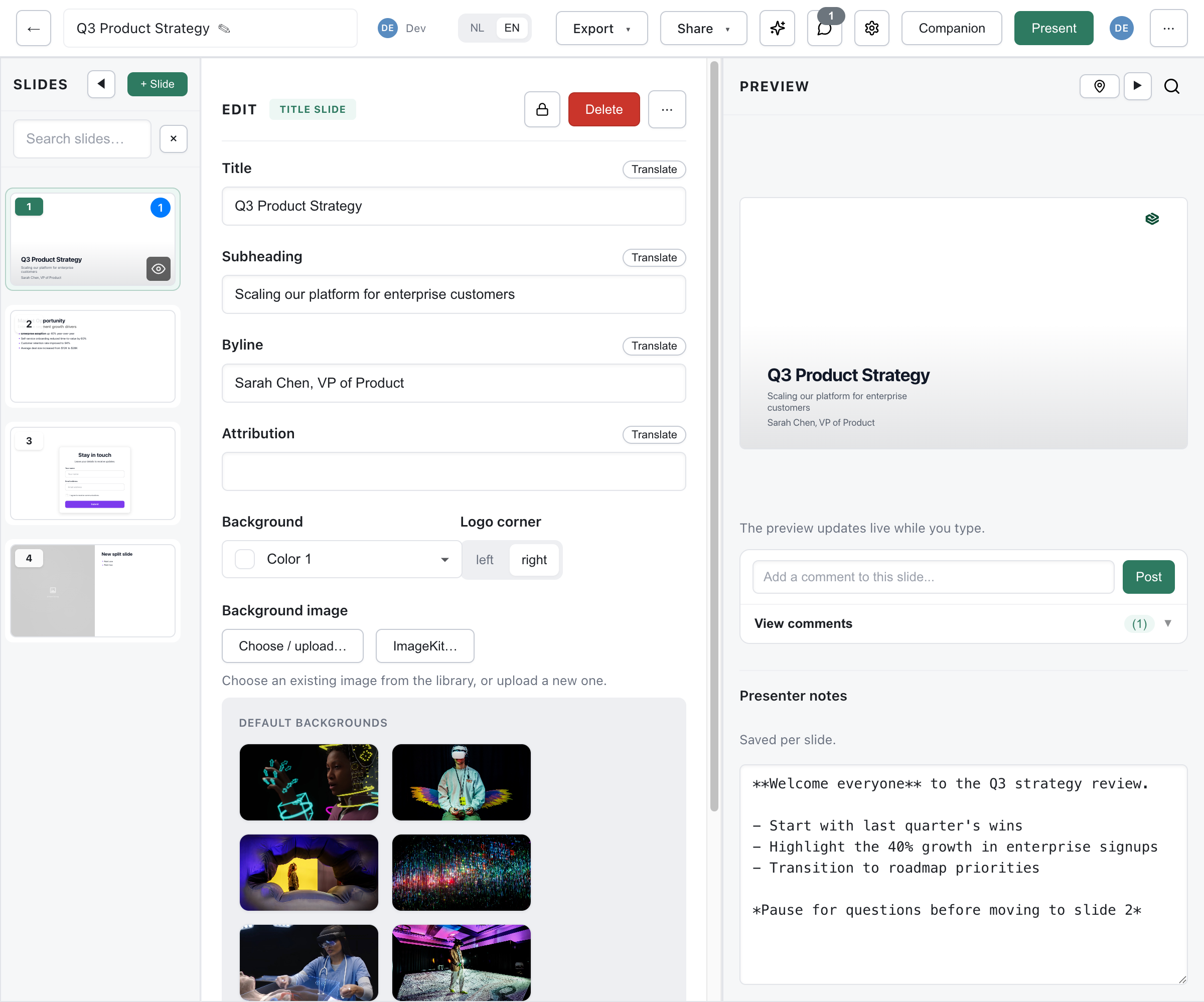
Section titled “Overview”Several people can have the same presentation open in the editor. By default, Deckyard prevents conflicts with slide-level locks and brings in other people’s saved changes as they happen. An administrator can switch on live presence, so you also see who else is in the deck.
| Mode | How to enable | What you get |
|---|---|---|
| Default | Nothing to configure | Slide locks, live updates of saved changes, merging of changes on different slides |
| Presence | COLLAB_ENABLED=true | The default, plus avatars and indicators showing who is where |
| Live edits (experimental) | COLLAB_ENABLED=true and COLLAB_LIVE_EDITS=true | Changes are merged as you type; slide locks are no longer used |
Slide Locks
Section titled “Slide Locks”A slide becomes locked for you as soon as you make a change to it. Selecting a slide does not lock it.
Lock Behavior
Section titled “Lock Behavior”- While you keep editing, the lock is renewed every 30 seconds
- The lock is released when you move to another slide, when you switch to another browser tab, when you close the editor, or after about 2 minutes without a change
When Someone Else Has the Slide
Section titled “When Someone Else Has the Slide”- The slide in the slide list shows an amber padlock badge, with Locked by {name} on hover, and its thumbnail is dimmed
- The editing panel shows “This slide is being edited by someone else”
- If you try to change it anyway, your change is undone and you see “This slide is being edited by {name}”
Your own locked slides have no badge.
Author Locks
Section titled “Author Locks”Separate from these automatic locks, the author of a deck can lock a slide on purpose with Lock slide. Others then see Locked by author and “This slide is locked by the author” until it is unlocked.
Changes from Others
Section titled “Changes from Others”Live Updates
Section titled “Live Updates”The editor keeps an open connection (Server-Sent Events) to the server. When someone else saves:
- Their change is validated and saved on the server
- The server notifies everyone who has the presentation open
- Your editor fetches the latest version and merges it in, without overwriting the slide you are working on
- You see a short notice: “Slides updated by {name}”
Content changes, added and deleted slides, new slide order, comments and lock changes all arrive this way. Rapid saves are combined into one update.
Merging
Section titled “Merging”Changes to different slides are merged automatically. When your save is merged with someone else’s changes, you see “Changes from another editor were merged in”, with See what changed to open an overview. Your own unsaved edits are kept.
Conflicts
Section titled “Conflicts”When a save cannot be merged, you see “Conflict: this presentation was changed elsewhere. Reload to continue.” The Could not save (conflict) dialog offers:
- Copy my version (JSON): copies your version to the clipboard, so nothing is lost
- Reload: loads the latest version from the server
Automatic saving pauses until you reload.
A save that touches a slide someone else has locked is refused with “Not saved: a slide you changed is being edited by {name}.”
Presence
Section titled “Presence”With COLLAB_ENABLED=true, the editor also shows who else is in the deck:
- Also here: avatars in the top bar (up to five, then
+N); hover for “{name} is in this deck” - A name label on the slide each person is on: “{name} is viewing this slide” or “{name} is editing this slide”
- A colored ring on the field someone else is editing
Presence uses a WebSocket at /collab on the same port as the app, and works with a single server process. Locks and live updates work as in the default mode.
Live Edits (Experimental)
Section titled “Live Edits (Experimental)”With COLLAB_LIVE_EDITS=true as well, edits are merged continuously as everyone types, instead of per save. Slide locks, the conflict dialog and the merge notice are not used in this mode, and undo only reverts your own edits. If the connection drops, your edits are kept in the editor and sent when it comes back.
If live collaboration cannot start, you see “Live collaboration failed to load; changes are not being saved. Reload the editor.”
Connection Problems
Section titled “Connection Problems”The save status in the editor shows Saving…, Saved, Unsaved changes or Save failed. There is no separate connection indicator.
- In the default mode, unsaved edits stay in the open editor but are not stored anywhere else; keep the tab open until the status shows Saved
- The live-update connection reconnects with increasing intervals and stops after 10 failed attempts
- When your network comes back, the editor checks for newer changes on the server