

Internationalization
Deckyard has two separate language settings: the language of the application interface, and the languages a presentation is written in. They use different lists and are set in different places.
Interface Languages
Section titled “Interface Languages”The application interface is available in twelve languages, in two tiers:
| Language | Code | Status |
|---|---|---|
| English | en | Fully supported (reference) |
| Dutch | nl | Fully supported |
| German | de | Best effort |
| French | fr | Best effort |
| Spanish | es | Best effort |
| Italian | it | Best effort |
| Portuguese | pt | Best effort |
| Swedish | sv | Best effort |
| Norwegian | no | Best effort |
| Danish | da | Best effort |
| Finnish | fi | Best effort |
| Polish | pl | Best effort |
Fully supported means every interface string is translated, and a release cannot ship with a gap. Best effort languages cover most of the interface (roughly 85-90% of strings); anything not yet translated is shown in English. The language picker groups the options under these two headings.
Choosing the Interface Language
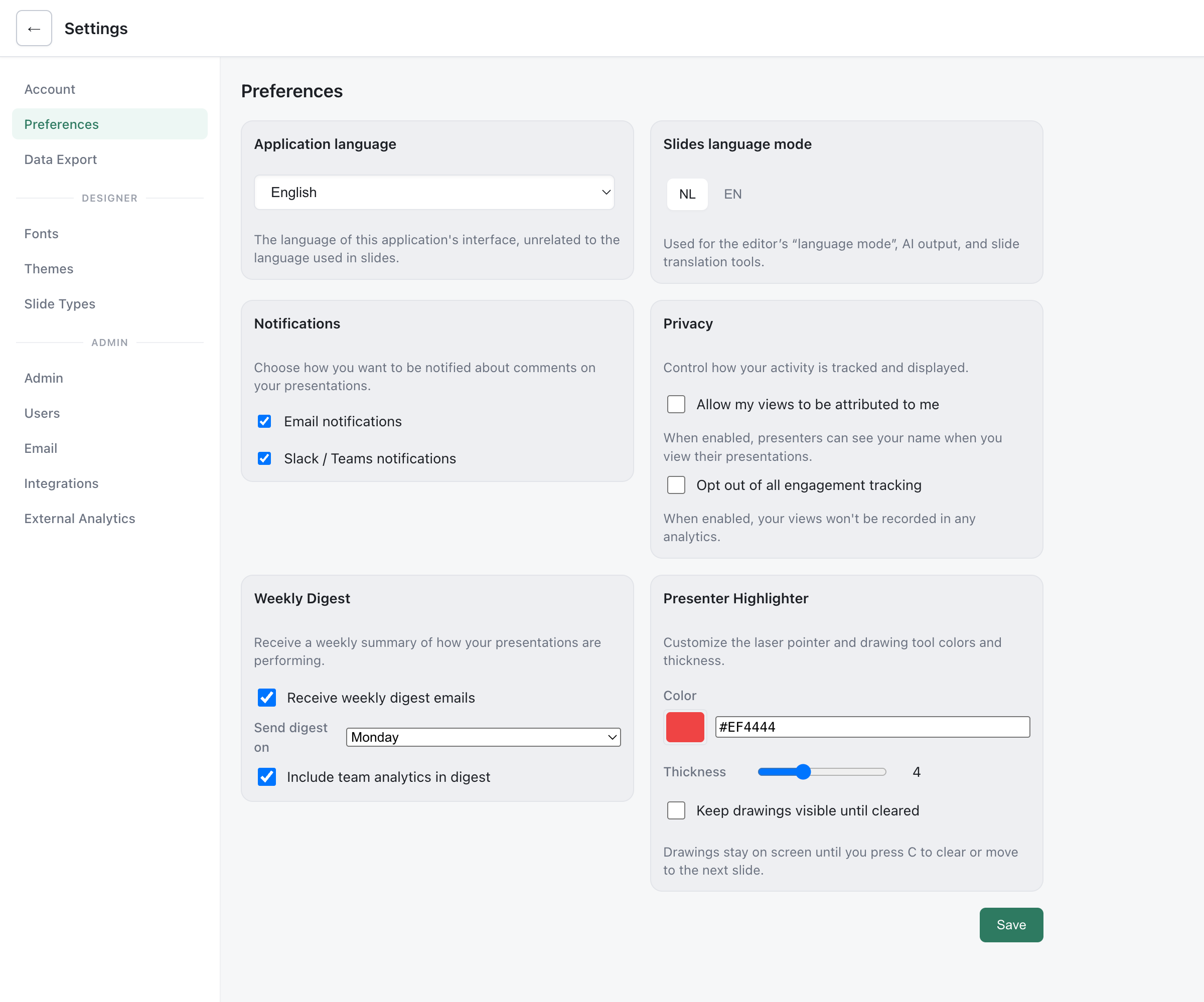
Section titled “Choosing the Interface Language”Each user picks their own interface language under Settings > Preferences > Application language. The choice is saved to their account and applies on every device. New accounts start in English.
You can also link into Deckyard in a specific interface language with the ?locale= URL parameter, for example ?locale=nl. It overrides the saved preference for that session, until the user saves a different choice in Preferences.
Pages Without a Sign-In
Section titled “Pages Without a Sign-In”Share links, the follow page and the /go code page are used by people who may not have an account. Their interface language is picked in this order:
- A language the visitor chose: a
?locale=parameter, or a saved preference - The language of the deck on screen, so the controls match the content
- The first browser language Deckyard has an interface for
- English
A published deck page follows the deck version it shows: its fallback title, its description and the link to the reading view are written in that language. Those few texts exist in English and Dutch; for other deck languages they are in English.
One Default
Section titled “One Default”English is the single default language of an instance: for the interface of a new account, for pages without a sign-in when nothing else decides, and for email until an administrator sets another default (see Email Language). There is no environment variable for a default language.
Presentation Languages
Section titled “Presentation Languages”A presentation can hold one version per language. The languages a deck can be written in are:
| Language | Code |
|---|---|
| Dutch | nl |
| English (UK) | en-GB |
| German | de |
| French | fr |
| Spanish | es |
| Portuguese | pt |
| Italian | it |
| Polish | pl |
| Finnish | fi |
| Danish | da |
| Swedish | sv |
| Norwegian | no |
Note that English is en-GB for presentation content and en for the interface. Where a presentation language is expected, en is accepted and stored as en-GB.
Enabling Languages for Your Instance
Section titled “Enabling Languages for Your Instance”Out of the box only Dutch and English are switched on. An administrator enables more under Settings > Admin > Admin: supported slide languages; that list decides which languages authors can add to a deck and translate into.
Default Language for New Decks
Section titled “Default Language for New Decks”Under Settings > Preferences > Slides language mode, each user picks the language their new presentations start in, which is also the language AI output is written in. With two languages enabled this is a toggle; with more, a dropdown.
How Language Versions Work
Section titled “How Language Versions Work”- Every deck has a source version: the language it is authored in, and the one other versions are translated from.
- The language menu in the editor toolbar switches between versions and shows how many fields each version is still missing. Add language… creates a new version with the same slides and empty text fields.
- Make this the source version in the same menu changes which version is the source.
- A published deck with more than one version shows a language switch. Links can name a version with
?lang=, for example?lang=de. - When a deck has no version in the requested language, the source version is shown.
AI-Assisted Translation
Section titled “AI-Assisted Translation”With AI features enabled, you can fill a version by translation: one field, one slide, or all missing text in the deck. Field and slide translations are shown as a preview before you apply them; filling a whole version only touches empty fields, so text you wrote by hand is left alone.
See AI Translation for details.
Email Language
Section titled “Email Language”Every email, weekly digests included, is sent in the language its recipient chose under Settings > Preferences, when the install has texts for that language. Someone without a language preference, such as a guest without an account or a newly invited user, gets the instance’s default email language, set by an administrator under Settings > Email (“Default language for mail to people without a language preference”). This includes password reset and magic-link emails, which follow the language of the account they are sent to. Email texts ship in English and Dutch; a recipient who prefers another language gets the instance default. See Email Templates.
Date and Number Formatting
Section titled “Date and Number Formatting”Dates and numbers in the interface are formatted with the browser’s Intl API, mostly following the browser’s own locale rather than the chosen interface language.
Right-to-Left (RTL) Support
Section titled “Right-to-Left (RTL) Support”Deckyard does not support right-to-left layout. Arabic, Hebrew and other RTL languages are not available as interface or presentation languages.
Adding an Interface Language
Section titled “Adding an Interface Language”Interface translations live in client/i18n/<locale>/, one JSON file per module, and the list of languages is client/i18n/manifest.json. A new language needs a directory with the same module files as client/i18n/en/ and an entry in the manifest with its tier. The developer guide in the core repository (docs/developer/i18n.md) describes the key conventions and the i18n-fill script that lists untranslated strings.