

From Markdown
Import a .md file and get a presentation directly — no AI, no API keys, no waiting. Slides are mapped deterministically from your markdown structure.
This is ideal for developers, technical writers, and anyone who prefers writing slides in a text editor or version-controlling their decks in git.
How It Works
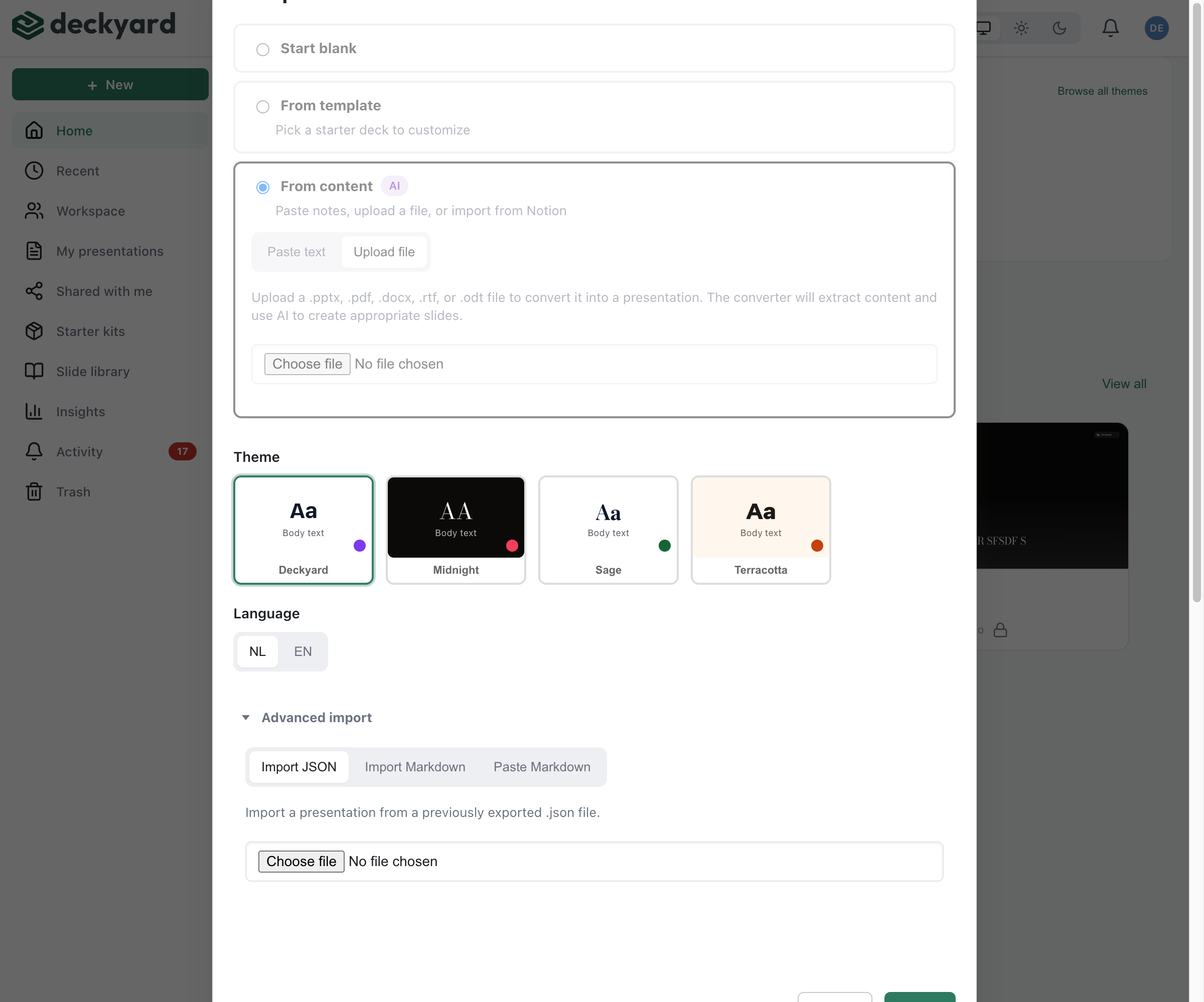
Section titled “How It Works”- From the presentation list, click New presentation and choose Import an existing deck
- Switch from the PowerPoint or PDF tab to Import Markdown (or Paste Markdown for text from the clipboard)
- Upload your
.mdfile - Choose a language
- Click Import Markdown
A new presentation is created with slides mapped from your markdown.
Markdown Format
Section titled “Markdown Format”Slides are separated by --- (horizontal rules). An optional YAML frontmatter block at the top sets deck-level metadata:
---title: Quarterly Reviewtheme: deckyardlang: en-GB---
# Quarterly Review
Q4 2025 Results
---
## Revenue Growth
- SaaS revenue up 34%- Enterprise contracts doubled- Churn reduced to 1.2%
---
> "Best quarter in company history."> -- Sarah Chen, CEO
What Gets Imported
Section titled “What Gets Imported”The importer extracts and maps these markdown elements to Deckyard slide types:
- Headings —
# Titleand## Subtitlebecome slide titles and section breaks - Bullet lists — Become content or list slides
- Blockquotes — Become quote slides with attribution (
> -- Author, Title) - Images —
become image slides or image-text slides - Tables — Pipe tables (
| A | B |) become table slides - Code blocks — Preserved with language and optional line highlights
- Columns —
::left::/::right::markers split content into two-column layouts - Speaker notes — HTML comments (
<!-- notes -->) orNote:blocks - Bold-colon lists —
- **Term**: descriptionpatterns become structured list slides
Supported Layout Directives
Section titled “Supported Layout Directives”You can control slide types explicitly with a layout: directive in per-slide frontmatter:
| Directive | Slide Type |
|---|---|
layout: title or layout: cover | Title slide |
layout: section or layout: chapter | Chapter/section break |
layout: quote | Quote slide |
layout: image | Full image slide |
layout: image-left / image-right | Image + text side-by-side |
layout: two-cols or two-column | Two-column content |
layout: comparison | Side-by-side comparison |
layout: table | Table slide |
layout: list | Structured list |
layout: end or layout: outro | Closing/payoff slide |
Example with per-slide frontmatter:
---
layout: image-right
## Our Approach
We combine speed with quality.
When no layout: is set, the importer uses content-based heuristics — a slide with only a blockquote becomes a quote slide, a slide with only an image becomes an image slide, and so on.
Speaker Notes
Section titled “Speaker Notes”Two formats are supported:
HTML comments (works in most markdown renderers):
## Slide Title
Content here.
<!-- Remember to mention the Q3 comparison -->
Note: prefix (Slidev/Marp convention):
## Slide Title
Content here.
Note:Remember to mention the Q3 comparison.This runs to the end of the slide.
Automatic Slide Type Detection
Section titled “Automatic Slide Type Detection”When you don’t specify a layout:, the importer detects slide types from content:
- First slide with only headings → title slide
- Heading-only slide later in the deck → chapter/section slide
- Blockquote → quote slide
- Image with no other text → image slide
- Image + heading + body text → image-text slide
- Column markers with headings → comparison slide
- Column markers without headings → two-column content slide
- Pipe table → table slide
**Bold**: descriptionlist pattern → structured list slide- Everything else → content slide
Images
Section titled “Images”The importer handles:
- HTTPS URLs — Kept as-is (e.g.
) - Data URIs — Automatically uploaded to your media storage
Relative image paths (e.g. ./images/photo.jpg) cannot be resolved from plain markdown text and will produce a warning. Use absolute URLs instead, or upload images separately after import.
After Import
Section titled “After Import”- Review slide type assignments — adjust any the importer guessed wrong
- Add images where you used relative paths
- Fine-tune content and speaker notes
- Generate the second language version if presenting bilingually
- Choose or adjust the theme
- Use
---consistently — Every slide boundary needs a horizontal rule ---inside code blocks is safe — Fenced code blocks are not split- One heading per slide — The first heading becomes the slide title
- Keep it simple — The importer handles standard markdown well; exotic extensions may not map perfectly
Compatibility
Section titled “Compatibility”The markdown format is compatible with conventions used by popular slide-from-markdown tools (Slidev, Marp, reveal.js). If you have existing markdown decks from these tools, they should import cleanly — the layout: directives, --- separators, and speaker note conventions all work.
Related
Section titled “Related”- From Text (AI) — For unstructured text where you want AI to decide the structure
- From JSON — For Deckyard’s native portable format
- From PowerPoint — For migrating .pptx files
- Slide Types — All available slide types