

Speaker Notes View
Access your speaker notes on a secondary device while presenting.
Overview
Section titled “Overview”The notes view (the presenter companion) shows your speaker notes on a phone or tablet while the main screen shows the presentation. It is handy when you walk around during a talk or present without a laptop in front of you.
The notes view belongs to the installation’s live features, which are on by default. Where an administrator has set LIVE_ENABLED=false, the Companion entry and the Tools menu below are absent. See Environment Variables.
Opening Notes View
Section titled “Opening Notes View”From the editor (QR code)
Section titled “From the editor (QR code)”- Open the menu next to Present (the arrow on the right of the button) and choose Companion. On a narrow window it sits in the ⋯ menu instead.
- A new tab opens with a QR code and the link to your notes view
- Scan the QR code with your phone’s camera, or use Copy link
- The notes view opens on your phone
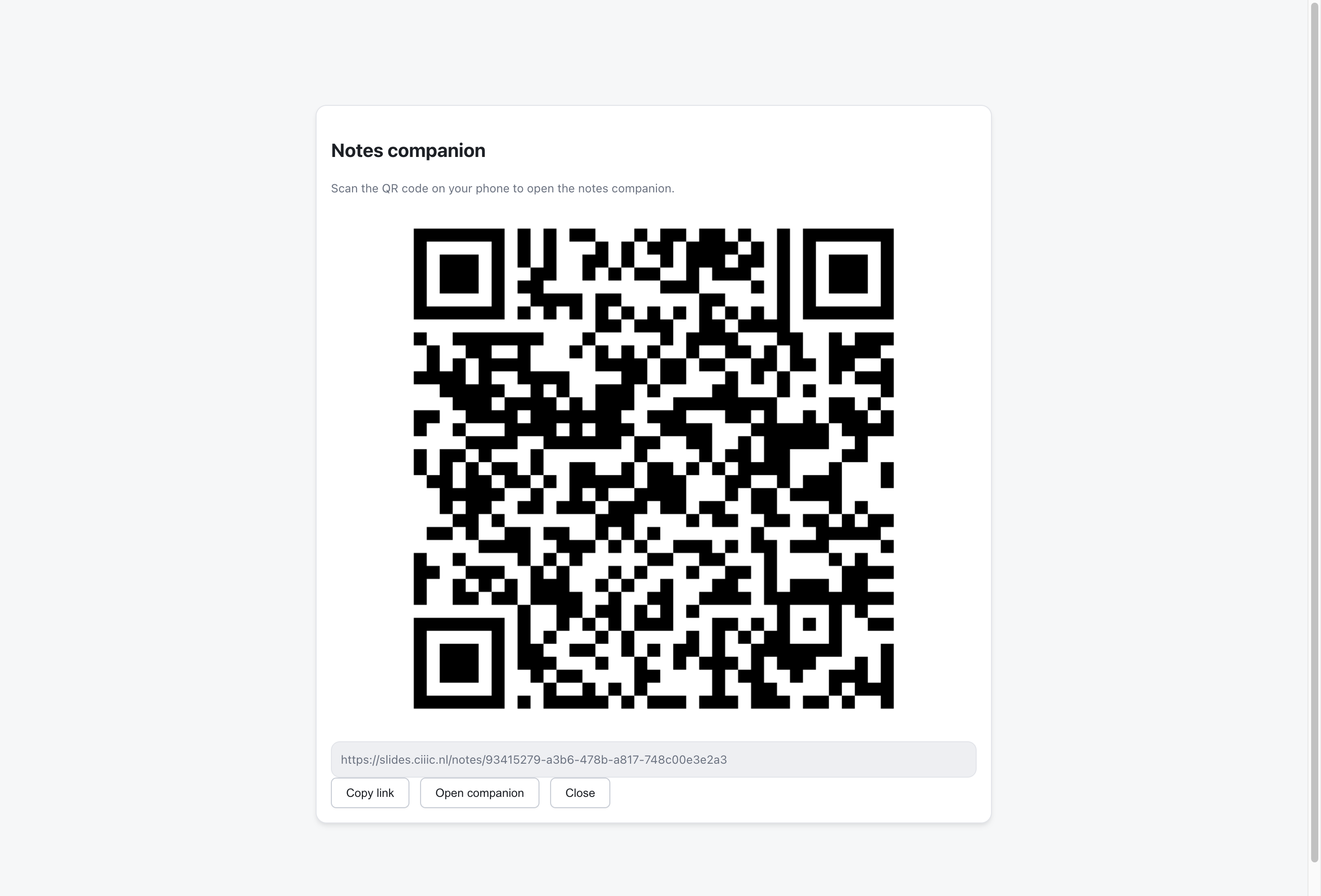
The QR page has an Open companion button too, to open the notes view in the same browser.
From the presenter view
Section titled “From the presenter view”- Start presenting
- Open Tools in the presenter toolbar
- Under Presenter companion (marked “Keep private”), use Open ↗ or Copy link
There is no Notes View URL in the deck settings: the link belongs to a live session and is only available from these two places.
Keep the link private
Section titled “Keep the link private”The link itself is the key. Anyone who has it can read your speaker notes, edit them and, once you turn on remote control, move your live presentation. You do not need to be signed in on your phone. Only open the link on your own devices, and share the Audience companion link with your audience instead (see Follow Mode).
Notes View Interface
Section titled “Notes View Interface”Current slide
Section titled “Current slide”- A preview of the slide you are presenting, with “Slide 3 / 12” underneath
- An Up next preview of the following slide, or “End of deck” on the last one
- The view follows the presenter automatically
- The speaker notes for the slide in view, or “No notes for this slide.”
- Edit opens the notes as Markdown; Save stores them in the deck. Unsaved changes are marked.
While Q&A is on, the Q&A panel lists audience questions: questions added to the deck first, the rest ranked by votes. Depending on your permissions you can add a question to the deck or remove it. See Q&A.
Appearance
Section titled “Appearance”The switch in the top bar sets the notes view to system, light or dark.
Looking ahead without moving the presentation
Section titled “Looking ahead without moving the presentation”The Preview arrows beside the slide, and swiping on the screen, only change what you see on your own device. They never move the presentation for the audience.
When you browse away from the live slide, the notes view shows which slide the presenter is on and a Re-follow button to jump back. As soon as the presentation itself moves on, the notes view snaps back to the live slide.
Remote Control
Section titled “Remote Control”To move the presentation from your phone, turn on remote control on the presenter screen:
- In the presenter toolbar, tick RC (Remote control)
- A Remote control panel appears in the notes view, above the notes
- Use Prev and Go to next slide, or type a slide number and press Go
Untick RC to hide the panel again. Remote control is off at the start of every session.
Syncing
Section titled “Syncing”- The notes view receives the presenter’s position as it changes
- If the connection drops, it shows “Connection lost (reconnecting…)” and reconnects on its own
- Changes to the deck, such as edited notes, are picked up while you present
Before Presenting
Section titled “Before Presenting”- Open the notes view on your phone and test it beforehand
- Decide whether you want remote control, and practise with it
- Check your battery level
- Keep your phone’s screen from locking during the talk (a device setting)
During Presenting
Section titled “During Presenting”- Hold the device comfortably
- Glance briefly at notes
- Don’t read verbatim
- Maintain audience eye contact
Technical Setup
Section titled “Technical Setup”- Use reliable WiFi
- Have backup notes (printed)
- Test with the actual presentation