

Alt Text Generation
Let AI draft the alt text for an image, so screen reader users know what is in it.
Overview
Section titled “Overview”Deckyard can look at an image and write a short description of it. The generated text lands in the media library alongside the image, so every slide that uses that image starts from the same alt text.
This is a drafting aid, not an accessibility guarantee. The text still needs your eyes: only you know what the image is doing on the slide.
Requirements
Section titled “Requirements”Alt text generation needs OpenAI as the default vendor. The AI needs to look at the image, and the vision path is written against OpenAI’s API.
A configured OpenAI key is not enough on its own: the feature only switches on when OpenAI is also the resolved default vendor, so an instance with both OPENAI_API and CLAUDE_API set and LLM_VENDOR=claude will not show the generate buttons. See AI Setup for how the default is resolved.
The buttons are also hidden when AI is switched off, and the endpoints refuse in demo and sandbox mode.
Where to Generate It
Section titled “Where to Generate It”Alt text is generated in the media library, not in the slide form. Open the image picker from any image field and you will find the button in two places:
- Adding a new image - in the upload panel, next to the alt text fields: Generate alt text (AI)
- An image already in the library - in its detail panel, same button
The ImageKit picker has its own version of the button, labelled Generate ALT (AI), which writes a single language rather than the full set.
The slide’s own Alt text field is a plain text field with a Translate button and no generate button:
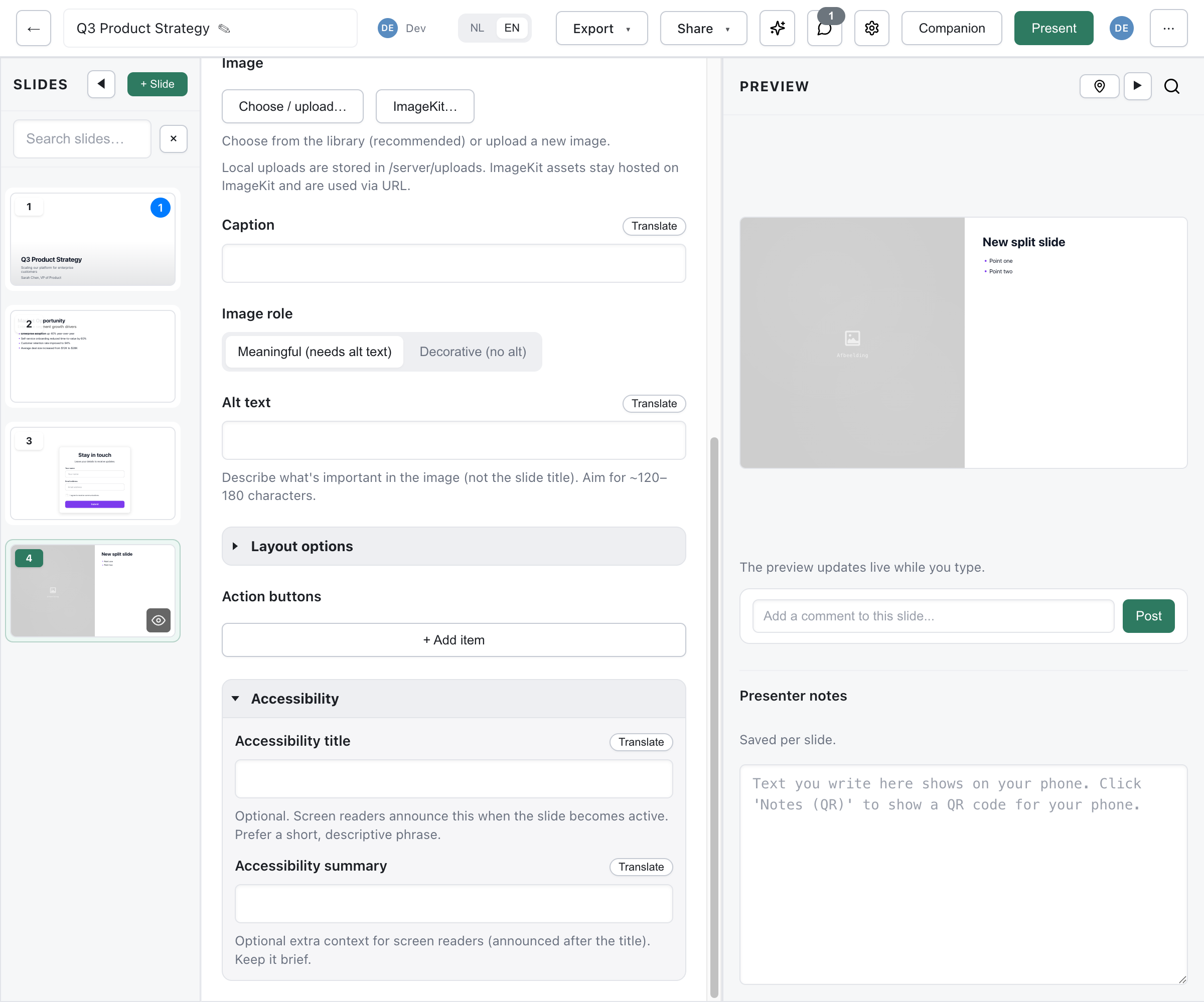
What you type there overrides the library’s alt text for that slide. The field asks for roughly 120 to 180 characters.
When Deckyard Offers It
Section titled “When Deckyard Offers It”There is no automatic generation. Nothing happens on upload, and there is no setting that turns alt text into a background job.
What you get instead is a prompt at the moment it matters. Use an image whose alt text is still empty, and Deckyard asks: Alt text is empty. Generate it with AI now? (Recommended). Decline, and it asks whether to use the image anyway. Generate over alt text that already exists, and it asks first: Overwrite existing alt text with AI-generated text?
There is no bulk path: one image per run, always started by you.
Languages
Section titled “Languages”One run writes alt text for every deck language your instance has switched on, in a single call, not just the language you are working in. A workspace running Dutch, English and German gets three fields filled at once.
Which languages those are is an admin setting (Settings > Admin > Admin: supported slide languages), out of the box Dutch and British English. Codes outside Deckyard’s twelve deck languages are ignored.
The ImageKit picker is the exception: it asks for one language, the one you are working in.
What the AI Is Told
Section titled “What the AI Is Told”The image goes to the model together with whatever context is available:
- The presentation title
- The slide type and slide title
- The image’s library description
- The photographer or credit
- The image’s tags
The instructions it gets are deliberately narrow: six to eighteen words per language, no “Image of” or “Photo of” opener unless it genuinely helps, and an empty string when the image carries no meaning. The result is capped at 220 characters per language.
Image Requirements
Section titled “Image Requirements”| Uploaded or local images | Images from a public URL | |
|---|---|---|
| Size | Up to 4 MB | No limit applied |
| Formats | PNG, JPEG, WebP, GIF | Same detection by extension |
Local images are read from disk and embedded in the request; a public URL is passed to OpenAI to fetch. The format is read from the file extension, not from the file’s contents.
An image in an unsupported format, an SVG for instance, does not fail. The model is asked without the image and writes from the title, description and tags alone. That text is a guess about a picture nobody looked at, so treat it as a placeholder.
Meaningful and Decorative Images
Section titled “Meaningful and Decorative Images”Every image field carries an Image role toggle:
- Meaningful (needs alt text) - the image carries information, so it needs a description
- Decorative (no alt) - the image is there for looks; it renders with an
empty alt and
aria-hidden, and screen readers skip it
Setting the role to decorative hides the alt text field: there is nothing to write. This is also what the prompt honours, returning empty strings for an image it judges decorative.
Publishing enforces this. A deck with an image that is not marked decorative and has no alt text anywhere - not on the slide, not in the library, not as the item’s heading - is refused, naming the images that need attention. So the choice is explicit: describe it, or declare it decorative.
Reviewing What the AI Wrote
Section titled “Reviewing What the AI Wrote”Read every generated alt text before you publish. The model saw the pixels, not your point.
- Accuracy - is that actually what the image shows?
- Purpose - does it say what the image is doing on this slide?
- Brevity - is it a sentence, not a paragraph?
What Makes Good Alt Text
Section titled “What Makes Good Alt Text”Do:
- Describe what matters in the image, not the slide title
- Say the thing the image is there to say
- Include text that is visible in the image when it carries the point
- Keep it to a sentence
Don’t:
- Open with “Image of” or “Picture of”
- Describe decorative elements; mark the image decorative instead
- Repeat the slide title
- Leave a meaningful image without alt text
Where the AI Usually Needs Help
Section titled “Where the AI Usually Needs Help”The model describes what it sees, which is exactly the problem for images whose meaning is not visual:
| Image | What the AI writes | What it should say |
|---|---|---|
| Chart | ”A bar chart with four coloured bars of different heights” | The finding: which region led, by how much |
| Screenshot | ”A software interface with a sidebar and a form” | Which setting is shown and what state it is in |
| Photo of people | ”A group of people sitting around a table in an office” | Who they are and why the slide shows them |
The pattern: a chart, a screenshot or a diagram needs the conclusion, not an inventory of shapes. Dense text in an image, a diagram with many relations and a very abstract picture are the other cases where you should expect to rewrite.
Privacy
Section titled “Privacy”Generating alt text sends the image itself to OpenAI, plus the context listed above. Uploaded images are inlined in the request; images on a public URL are fetched by OpenAI from that URL.
Deckyard keeps nothing extra: what stays behind is the alt text, stored with the image in your own media library. What OpenAI does with the request is governed by its data policy, which is worth reading before switching this on for sensitive material. There is no other vendor to fall back on for this one feature.