

AI Analysis
Have the AI read your deck and leave its suggestions as comments.
Overview
Section titled “Overview”AI Analysis reviews a whole presentation and writes what it would change. The suggestions do not alter anything: they arrive as comments in the comments panel, attributed to the AI assistant, for you to act on or dismiss.
Running an Analysis
Section titled “Running an Analysis”- Open the … menu in the editor toolbar
- Click AI Analysis
- Click Analyze
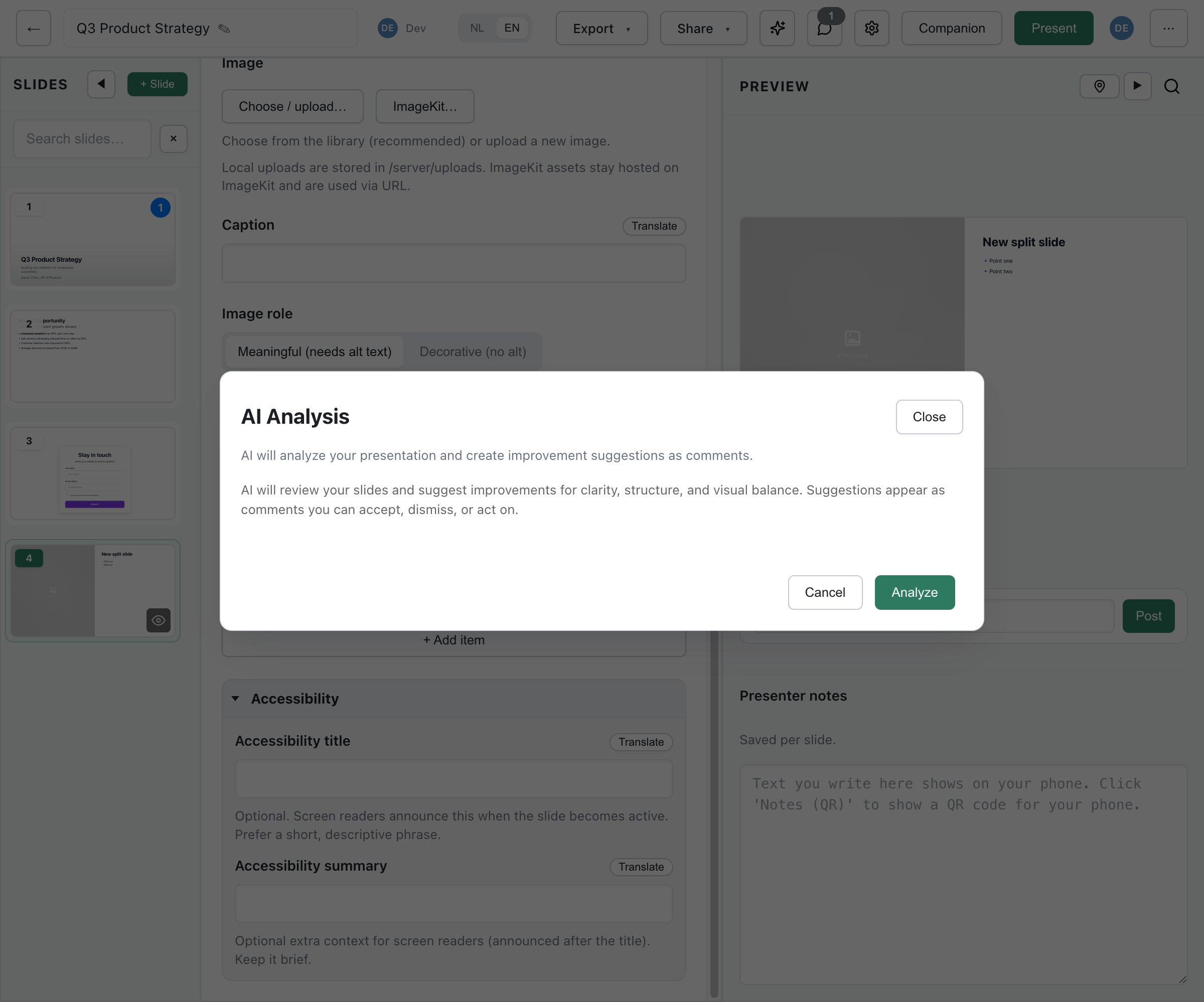
The dialog reports progress as it goes, from “Analyzing {count} slides…” to “Creating suggestion 3 of 7…”, and finishes with “Analysis complete! {count} suggestions added as comments.” A deck it has nothing to say about gets “No suggestions found. Your presentation looks great!”
Cancel closes the dialog and stops the analysis on the server too: no further suggestions are added as comments once you cancel.
Analysis is always whole-deck. There is no single-slide analysis, and nothing runs it for you: it never fires automatically on publish or on share.
What It Looks At
Section titled “What It Looks At”Every slide’s content, in order, with its slide type. That is the whole input:
- Sent - each slide’s index, id, type and content fields, verbatim
- Not sent - speaker notes, the deck title, the theme, and the deck’s language and translation data
- Not sent - the images themselves. Only image URLs and the alt text and captions that sit in a slide’s content travel along, so the AI has no view of what a picture actually shows.
Because slide order and slide types are part of the input, the AI can comment on sequence and on type choice, not just on wording.
Output Language
Section titled “Output Language”The suggestions come back in Dutch or English, and which one is guessed from your slide text, not read from the deck’s language setting. A deck in any other language will get comments in one of those two.
What It Comments On
Section titled “What It Comments On”Every suggestion is filed under one of nine categories, shown as a badge on the comment:
| Category | What it flags |
|---|---|
language | Wording and phrasing |
spelling | Spelling and typos |
brevity | Too much text for a slide |
logic | Reasoning that does not follow |
structure | Slide order and organisation |
repetition | The same point made twice |
tone | Register and consistency of voice |
slide-type | A slide that would work better as another type |
visual-balance | Layout and visual hierarchy |
A run aims for at most ten suggestions per presentation, so it prioritises rather than listing everything.
There are no focus-area or depth settings to choose from. The dialog has one button, and a run always covers all nine categories.
Acting on Suggestions
Section titled “Acting on Suggestions”Suggestions land in the comments panel. Filter it by AI to see only these. They are attributed to the AI assistant, whose display name an instance can change in its settings.
While a suggestion is still open you get two actions:
- Add Slide - only on suggestions that come with a concrete slide. It inserts that slide directly after the one the suggestion refers to, and marks the suggestion resolved. It never rewrites the existing slide.
- Dismiss - the suggestion is closed and styled as handled.
For anything else, do the work yourself: read the suggestion, change the slide, and then dismiss the suggestion to mark it handled. Once a suggestion is no longer open it behaves like any other comment, with reply, resolve, reopen and delete available.
Note what is not there: no one-click “apply” that edits a slide’s text, and no accept/reject per sentence. Every textual change goes through you.
Best Practices
Section titled “Best Practices”When to Analyze
Section titled “When to Analyze”Good moments for a run:
- After the first draft is complete
- Before sharing for review
- Before publishing
- When you are stuck on a deck that does not feel right
Using Suggestions Effectively
Section titled “Using Suggestions Effectively”- Don’t accept everything blindly; the AI has not met your audience
- Weigh a suggestion against your context, and dismiss the ones that miss it
- Treat it as a second reader, not an editor with authority
- Trust your own judgement on tone and style
Iterative Improvement
Section titled “Iterative Improvement”- Run an analysis
- Address the suggestions that hold up
- Dismiss the rest so the panel stays readable
- Run again if the deck changed substantially
Privacy
Section titled “Privacy”Running an analysis sends your slide content to the configured AI provider. The things listed above as “not sent” stay on your instance, speaker notes included.
Deckyard stores the suggestions as comments in your own database. Provider retention of the request and response depends on the provider. See AI Setup for which provider you are sending to and what its data policy means.