

Notes Export
Export the speaker notes of a presentation as a Markdown or Word file, for printing, sharing or working on a script.
How to Export
Section titled “How to Export”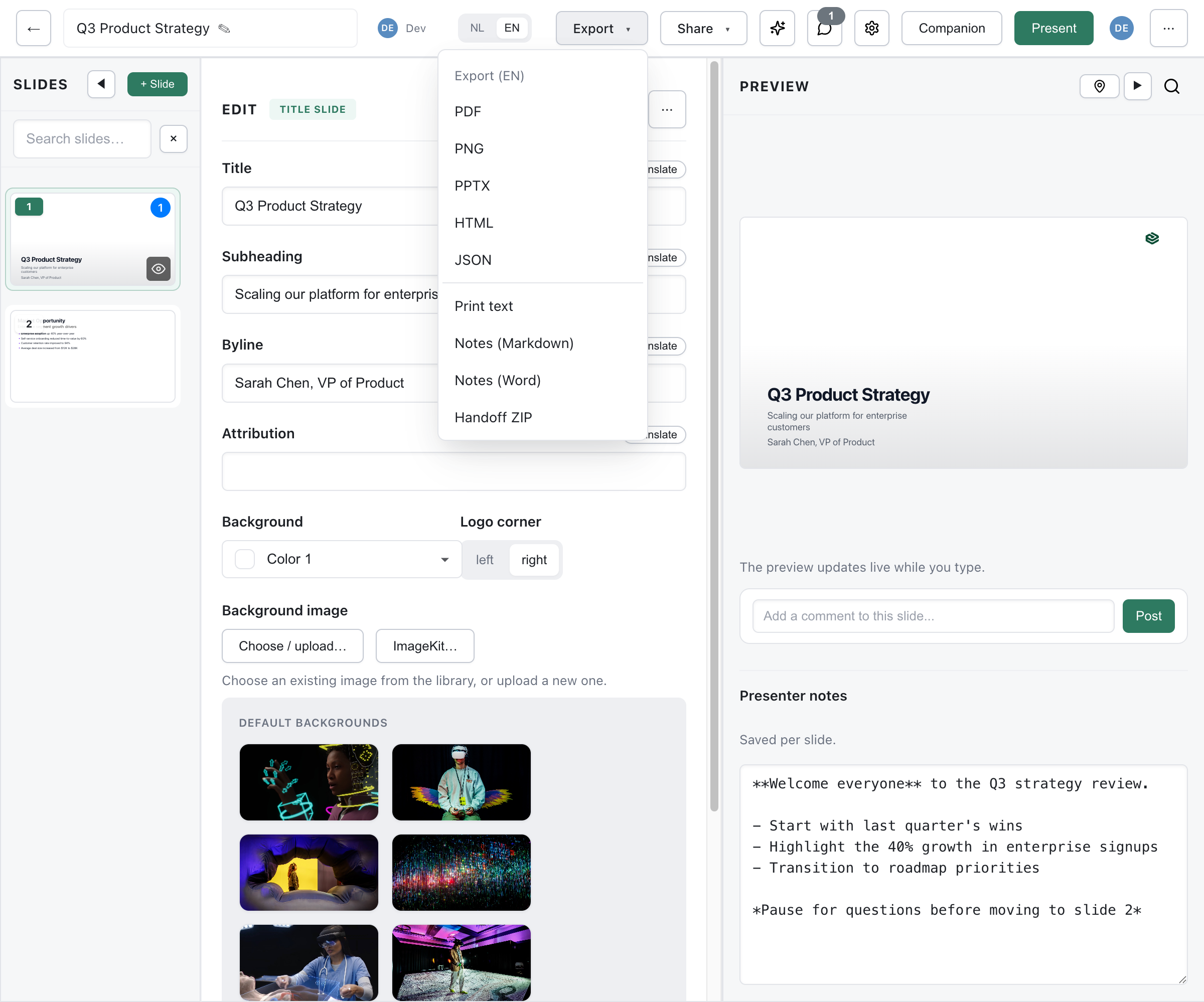
- Open your presentation in the editor
- Click Export in the top bar. On a narrow window the button moves into the ⋯ menu
- If the deck has more than one language version, choose the language at the top of the Export to file dialog
- On the Notes row under Documents, click Markdown or Word
The file downloads straight away. There are no further options: every slide is listed, with or without notes.
Document Structure
Section titled “Document Structure”Both formats contain the same text. The Markdown file looks like this:
# Speaker notes
**Deck:** Quarterly Review**Slides:** 12
## Slide 1 — Introduction
- Type: `title`- Slide ID: `abc123`
Speaker notes for the first slide go here...
## Slide 2 — Main Topic
- Type: `content`- Slide ID: `def456`
_No notes for this slide._
Each slide gets a heading with its number and, when it has one, its title, followed by the slide type, the slide ID and the notes as you wrote them. A slide without notes says so.
The Word file (.docx) puts each line of that same text in its own paragraph, as plain text. Markdown markup such as ## or ** stays visible as characters; it is not turned into Word headings or bold text.
Follow-along invite slides are left out, as in every export.
Other Places Your Notes Appear
Section titled “Other Places Your Notes Appear”- The PowerPoint export adds each slide’s notes as PowerPoint notes
- The Handoff Bundle includes the notes
- During a talk, the Notes View shows them on a second device