

PowerPoint Export
Export a presentation as a .pptx file that opens in Microsoft PowerPoint and other applications that read the format.
The dialog offers two PowerPoint files. PowerPoint is a faithful picture of your deck, and is what most of this page describes. Each slide is rendered by Deckyard and placed in the file as one full-slide image, so it looks exactly like it does in Deckyard, but its text and shapes cannot be edited in PowerPoint. Keep editing in Deckyard and export again when the content changes. PowerPoint, editable rebuilds the slides as editable text and pictures; see Editable PowerPoint.
How to Export
Section titled “How to Export”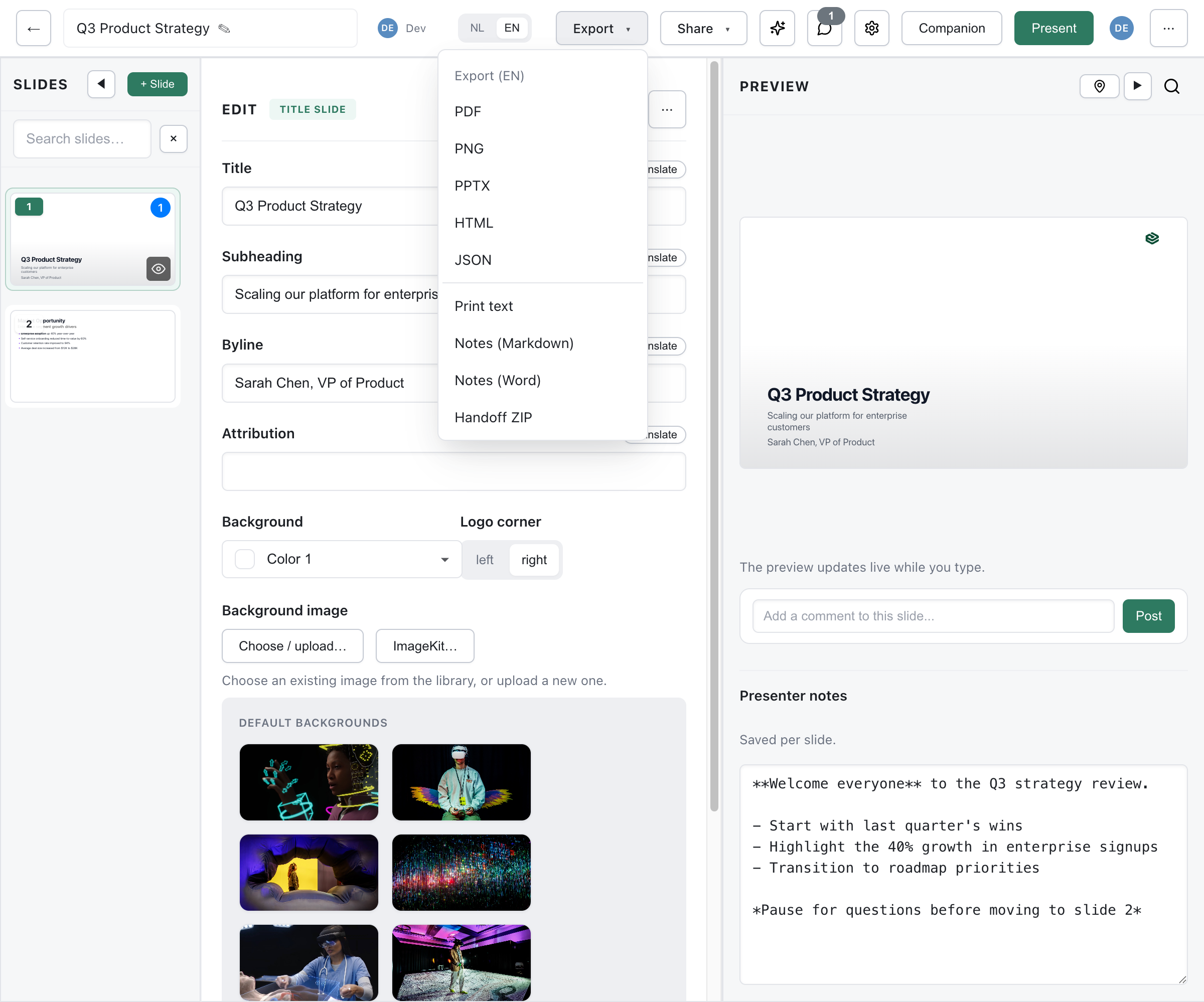
- Open your presentation in the editor
- Click Export in the top bar. On a narrow window the button moves into the ⋯ menu; the Public tab of the Share dialog also links to it
- Choose the language version at the top of the Export to file dialog, if the deck has more than one
- Click Export on the PowerPoint row under Slides
Deckyard builds the file on the server. A progress window counts the slides and has a Cancel button; when it is done, the browser downloads the file.
The row below it, PowerPoint, editable, makes a different file: see Editable PowerPoint.
What’s in the File
Section titled “What’s in the File”| Part | How it is exported |
|---|---|
| Slides | One PNG image per slide, filling the whole 16:9 slide |
| Text | Part of the slide image; not selectable or editable |
| Fonts | Rendered into the image, so no font substitution on the receiving end |
| Images and charts | Part of the slide image, including images linked from other websites |
| Speaker notes | Added as PowerPoint notes on each slide that has them |
| Video slides | Handled separately, see below |
| Follow-along invite slides | Left out: they only mean something during a live session |
| Animations, polls, Q&A | Not exported |
The slide images are rendered at twice the 1600 × 900 slide canvas (3200 × 1800 pixels). The export API accepts a scale parameter from 1 to 3 if you need a smaller or larger file; the dialog always uses the default.
Video Slides
Section titled “Video Slides”Video slides are the one slide type that is not turned into a picture:
- Bunny Stream videos are downloaded as MP4 (720p) and embedded in the slide, so they play in PowerPoint without an internet connection. This requires the server to have a Bunny pull zone configured (
BUNNY_PULLZONE) and MP4 fallback enabled in Bunny; videos over 200 MB are not embedded. - YouTube and Vimeo videos, and Bunny videos that could not be embedded, become a placeholder slide with the video title, a short explanation and a link to the video. Add the video yourself in PowerPoint if you need it to play.
The placeholder text is written in the language of the deck.
Editable PowerPoint
Section titled “Editable PowerPoint”PowerPoint, editable puts every slide on the theme’s PowerPoint layouts as text and pictures you can edit, as far as the slide type allows. A slide type without an editable form travels as an image, as in the export above. When that happens, Deckyard names those slides in a message after the download, for example “Slide 4 is an image: its type has no editable form yet.”
Use it when the recipient has to change the content in PowerPoint. The result follows the theme’s layouts rather than matching Deckyard pixel for pixel.
PPTX Template
Section titled “PPTX Template”A theme’s PowerPoint template is not in the export dialog. Download it from Settings > Themes: open the menu of a theme and choose Download PPTX template. It is an empty PowerPoint file with the theme’s backgrounds, fonts, text colours and logo applied to its layouts, without slides from any deck. Use it as a starting point for work that has to happen in PowerPoint; changing a layout in PowerPoint later does not restyle slides that already exist.
When to Use PowerPoint Export
Section titled “When to Use PowerPoint Export”- Presenting from a machine without Deckyard, such as a conference laptop that only runs PowerPoint. Because the slides are images, they look the same everywhere and need no fonts or network.
- Handing a deck to someone who works in PowerPoint, as a reference or to present from.
- Archiving a version in a widely readable format.
If the recipient needs to change the content, use Editable PowerPoint, give them access to the deck in Deckyard, or export JSON or a .deck bundle for a technical handover. For a copy that keeps the deck’s own navigation, use the HTML export.
Troubleshooting
Section titled “Troubleshooting”Text Cannot Be Edited
Section titled “Text Cannot Be Edited”This is expected in the PowerPoint export: every slide except video slides is an image. Edit the deck in Deckyard and export again, or use Editable PowerPoint.
Large File Size
Section titled “Large File Size”Every slide is a high-resolution image, and embedded Bunny videos add their full size. To reduce the file:
- Remove slides you do not need before exporting
- Use a lower
scalethrough the export API - Link to the video instead of embedding it
A Video Slide Shows a Placeholder
Section titled “A Video Slide Shows a Placeholder”YouTube and Vimeo videos are never embedded. For a Bunny video, the placeholder names the reason, for example a missing pull zone on the server or a download that failed. Ask your administrator to check the Bunny settings, or add the video in PowerPoint yourself.