

Ownership Transfer
Transfer ownership of a presentation to another team member.
Overview
Section titled “Overview”When you need to hand off a presentation to someone else, you can transfer ownership to a collaborator; you stay on as a collaborator with edit access.
When to Transfer Ownership
Section titled “When to Transfer Ownership”Common scenarios:
- Project handoff - Someone else is taking over
- Leaving the organization - Hand your decks over before your account is deleted; deleting a user does not move or remove their presentations
- Responsibility shift - New presenter or maintainer
Transferring Ownership
Section titled “Transferring Ownership”Requirements
Section titled “Requirements”- Only the current owner of the presentation can transfer it.
- The new owner must already be a collaborator on the presentation with edit or admin permission. Invite them first if they are not (see Sharing & Permissions).
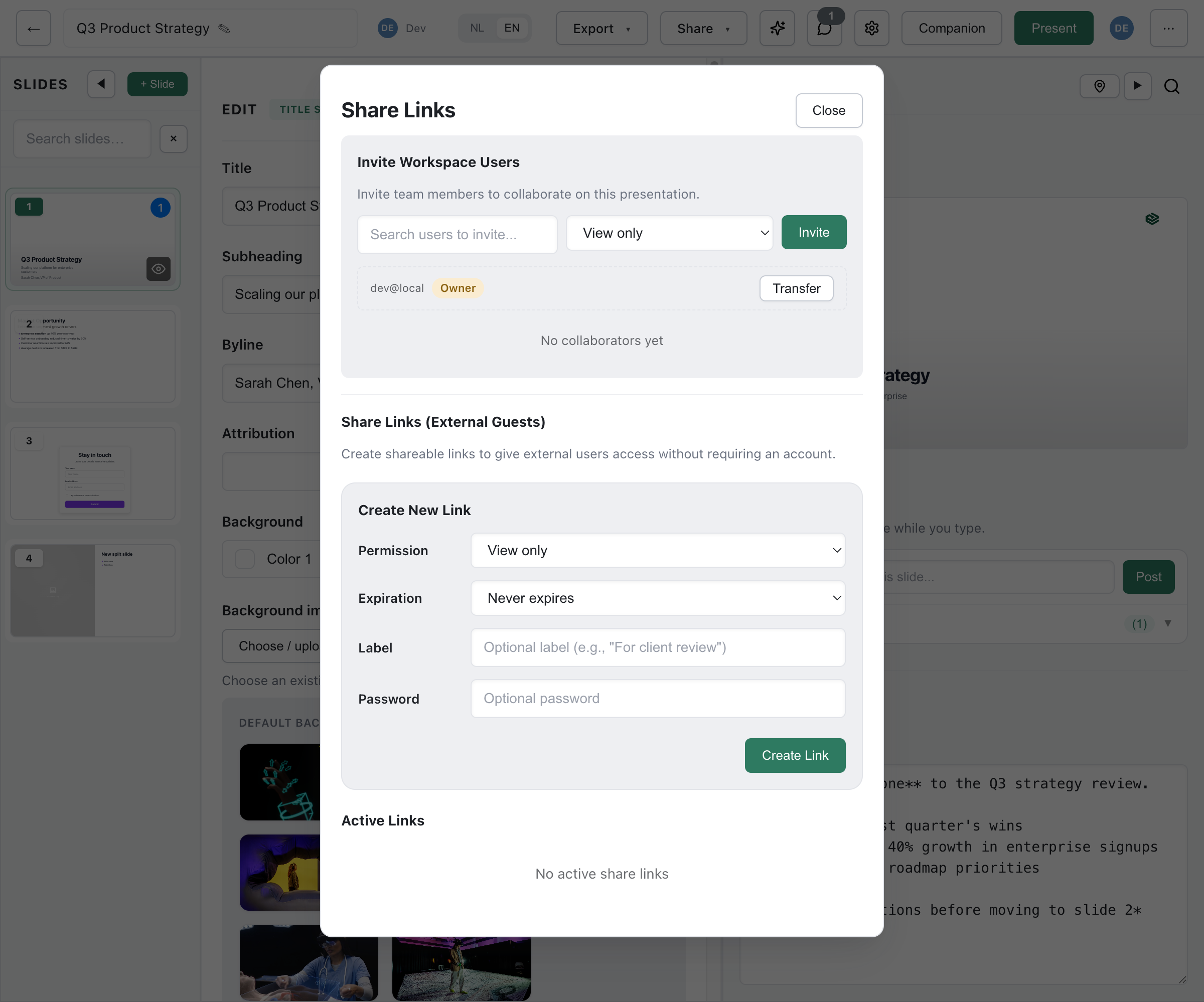
- Click Share in the editor toolbar; the Team tab opens
- In the collaborator list, click Transfer next to the owner
- Enter the email address of the new owner; the prompt lists the eligible collaborators. Click Continue
- Confirm with Transfer
What Changes
Section titled “What Changes”- The new owner becomes the owner of the presentation. If they were a collaborator, that entry is removed; they are the owner now.
- You stay on the presentation as a collaborator with edit access. The new owner can change or remove that afterwards.
- Other collaborators keep their permissions.
- Workspace visibility, publishing and share links stay as they were. A published deck keeps its public address.
- The transfer is recorded in the presentation’s activity.
Notification
Section titled “Notification”The new owner gets an in-app notification in the notification bell: “{your name} transferred ownership to you”, with “You are now the owner of “{title}”.” and a link to the presentation. No email is sent, and other collaborators are not notified.
After Transfer
Section titled “After Transfer”For the New Owner
Section titled “For the New Owner”The new owner can do everything an owner can:
- Edit, and manage collaborators and their permissions
- Publish or unpublish
- Change who in the workspace can find the deck
- Transfer it again
- Move it to the trash or delete it
For the Previous Owner
Section titled “For the Previous Owner”The previous owner is now an edit collaborator: they can keep editing, but can no longer manage collaborators, delete the deck or transfer it. In the presentation list, the deck appears under Shared, unless they created it; a deck you created stays under Mine.
There is no bulk transfer: each presentation is transferred on its own, by its owner.
The editor uses this endpoint of the app API (signed-in session, not an API key):
POST /api/presentations/{id}/transfer-ownershipContent-Type: application/json
{  "newOwnerEmail": "newowner@example.com",  "keepAsCollaborator": true}
keepAsCollaborator is optional and defaults to true; with false, the previous owner loses access. The editor always keeps you on.
Response
Section titled “Response”{ "ok": true, "presentation": { "id": "abc123", "...": "..." }, "previousOwner": "you@example.com", "newOwner": "newowner@example.com", "previousOwnerKeptAsCollaborator": true}The request fails with 403 if you are not the owner, and with 400 if the email is missing, is already the owner, or does not belong to a member of the organization.