

Image Library
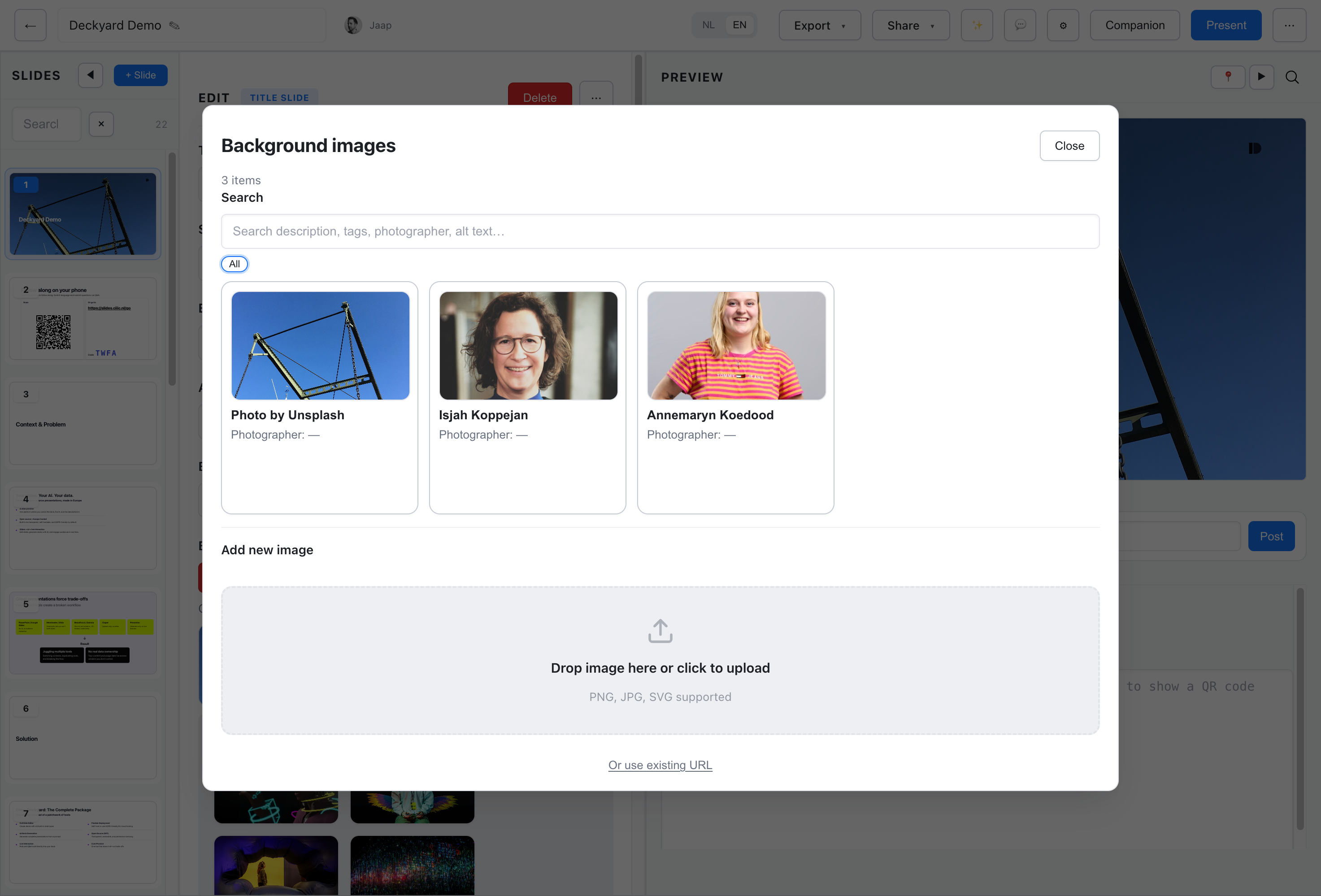
The image library is a shared collection of images for your organization. Everyone in the organization can pick from it, so an image uploaded once can be reused in any presentation.
Who Sees What
Section titled “Who Sees What”There is one image library per organization, and every member sees every image in it. There are no personal or team shelves and no folders. Favorites are personal: starring an image only affects your own Favorites.
Opening the Library
Section titled “Opening the Library”Click Choose / upload… on any image field, or change an image directly on the slide. If your instance offers more than one image source, you first see Choose image source:
| Source | What it offers |
|---|---|
| Image library | Uploaded images, plus Unsplash and Giphy when enabled |
| Gradients | Built-in gradient backgrounds (an admin setting) |
| ImageKit | Your organization’s photo archive, when ImageKit is configured; picks are copied into Deckyard |
With only the image library enabled, it opens directly.
Adding Images
Section titled “Adding Images”At the top of the library you can drop an image, click to upload one, or paste an Image URL.
After an upload you can fill in details before deciding what to do with it:
- Description (internal, used in search)
- Tags
- Photographer
- Alt text for each language of the presentation, with Generate alt text (AI) when AI alt text is available
Then choose Save to library to keep it for everyone, or Use without saving to put it on this slide only.
Images picked from Unsplash or Giphy are downloaded and added to the library automatically, with the photographer filled in.
Formats and size
Section titled “Formats and size”- Supported formats: PNG, JPEG, GIF, WebP and SVG.
- Maximum file size: 10 MB with local storage, 20 MB with S3-compatible storage. These limits are fixed.
- With local storage, PNG, JPEG and WebP images larger than 3840×2160 are scaled down and recompressed on upload. GIF and SVG files are stored as they are.
Finding Images
Section titled “Finding Images”The library’s sidebar groups images into:
- Recent: the 20 most recently added images
- Favorites: images you starred
- Your Media: images you uploaded
- All Media
- Logos and Icons: images whose tags mention a logo or an icon
- Unsplash and Giphy, when enabled
- Tags: the most-used tags, as one-click filters
The search box matches the description, photographer, tags, alt text and the image’s address (which contains the file name). Images are always listed newest first.
Each card shows the image, its description, the photographer, its tags and a star for favorites.
Using and Managing an Image
Section titled “Using and Managing an Image”Click an image to open its details. From there:
- Use this image puts it in the field you came from. If the image has no alt text for the presentation’s language, Deckyard asks first and offers to generate it.
- Edit the description, tags, photographer and alt text, then Save. Any signed-in member can do this.
- Replace file swaps the file while keeping the same address, so every slide that uses it shows the new version. This works for images in local storage.
- Where is this used? lists the presentations that use the image, with links to the editor and the public version.
- Delete is available to organization admins. It removes the image from the library only: the file stays in storage and slides that already use it keep working.
Images on Slides
Section titled “Images on Slides”Once an image is on a slide, the slide controls how it is shown. A few common cases:
- Image slide: fills the slide; choose whether it covers or fits.
- Image blocks: crop the images to a square or keep their original proportions, and show them rounded, square or as a circle.
- Background image: every slide type can have one, with fill or fit, an overlay and a text color.
For cropped images, set the focus point to choose which part stays visible: drag the point on the image, or pick a position in the image settings.
Always give meaningful images alt text; see AI alt text for how to write it and when the AI can help.
Storage
Section titled “Storage”Where uploaded files live depends on how your instance is set up:
- Local storage (default): a single folder,
server/uploads/unlessUPLOADS_DIRpoints elsewhere. Files get a unique name based on the original file name. - S3-compatible storage: used when the
S3_*variables are set. Unsplash and Giphy downloads are still stored locally.
The library itself (descriptions, tags, alt text) is stored in the database. An admin can switch the library off with IMAGE_LIBRARY_ENABLED=false; see Environment variables and Media Services.