Version History
Keep track of changes and restore previous versions of your presentations.
Overview
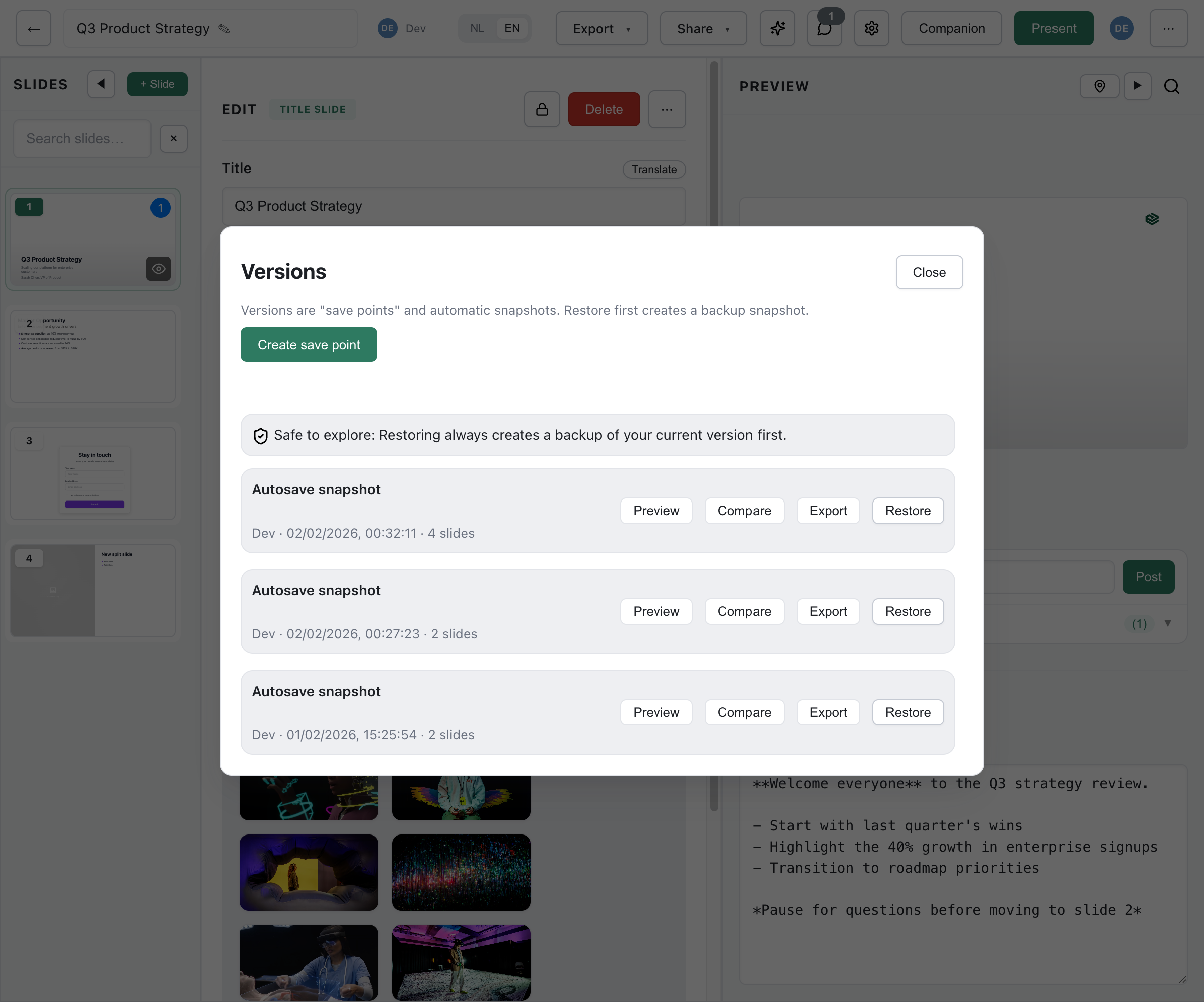
Section titled “Overview”Deckyard automatically saves version history, allowing you to review changes and restore earlier versions when needed.

Viewing Version History
Section titled “Viewing Version History”Access the version history for any presentation:
- Open the presentation
- Click File > Version History (or press
Ctrl/Cmd + Shift + H) - The version history panel opens
History Panel
Section titled “History Panel”The panel shows:
- Timeline - Chronological list of versions
- Author - Who made the changes
- Timestamp - When changes were made
- Summary - Description of what changed
Previewing a Version
Section titled “Previewing a Version”Click on any version to preview:
- See the presentation as it was at that point
- Navigate through all slides
- Compare with the current version
Automatic Snapshots
Section titled “Automatic Snapshots”Deckyard automatically creates snapshots as you work, using a smart system that captures your work without creating unnecessary clutter.
When Snapshots Are Created
Section titled “When Snapshots Are Created”- Session end - When you stop editing for 5 minutes, or close the tab
- Safety net - Once every 30 minutes during active editing (crash recovery)
- Before restore - Automatically before restoring an older version
- Before publishing - Automatically before each publish
This session-based approach means you get a snapshot capturing each editing session’s work, plus periodic safety backups during long sessions.
Snapshot Retention
Section titled “Snapshot Retention”Snapshots are retained using tiered retention:
- Last 24 hours - All snapshots kept
- Days 1-7 - Best snapshot per day (prefers session-end over auto-save)
- Weeks 1-4 - Best snapshot per week
- Older than 4 weeks - Automatically removed
Manual save points and labeled snapshots are never automatically deleted, regardless of age.
Viewing All Snapshots
Section titled “Viewing All Snapshots”By default, only significant versions show. To see all:
- Open version history
- Toggle Show all snapshots
Manual Save Points
Section titled “Manual Save Points”Create named save points for important milestones.
Creating a Save Point
Section titled “Creating a Save Point”- Click File > Create Save Point
- Enter a descriptive name (e.g., “Before client review”)
- Optionally add a note
- Click Save
Save Point Features
Section titled “Save Point Features”Manual save points:
- Have custom names for easy identification
- Are never automatically deleted (exempt from retention rules)
- Appear prominently in version history
- Can include descriptive labels
Recommended Save Points
Section titled “Recommended Save Points”Create save points:
- Before major revisions
- After completing a section
- Before sharing for review
- Before publishing
- At project milestones
Restoring Previous Versions
Section titled “Restoring Previous Versions”Full Restore
Section titled “Full Restore”To restore a complete version:
- Open version history
- Select the version you want
- Click Restore This Version
- Confirm the action
What happens:
- Current state is saved as a new version (safety backup)
- Selected version becomes the current presentation
- All collaborators see the restored version
Partial Restore
Section titled “Partial Restore”To restore only specific slides:
- Preview the version you want
- Click Copy Slides
- Select which slides to copy
- Choose where to insert them
- Confirm
This keeps your current work while bringing back specific content.
Comparing Versions
Section titled “Comparing Versions”Side-by-Side Comparison
Section titled “Side-by-Side Comparison”Compare two versions:
- Select the first version
- Hold
Shiftand click the second version - Click Compare
Difference View
Section titled “Difference View”The comparison highlights:
- Green - Added content
- Red - Removed content
- Yellow - Modified content
Navigation
Section titled “Navigation”- Use arrows to jump between changes
- Counter shows total number of differences
- Click any change to see details
Activity Log
Section titled “Activity Log”Beyond versions, see all activity:
What’s Logged
Section titled “What’s Logged”- Edits and saves
- Collaborator access
- Comments added/resolved
- Export operations
- Publish events
- Permission changes
Viewing Activity
Section titled “Viewing Activity”- Click File > Activity Log
- Filter by activity type
- Filter by user
- Filter by date range
Storage and Limits
Section titled “Storage and Limits”Version Storage
Section titled “Version Storage”Version history uses storage:
- Full copies for named versions
- Efficient diffs for auto-snapshots
- Media is deduplicated across versions
Managing Space
Section titled “Managing Space”If you need to reduce storage:
- Delete old manual versions you no longer need
- Auto-snapshots clean up automatically
- Contact admin if you need more space